Futures Trade Copier: How to Connect Multiple Accounts
Plan futures copying across Tradovate and NinjaTrader accounts. Check exact contracts, expiry, whole-contract sizing, trade updates and receiver logs.

By Tom Lin, Head of IT Published · 4 min read
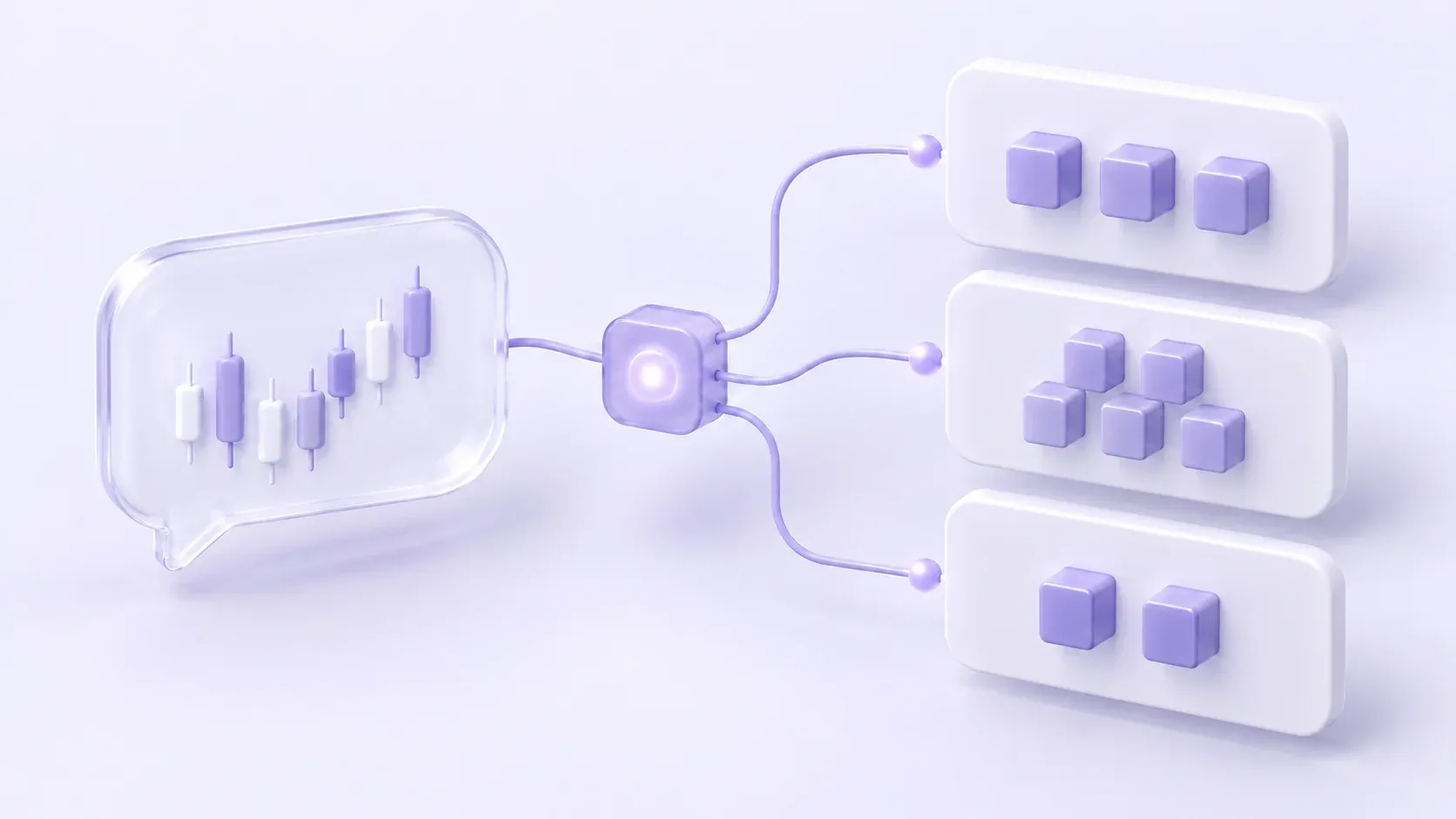
A futures trade copier routes instructions from a source to separate receiving accounts. A workable setup needs more than matching symbols: identify the exact contract and expiry, choose each receiver’s whole-contract quantity and verify entries, changes and exits. Each account keeps its own positions, margin requirements and provider limits.
Copygram supports Tradovate and NinjaTrader source workflows. This guide helps you plan a multi-account setup; use the route pages for the connection you intend to run.
Confirm that the accounts are actually distinct
Make a list of account identifiers, connection types and demo or live environments. Two platform screens can sometimes provide access to the same underlying account. Seeing that account in both interfaces does not mean you have two accounts to connect as source and receiver.
Record one source and each separate receiver before creating a Room. Confirm that your account provider permits copying, including the relevant evaluation or funded stage. Software compatibility does not grant permission under a provider’s rules.
Choose the source-to-receiver route
| Your intended workflow | Copygram route guide |
|---|---|
| Tradovate source to separate Tradovate accounts | Tradovate to Tradovate |
| NinjaTrader source to separate NinjaTrader accounts | NinjaTrader to NinjaTrader |
| Tradovate source to NinjaTrader receivers | Tradovate to NinjaTrader |
| NinjaTrader source to Tradovate receivers | NinjaTrader to Tradovate |
A platform name is not a guarantee that every connection type or broker account is supported. Check your actual login environment against the platform connection documentation. Do not infer that a different data connection is supported merely because it can be used inside the same desktop application.
If you only need simultaneous order entry within one platform’s eligible accounts, also check that platform’s own group-trading feature. For example, NinjaTrader documents Group Trade for its web app. Group order entry and copying activity from a separate source are workflows to compare against your needs, not interchangeable labels.
Match contract, expiry and quantity separately
The contract root identifies a family, such as ES or MES. The full instrument identifies the tradable contract and its expiry. Record the exact source and receiver identifiers from the connected platforms rather than assuming that a chart’s continuous symbol is the executable contract.
When a source moves to a new expiry, recheck both sides of the mapping and the receiver quantity. Do not assume that an old mapping rolls automatically. Verify the available trading session and any provider-specific restrictions at the same time.
ES and MES illustrate why quantity matters
CME specifies a $50-per-index-point multiplier for ES and $5 per index point for MES. The following is contract-value arithmetic, not a trade recommendation or a default Copygram conversion rule. See CME’s E-mini and Micro E-mini comparison.
| Contract and quantity | Dollar change for a one-point move, before costs |
|---|---|
| 1 ES | $50 |
| 1 MES | $5 |
| 10 MES | $50 |
Mapping an ES symbol to MES does not, by itself, decide how many MES contracts the receiver should request. Equal dollar movement per point also does not imply equal commission, margin usage, liquidity or fills. Set and verify each receiver’s quantity independently.
Build a simple Room first
- Connect the supported source account and one separate receiver using their correct account environments.
- Create a Room, choose the source and add the receiver.
- Match the exact contract and expiry, then configure the receiver quantity and any symbol-specific override.
- Review SL/TP handling, Copy Close Orders, Copy Modif Orders, instrument filters and the trading schedule.
- Activate a permitted demo workflow and verify an entry, a modification and a close before adding more receivers.
A Room has one source. Use another Room for another source, and review combined activity if the same account receives instructions from both. Separate Rooms do not create separate positions or loss allowances inside the receiving account.
Plan partial exits in whole contracts
A receiver holding one futures contract cannot reduce its position by half a contract. A receiver with two contracts can reduce by one, but the copier’s requested action and the platform’s accepted result still need checking.
Do not assume a percentage-based exit will produce the quantity you intend for every receiver. Test the required partial-close behavior for the actual account, contract and settings. Treat order-management features such as platform-specific brackets or ATM workflows as separate compatibility questions rather than assuming a copied entry reproduces an entire local strategy.
Use an account worksheet before expanding
| Record for every account | Reason |
|---|---|
| Account identifier and demo/live environment | Avoid connecting the wrong account or confusing two interfaces with two accounts. |
| Source or receiver role | Make the copying direction explicit. |
| Exact contract and expiry | Prevent a symbol or contract-month mismatch. |
| Whole-contract quantity and overrides | Explain what that receiver should request. |
| Provider limits and permitted activity | Keep account-specific requirements visible. |
| Entry, modification and close test results | Check the lifecycle rather than only the first entry. |
The nominal sizes displayed on several funded accounts do not form a shared loss buffer. Monitor each account’s actual rules and positions. Read the funded-account copying guide if your setup includes prop-firm accounts.
Diagnose a receiver that differs
Compare the source order, Copygram Signal Logs and receiving-platform record. No source instruction in the Room calls for a different investigation from a receiver rejection after an instruction was recorded.
For a rejection, keep the exact error, contract identifier, requested quantity and time. Check connection status, platform permissions, trading hours, instrument availability and account conditions. For a missing modification or close, review the applicable receiver controls and the logged action. A successful result on one receiver is not evidence that every other receiver matched it.
Futures copier questions
Can all receiving accounts use different quantities?
Copygram receivers have independent settings. Configure whole-contract quantities appropriate to each receiving instrument, then verify the accepted order. Symbol-specific overrides can take precedence over the general sizing rule.
Does pausing the Room flatten all futures accounts?
Do not treat pausing as evidence that existing positions are closed. Inspect and manage each account’s open positions separately. Confirm the actual platform state before ending your session.
Will my accounts receive the same fill price?
Not necessarily. Receiver conditions, timing, liquidity and order handling can differ. A copier does not guarantee identical prices or results across accounts.
Choose the plan for your account map
Compare your complete source-and-receiver arrangement with the current Copygram plans. If your account connection is unclear, ask support before purchasing. When the route fits, create your Copygram account and follow the first-Room setup guide.