Connect Copygram to ChatGPT, Claude and Gemini CLI with MCP
Connect ChatGPT, Claude or Gemini CLI to Copygram with MCP. Follow OAuth setup, verify your Rooms and review trading account settings with practical prompts.

By Tom Lin, Head of IT Updated · 6 min read

To connect ChatGPT, Claude or Gemini CLI to Copygram, add https://platform.copygram.app/mcp as a remote MCP server, sign in to Copygram and approve the connection. Start by asking the assistant to list your accounts and Rooms without making changes. Once that works, you can review receiver settings and manage your copying workflow from chat.
MCP stands for Model Context Protocol: it gives an assistant access to tools exposed by a connected service. In Copygram, those tools cover Rooms, receivers, settings and logs, plus trade instructions for an AI Agent Room. This guide explains the connection and first checks; the AI trading agents overview covers the feature and use cases.
Before you connect
- A Copygram account and plan. MCP is included in every Copygram plan with no additional Copygram fee. Your existing account allowance and feature limits still apply.
- An assistant or client that supports a remote MCP server and OAuth sign-in. Availability depends on the assistant’s plan, version and workspace permissions.
- For account-specific checks, connect your trading account in Copygram first. Enter broker credentials in Copygram’s connection flow, not in an assistant conversation.
- A clear first task, such as reviewing Room status. You do not need to activate a Room or place a trade to check that the connection works.
1. Copy the Copygram MCP server URL
Open the Copygram AI Agents documentation and use Copy MCP URL. The server address is:
https://platform.copygram.app/mcp
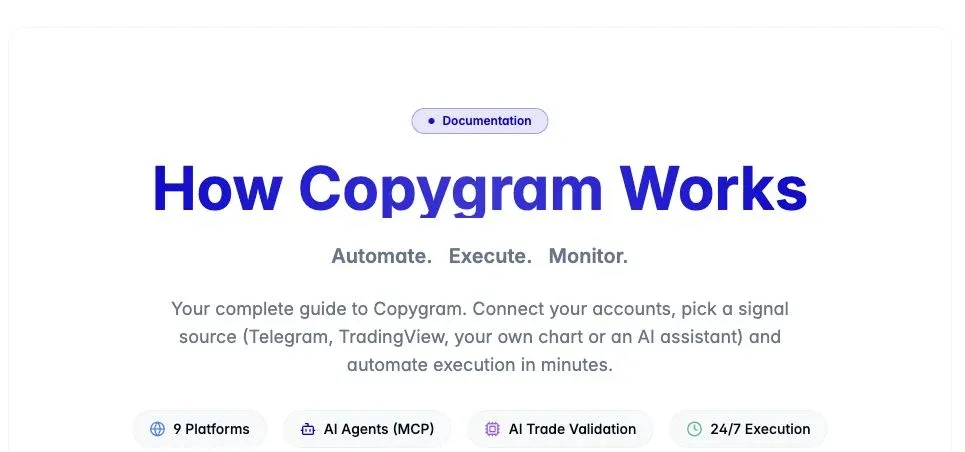
Screenshot of Copygram’s public documentation, captured 10 October 2026. It shows where to find the connection URL, not a connected customer account or a completed trade.
Use the MCP endpoint rather than the documentation page or a TradingView webhook URL. Copygram uses OAuth: the assistant directs you to a Copygram sign-in and access-approval screen. There is no Copygram API key to paste into this setup.
2. Connect your preferred AI assistant
The paths below were checked against the client providers’ documentation on 10 October 2026. Menus can change, and an organization may restrict custom connectors. Use the relevant provider guide if your interface differs.
Connect ChatGPT to Copygram
- In ChatGPT on the web, open Plugins. Select the plus button, then Add custom MCP server.
- Name the connection Copygram. Enter https://platform.copygram.app/mcp as the Server URL and configure OAuth authentication.
- Review the requested access and warning, then create the plugin. Complete Copygram sign-in and approve access when prompted.
- Install the resulting plugin, then select it with @ in a conversation. Run the read-only check below.
Workspace permissions can affect availability. Follow OpenAI’s custom MCP server guide for the current plugin and authentication controls.
Connect Claude to Copygram
- On an eligible individual Claude plan, open Customize → Connectors → + Add → Add custom connector.
- Name it Copygram, enter https://platform.copygram.app/mcp and continue. Review the detected authentication settings and choose a sign-in option for OAuth.
- Complete the connector setup and sign in to Copygram when prompted. Review and approve its requested access.
- Enable Copygram for the conversation from the + menu’s Connectors option, then run the read-only check below.
For a managed workspace, an owner may need to add the connector first. See Claude’s remote MCP connector instructions for plan and organization-specific steps.
Connect Gemini CLI to Copygram
These instructions are for Gemini CLI, the command-line client. They do not describe the consumer Gemini chat app. With Gemini CLI installed, add the remote HTTP server from your terminal:
gemini mcp add --transport http --scope user copygram https://platform.copygram.app/mcp
Start Gemini CLI, then authenticate the configured server:
/mcp auth copygram
Complete Copygram’s browser sign-in and access approval. Use /mcp list to inspect the connection, then ask for the read-only check below. These commands follow the Gemini CLI MCP documentation; they were not executed against a trading account for this article.
3. Verify access without changing your accounts
Try this first prompt in your connected assistant:
“Use Copygram to list my Rooms and connected accounts. For each Room, show its name, status, signal source and receivers. Read only: do not create, activate, pause, edit or trade.”
Compare the returned names and statuses with your Copygram dashboard. Check the tool result as well as the assistant’s summary. If it returns no Rooms, verify that you authorized the intended Copygram account; an account without Rooms can also be a valid result.
A useful success check is that the assistant calls the Copygram tools and returns the records you expect. A generic explanation of copy trading does not prove that the connector is working.
4. Use AI to review your copying setup
You can manage existing Telegram, webhook or platform-source Rooms through MCP. A Room connects one signal source to one or more receiving accounts. Managing a Room through an assistant does not require replacing its current signal source with AI Agent.
Review receiver settings
“Read the receiver settings in my Room [Room name]. Summarize position sizing, stop-loss and take-profit rules, symbol mapping and schedule for each receiver. Make no changes.”
Use this when accounts in the same Room need different settings. Compare the output with the dashboard and account requirements. A receiver can apply its own sizing method and symbol exceptions, so the quantity written in a signal is not necessarily the final order quantity.
Investigate a skipped signal
“Read the recent logs for [Room name]. Show which receivers executed or skipped each signal and the recorded reasons. Do not retry signals or change settings.”
Ask for the recorded reason rather than a guess. Connection status, schedules, filters, instrument names and order-size requirements can all matter. For Telegram sources, keep one Room per channel; see the multiple Telegram channels guide.
Prepare a change for review
“Read [Room name] and propose how to add my connected account [account name] as a receiver. Show the account identifier and proposed settings. Do not apply anything until I confirm.”
Review the actual tool inputs before approving a change. Confirmation behavior depends on the client and its permissions; a prompt alone is not an access restriction. Avoid blanket approval for tools that change accounts or submit trades.
5. When you need an AI Agent Room
Use an AI Agent Room when you want the assistant itself to submit trade instructions. In Copygram, create a Room, open its sender card and choose Select Signal Source → AI Agent. Add the intended receivers and review their settings. Keep it paused while checking the setup; activate it only when you intend to accept instructions.
For this workflow, Copygram checks that the Room belongs to you, is active and uses the AI Agent source. Each receiver then applies its own settings. Review the Room’s signal log and each receiving account’s result; a tool response or parsed instruction is not proof that every receiver filled an order.
For later modifications or closes, identify the original signal rather than relying on a vague reference such as “the last trade.” Copygram returns a signal ID for a new instruction. Keep that context or ask the assistant to look up the correct record before proposing an action.
Can this connect ChatGPT to MT4 or MT5?
Yes, through Copygram’s connected MetaTrader accounts and Room workflow. The assistant connects to Copygram’s MCP server; Copygram manages its hosted MT4/MT5 connection and routes eligible instructions to the receivers you configured. This guide does not require installing a local MetaTrader MCP server.
Start with the MetaTrader trade copier guide for the account connection, or the multiple MT4/MT5 accounts tutorial to plan receivers. Check the integration directory for other supported platforms and their setup requirements.
Troubleshoot a connection that is not working
- The custom connector option is missing: check your assistant plan and workspace permissions. In Gemini, confirm you are using Gemini CLI.
- Authentication fails: recheck the MCP URL, choose OAuth sign-in and confirm the correct Copygram login. Do not substitute a broker password or webhook secret.
- The assistant answers without calling Copygram: select or enable the connector in that conversation and explicitly ask it to use Copygram’s tools.
- The account or Room is missing: compare the signed-in Copygram account and dashboard. Refresh or reconnect the assistant if its authorization is stale.
- A trade instruction is rejected: inspect the Room’s source and active status, then the receiver settings and execution logs. Do not repeatedly resubmit an instruction without checking whether it already executed.
What the connection does—and what still needs you
MCP makes Copygram operations available in a conversation. It does not supply a profitable strategy, guarantee a fill or make an assistant continuously monitor your accounts. Scheduled work needs a client or agent runtime that actually supports and runs it; asking once in a normal chat is not a running schedule.
Disconnect Copygram in the assistant when you no longer want it available there. Manage active Rooms and open positions separately in Copygram and your trading platform; disconnecting a chat client is not an instruction to close positions.
Ready to connect? Review Copygram plans, create or open your account and begin with the read-only Room check. MCP is included across Copygram plans, and your plan’s account and feature limits continue to apply.