
TRADOVATE → NINJATRADER
How does Tradovate-to-NinjaTrader copying work?
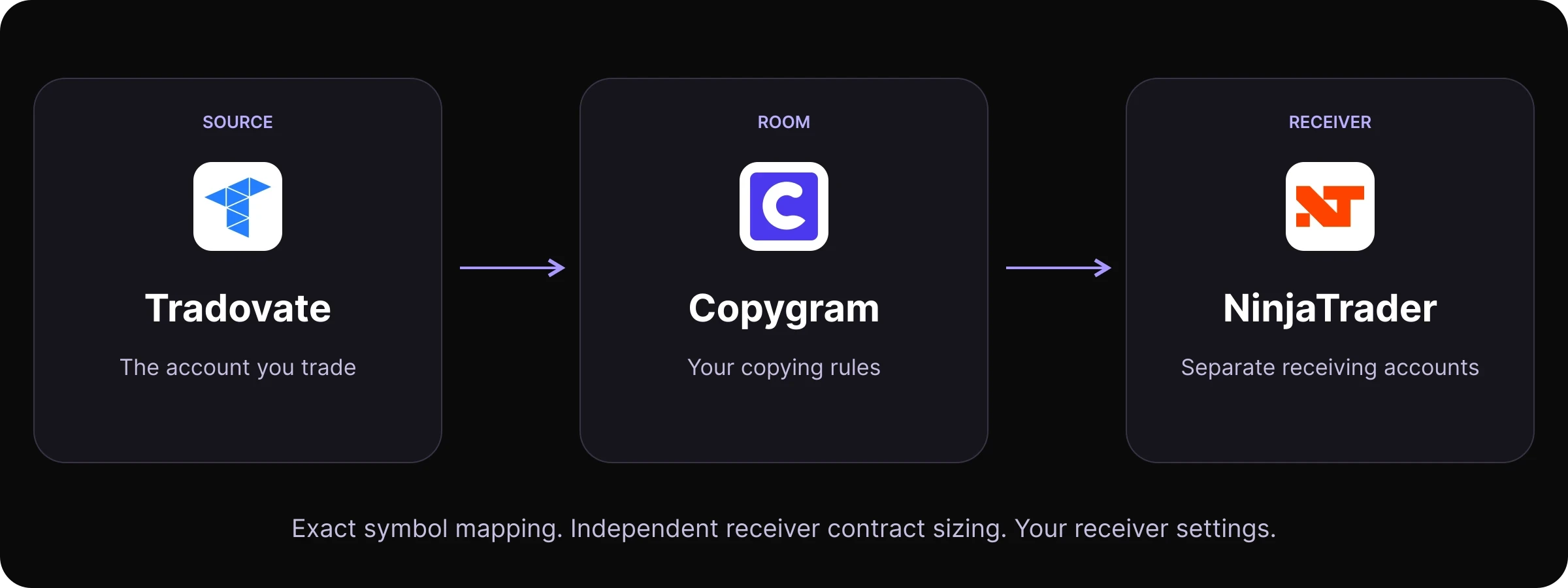
A Tradovate to NinjaTrader trade copier uses activity from a connected Tradovate source to create corresponding trades on separate NinjaTrader accounts. A Copygram room links those accounts and applies each receiver’s contract mapping, quantity and trade-management settings.
Tradovate supplies the source trades
Choose the connected account whose trades you want to copy. Its activity provides the instructions for your room.
Copygram applies the receiver rules
The room defines the copying direction. Each receiver has its own instruments, quantities, filters and trade-management settings.
NinjaTrader receives the copied activity
Select the separate receiving account. Its orders, positions and balance stay specific to that account.
CLEAR ACCOUNT ROLES
One Tradovate source. Independent NinjaTrader receivers.
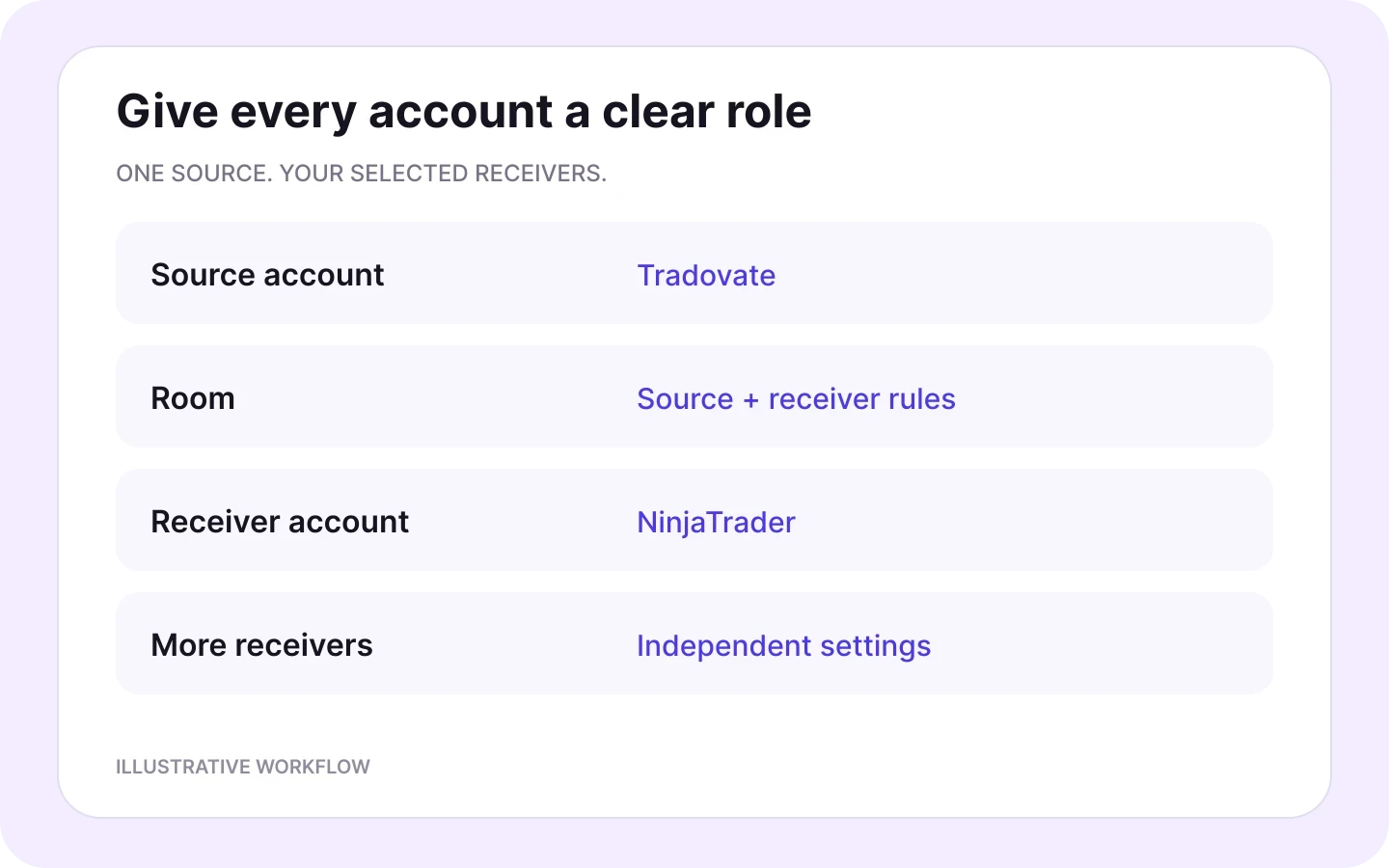
Give every account a clear role. Copy from the account you trade to separate receivers, each with its own futures contract and quantity.
Tradovate source
Select the exact account whose trades drive the room. Use its name, account identifier and demo or live environment to identify it.
NinjaTrader receiver A
Choose the receiving contract and set its quantity. An illustrative setting of one whole contract shows how a receiver can follow its own size.
NinjaTrader receiver B
Add another separate receiving account with its own quantity, such as two whole contracts, and independent trade-management settings.
The one- and two-contract quantities are illustrative settings. Choose your own receiver quantities and count the source plus every connected receiver in your plan allowance. NinjaTrader documents shared login access for Tradovate customers; this copying room connects distinct account identifiers.
QUICK START
How to copy trades from Tradovate to NinjaTrader
Connect your source, add your receivers, configure their rules and activate your Copygram room.
In Copygram, add a trading account and select Tradovate. Enter your Tradovate username and password; the Device ID is generated automatically. Select the source account and give the connection a recognizable name.


Add a trading account and choose NinjaTrader. Enter your NinjaTrader username and password; the Device ID is generated automatically. Select the separate account that will receive the copied trades.
Set Tradovate as the source and NinjaTrader as the receiver. Add more receiving accounts and configure each one independently. A room has one source; use separate rooms for separate sources.
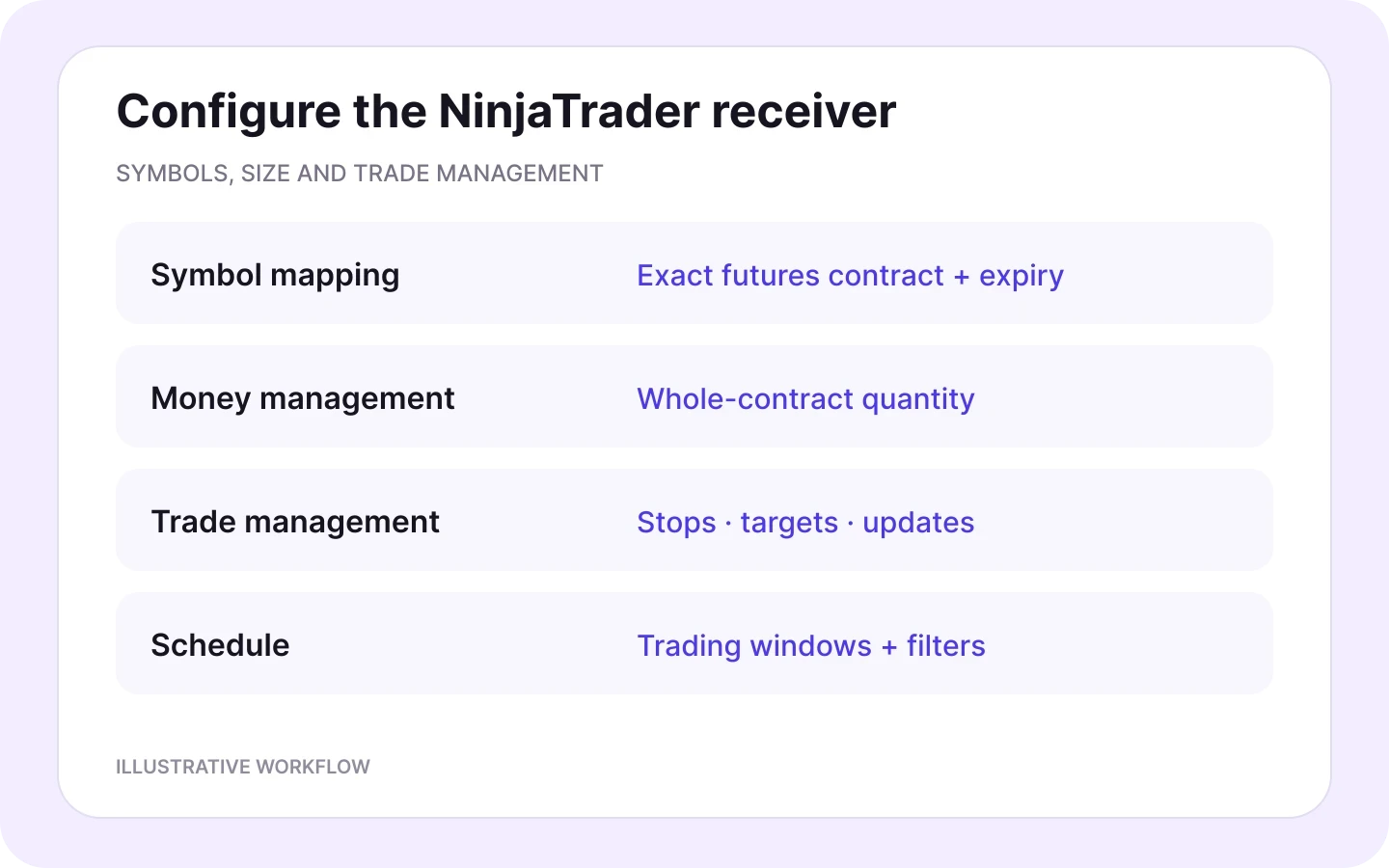
Map the exact contract and expiry. Set whole-contract quantities and Symbol Lot Exceptions. Configure stops, targets, Copy Close Orders and Copy Modif Orders, then choose your instrument filters and trading schedule.
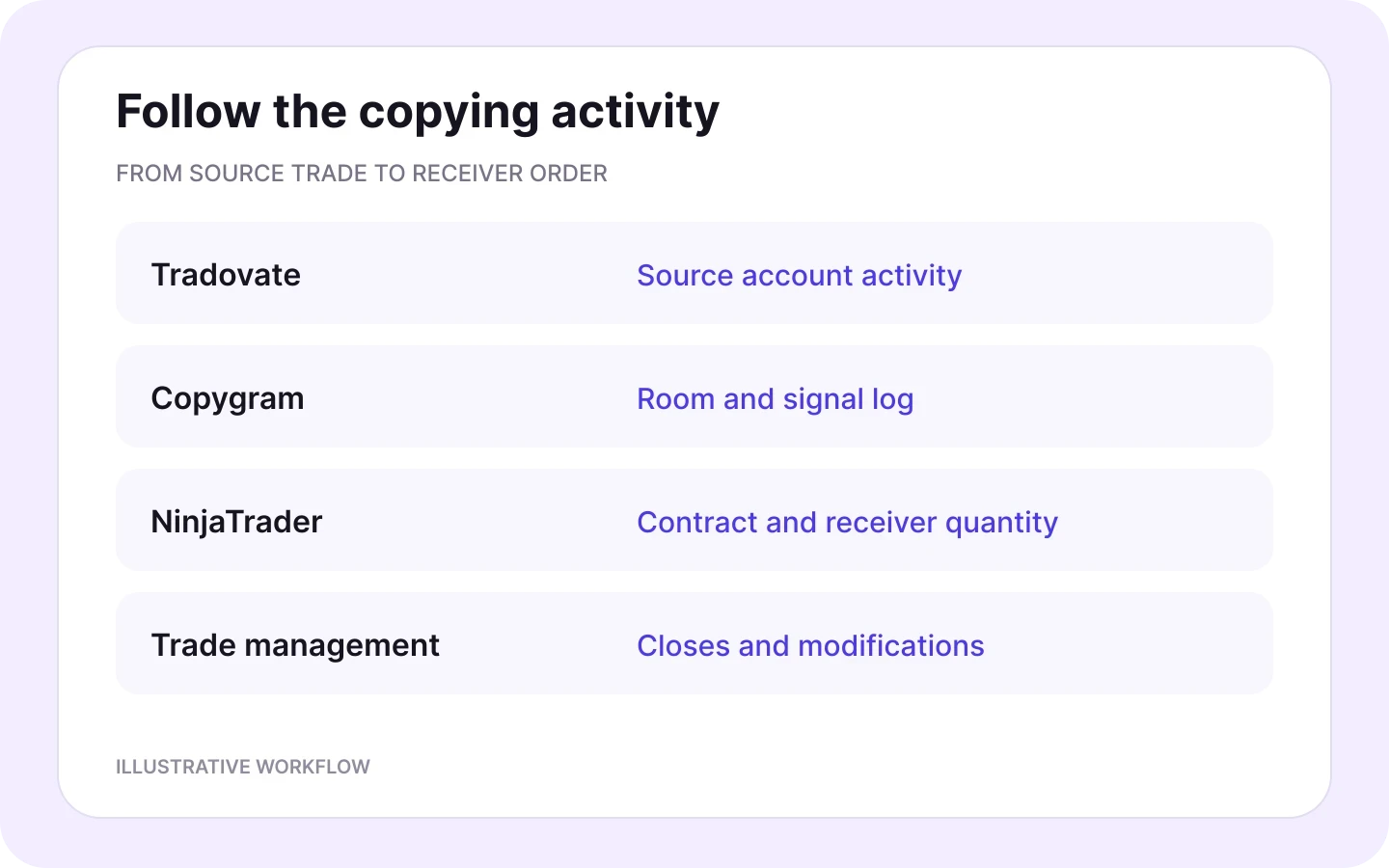
Activate your room to start copying. Follow Tradovate source activity through the Copygram signal log to NinjaTrader orders and positions. Manage demo and live receivers with a clear view of each account’s rules.
FUTURES CONTRACT MAPPING
Map the exact futures contract and expiry
Define the instrument your source trades and the receiving contract NinjaTrader should follow. Configure quantity separately from the symbol mapping.
Tradovate source contract
Use the full contract identifier and expiry reported by the source connection. A root such as ES or NQ identifies the contract family; include its contract month.
NinjaTrader receiving contract
Select the same futures contract and month, or map an E-mini to a Micro contract, such as ES to MES or NQ to MNQ.
Receiver quantity and rules
Set the whole number of contracts and trade-management settings for that receiver. Each NinjaTrader account has its own configuration.
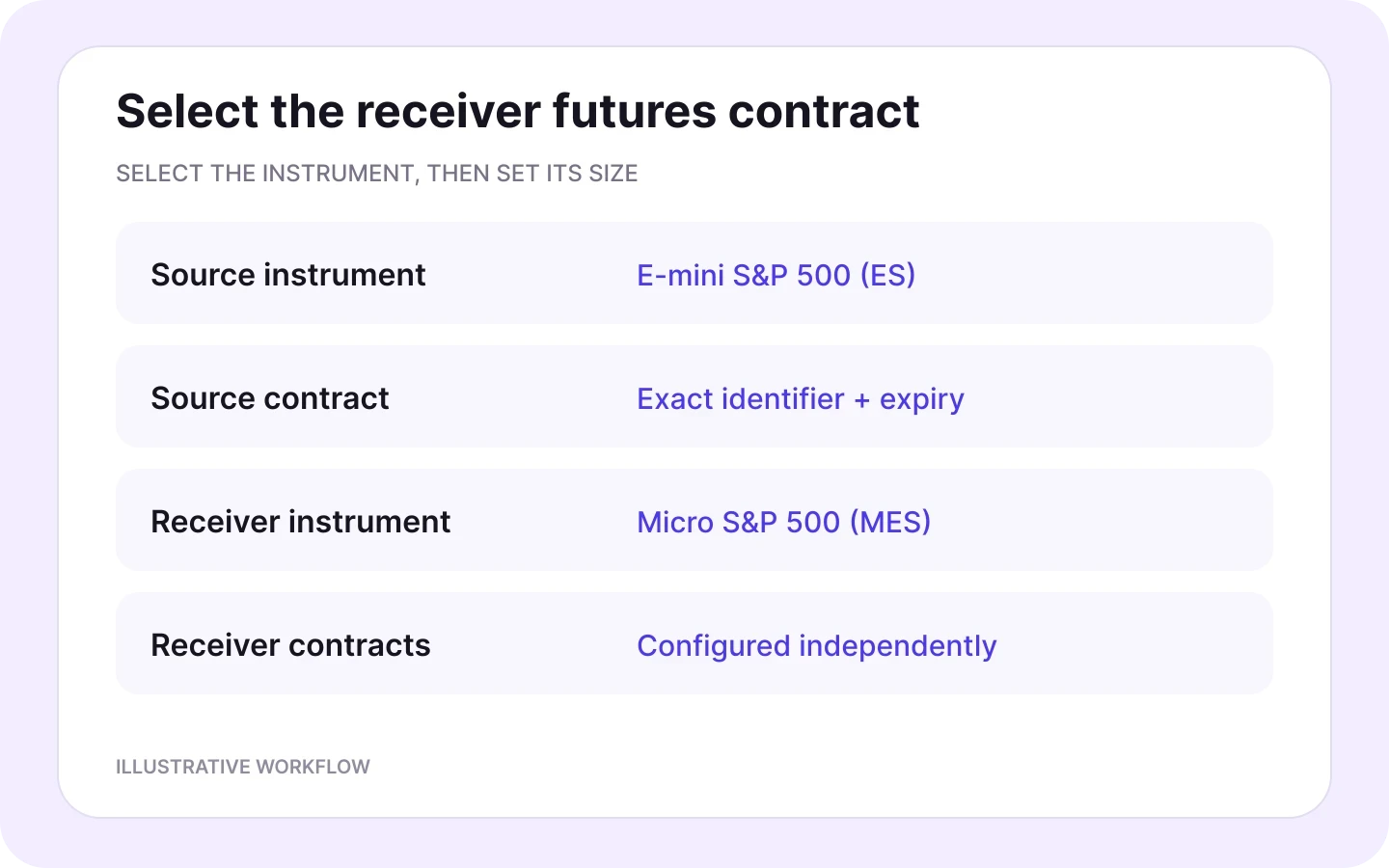
When your Tradovate source rolls to a new expiry, update the exact source and receiving contract identifiers. Keep the NinjaTrader quantity and trade-management settings aligned with the selected contract.
INDEPENDENT CONTRACT SIZING
Set NinjaTrader quantities with the contract in mind
Futures contract selection and quantity work together. Define the whole-contract size for each receiving account.
E-mini and Micro contract values
ES $50 · MES $5 / point
CME specifies $50 per index point for one E-mini S&P 500 contract and $5 per point for one Micro E-mini S&P 500 contract. Contract selection and quantity work together.
Your NinjaTrader receiver quantity
Set whole-contract sizes
Set whole-contract quantities independently for each receiving account. Symbol Lot Exceptions apply instrument-specific sizing and take priority over the general money-management rule.
Ten MES contracts have the same aggregate dollar value per index point as one ES contract. This is a contract-value comparison, not a preset copying ratio or a sizing recommendation. Plan partial exits in whole contracts: for example, two contracts can be allocated as one contract to each of two targets.
RECEIVER CONTROLS
Decide how NinjaTrader follows your Tradovate trades
Configure the instruments, quantities and trade-management rules for every receiver. Keep the controls in one Copygram room.
Money management
Define the whole-contract quantity independently for every NinjaTrader receiver.
Symbol exceptions
Apply instrument-specific sizing rules that take priority over the default.
Mapping & filters
Match source and destination symbols, and choose which instruments the receiver follows.
Stops & targets
Configure stop-loss and take-profit settings for the receiving futures contract.
Copy Close Orders
Choose whether the receiver follows source closing actions or uses your own exit management.
Copy Modif Orders
Control whether the receiver follows source trade modifications.
Trading schedules
Set the receiver’s trading windows using your schedule timezone and market hours.
Signal logs
Follow recorded actions and status alongside your NinjaTrader orders and positions.
CLEAR ACCOUNT ACTIVITY
Follow Tradovate activity through to NinjaTrader
View the source trade, the Copygram action and the receiving account’s orders and positions.
Tradovate source
View the account, futures contract and activity that generated the trade.
Copygram signal log
Follow the recorded action and status for your NinjaTrader receiver.
NinjaTrader orders
View the receiving futures contract, direction, quantity and trade updates in your NinjaTrader account.


SUPPORTED PLATFORMS
Connect Tradovate to Every Major Platform
Explore more receiving platforms for your Tradovate source, each with independent symbols, position sizing and trade-management settings.
NinjaTrader Trade Copier
Explore NinjaTrader as a sender and receiver, with account-specific futures quantities and trade-management settings.
NinjaTrader hub


Tradovate to Tradovate
Copy between separate Tradovate accounts with exact futures contract mapping and independent receiver quantities.
Tradovate to Tradovate

Tradovate to MT5 & MT4
Copy Tradovate trades to hosted MT5 and MT4 accounts with independent symbols and lot sizing.
Tradovate to MetaTrader

Tradovate to TradeLocker
Copy Tradovate trades to a TradeLocker receiver. Select your account, map instruments and configure independent lot sizes.
Tradovate to TradeLocker

Tradovate to OANDA
Copy Tradovate trades to OANDA Live and Practice accounts. Configure symbol mapping, receiver quantity and trade-management settings.
Tradovate to OANDA

Tradovate to Binance Futures
Copy Tradovate trades to Binance Futures with exact symbol mapping, independent receiver quantity and leverage.
Tradovate to Binance Futures

Tradovate to MatchTrader
Copy Tradovate trades to MatchTrader demo and live accounts. Select your broker account, map instruments and set receiver lot sizing.
Tradovate to MatchTrader

Tradovate to DXtrade
Copy Tradovate trades to DXtrade. Connect your broker domain and account, then configure symbol mapping and receiver lots.
Tradovate to DXtrade
Explore all Tradovate integrations
Tradovate Hub
FAQ
Tradovate to NinjaTrader FAQs
Answers about account roles, futures contract mapping, receiver quantities and trade-management settings.
Can I copy trades from Tradovate to NinjaTrader?
Yes. Copygram connects Tradovate as a source and NinjaTrader as a receiver. Connect your accounts, create a room, configure the futures contracts, receiver quantities and trade-management settings, then activate the room to start copying.
What is a Tradovate to NinjaTrader trade copier?
It uses activity from a connected Tradovate source to create corresponding trades on separate NinjaTrader receiving accounts. Copygram organizes the accounts and receiver rules in a copying room. Each account keeps its own orders, positions and balance.
How do I set up Tradovate-to-NinjaTrader copying in Copygram?
Connect your Tradovate source and NinjaTrader receiver. Create a room with Tradovate as the source, add the receiving account and configure its exact futures contracts, whole-contract quantities, stops, targets and copying rules. Activate the room and follow the account activity in Copygram signal logs.
How do I connect my Tradovate source account?
Add a trading account in Copygram and select Tradovate. Enter your Tradovate username and password; the Device ID is generated automatically. Select the account whose trades you want to copy and give it a clear name in your room.
What details are required for the NinjaTrader receiver?
Add a trading account and select NinjaTrader. Enter your NinjaTrader username and password; the Device ID is generated automatically. Choose the separate receiving account and add it to the room with its own contract mapping, quantity and trade-management rules.
How do I identify my source and receiving accounts?
Use each account’s name, identifier and demo or live environment. Set the account you trade in Tradovate as the source and add separate NinjaTrader accounts as receivers. Shared platform login access does not change the source and receiver roles assigned to those distinct accounts.
Can one Tradovate source copy to multiple NinjaTrader accounts?
Yes. One Copygram room connects one source to one or more receivers. Add your separate NinjaTrader accounts and configure each receiver independently. Count the Tradovate source and every connected receiver when choosing your plan’s account allowance.
Can NinjaTrader receivers use different contract quantities?
Yes. Every receiver has independent sizing settings. Set the intended whole number of futures contracts for each NinjaTrader account. Symbol Lot Exceptions provide instrument-specific quantities and take priority over the receiver’s general money-management rule.
Can I map ES to MES or NQ to MNQ?
Yes. Copygram provides symbol mapping for E-mini-to-Micro workflows such as ES to MES or NQ to MNQ. Select the exact source and receiver contract expiry, then configure the receiver’s whole-contract quantity separately. Mapping selects the instrument; sizing defines how many contracts it trades.
What should I update when a futures contract changes expiry?
Update the mapping to the exact Tradovate source contract and the intended NinjaTrader receiving contract for the new expiry. Keep each receiver’s contract quantity, symbol exceptions and trade-management settings aligned with the selected instrument.
Can the NinjaTrader receiver follow closes and trade modifications?
Yes. Copygram provides Copy Close Orders and Copy Modif Orders for each receiver. Choose whether the NinjaTrader account follows source closes and modifications. Follow the recorded activity in Copygram signal logs and the receiving account.
Can I use demo and live accounts?
Yes. Copygram supports demo and live Tradovate and NinjaTrader accounts. Connect your source and receivers, set the contracts, quantities and trade-management rules for each account, then activate your copying room.
Can I filter instruments and choose NinjaTrader trading hours?
Yes. Symbol filters define which instruments the receiver follows, while trading schedules define its active windows. Configure the days, times and time zone for each NinjaTrader receiver in its settings.
How do I configure stops and targets for NinjaTrader?
Use the receiver’s stop-loss and take-profit settings for its futures contract. Configure protection together with the contract mapping and whole-contract quantity. For multiple targets or partial exits, plan the quantities in whole contracts.