Cross-platform trade copying
Tradovate to OANDA Trade Copier
Copy trades from Tradovate to OANDA with Copygram. Connect through OAuth and your OANDA API key, map symbols and set independent receiver sizing. Manage your automation in the cloud.
Tradovate OAuth
OANDA Live & Practice
Trade logs
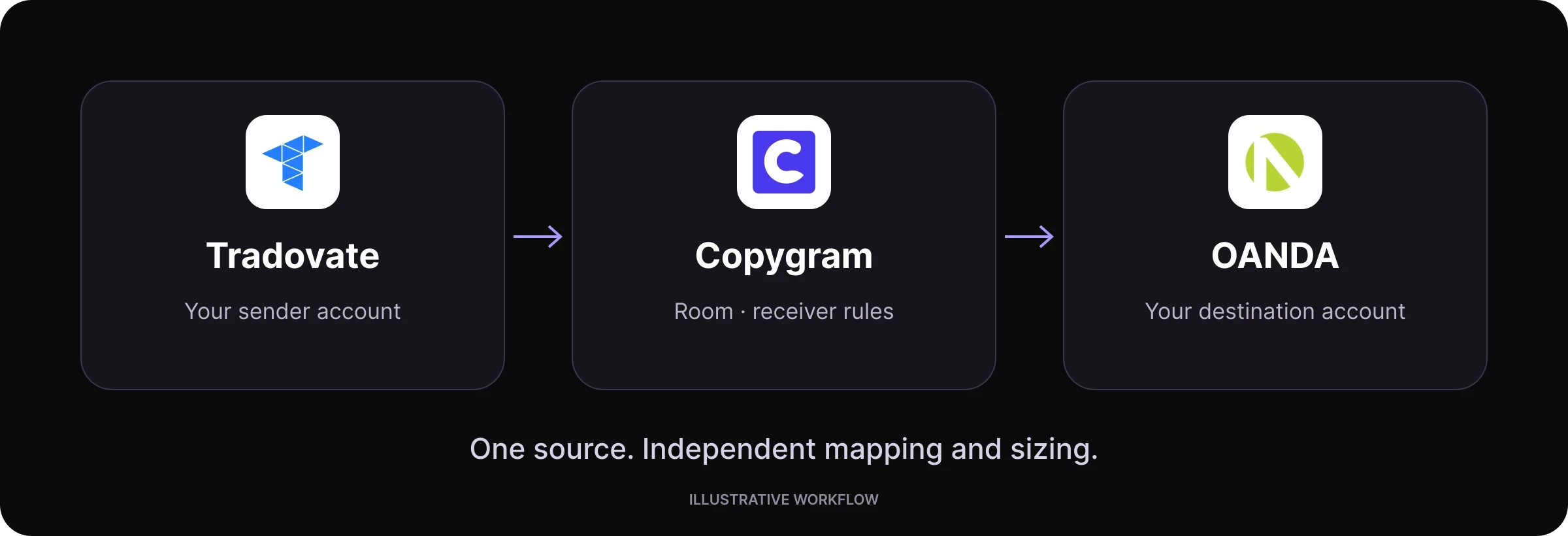

Connect your demo or live accounts and automate your copying workflow.
The workflow explained
What is a Tradovate to OANDA trade copier?
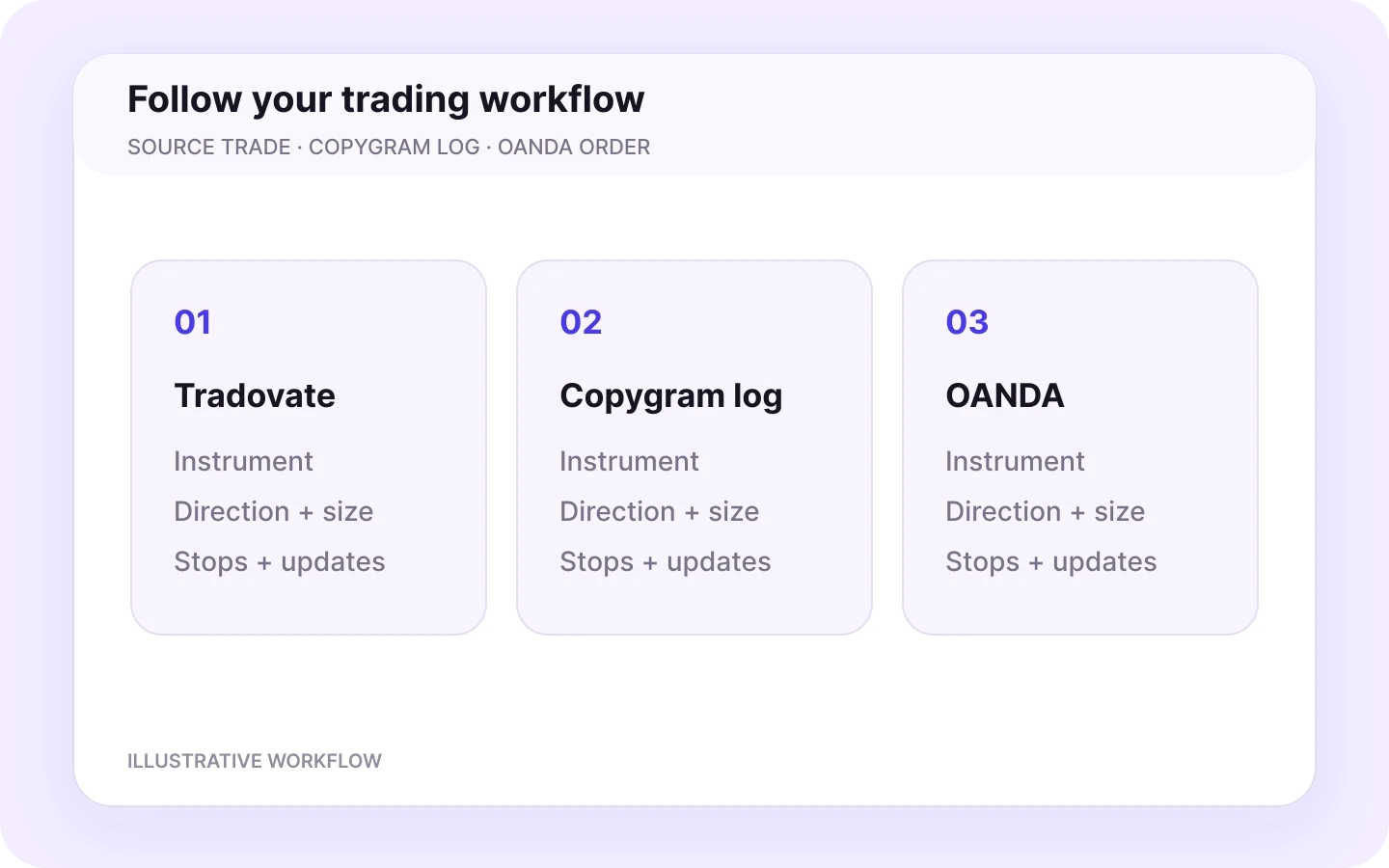
Tradovate supplies the account trade. Copygram applies your receiver rules. OANDA receives the order.
A Tradovate to OANDA trade copier uses trades opened on a Tradovate sender account as instructions for a connected OANDA receiver. Copygram links the accounts in a room and applies the receiver’s symbol mapping, sizing and order settings.
Tradovate is the sender and OANDA is the receiver. Both remain separate trading accounts. Copygram applies your symbol mapping and receiver settings to each OANDA order, while balances and positions stay in their respective accounts.
How it works · step by step
How to copy Tradovate trades to OANDA in 4 steps
Connect your accounts, create a room, configure your receiver and start copying. Use the same workflow with demo and live accounts.
01
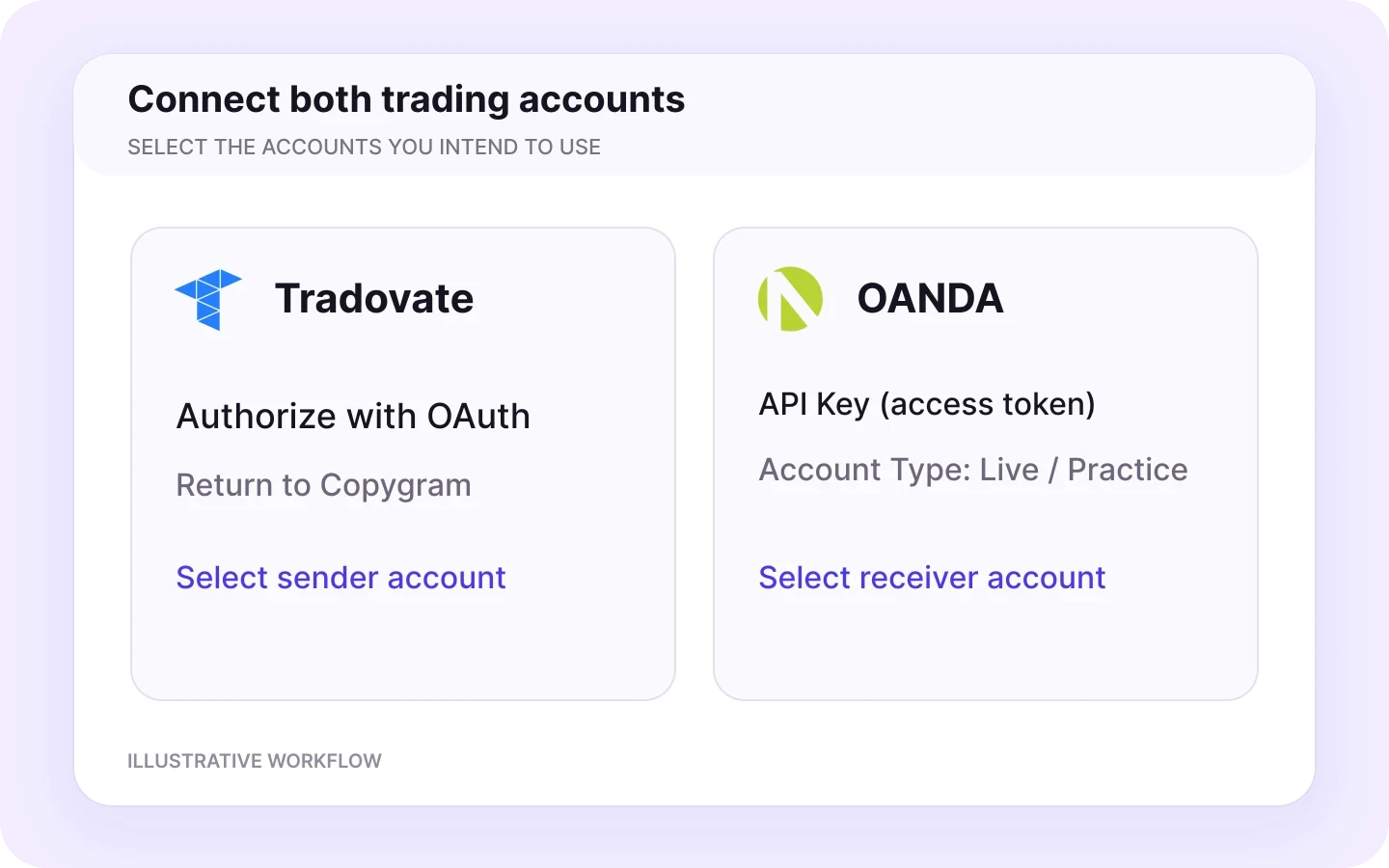
Connect Tradovate and OANDA
Add Tradovate through OAuth and select your sender account. In the OANDA portal, generate a personal access token under Manage API Access. Paste it into Copygram’s API Key field, choose Live or Practice and select the receiving account.
02
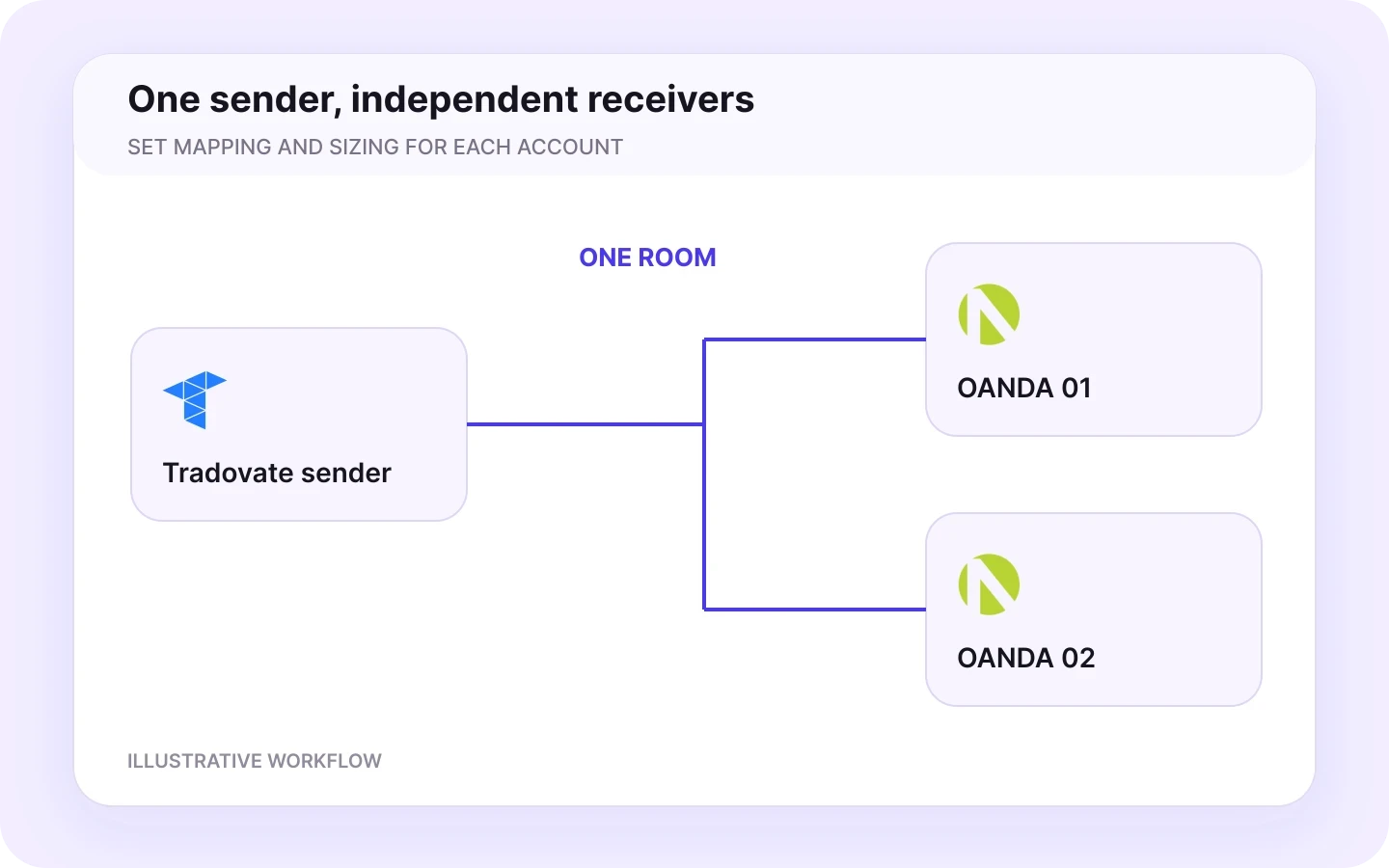
Create a room with Tradovate as the sender
Choose your connected Tradovate account as the source and add the OANDA account as a receiver. A room connects one sender to one or more receivers, each with independent settings. Use separate rooms for different senders.
03
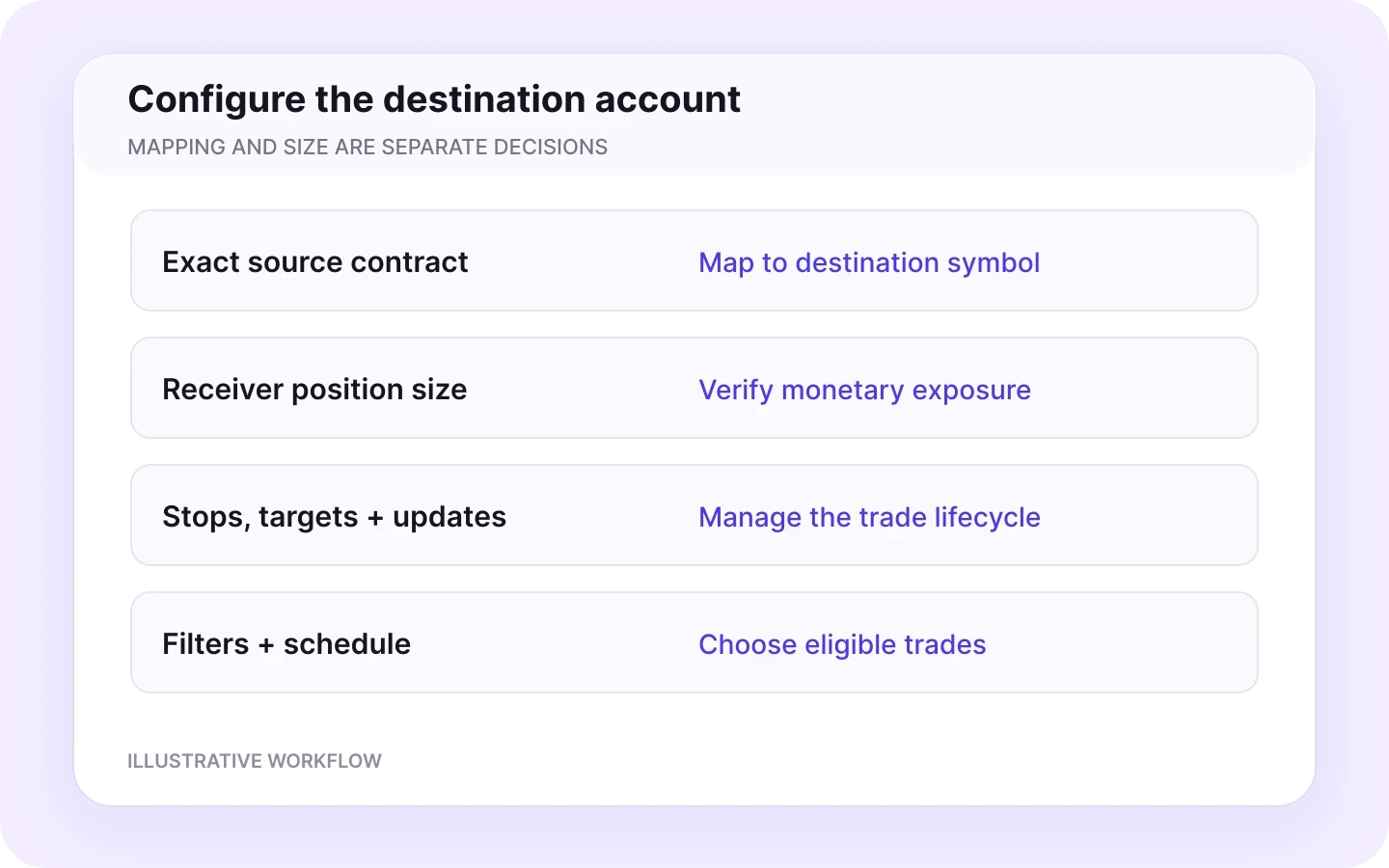
Map symbols and set receiver sizing
Map the exact Tradovate contract to your OANDA instrument. Set receiver sizing, symbol exceptions, filters, stops and targets. Choose close and modification controls, then set your trading schedule and timezone. OANDA order quantities are expressed in units.
04
Activate your room and start copying
Start your room to copy Tradovate trades to OANDA automatically. Copygram applies your receiver settings to incoming trades. Follow entries, stops, targets and trade updates in your Copygram logs and OANDA account. Demo and live accounts are supported.
Symbol mapping
Map Tradovate futures to your OANDA instruments
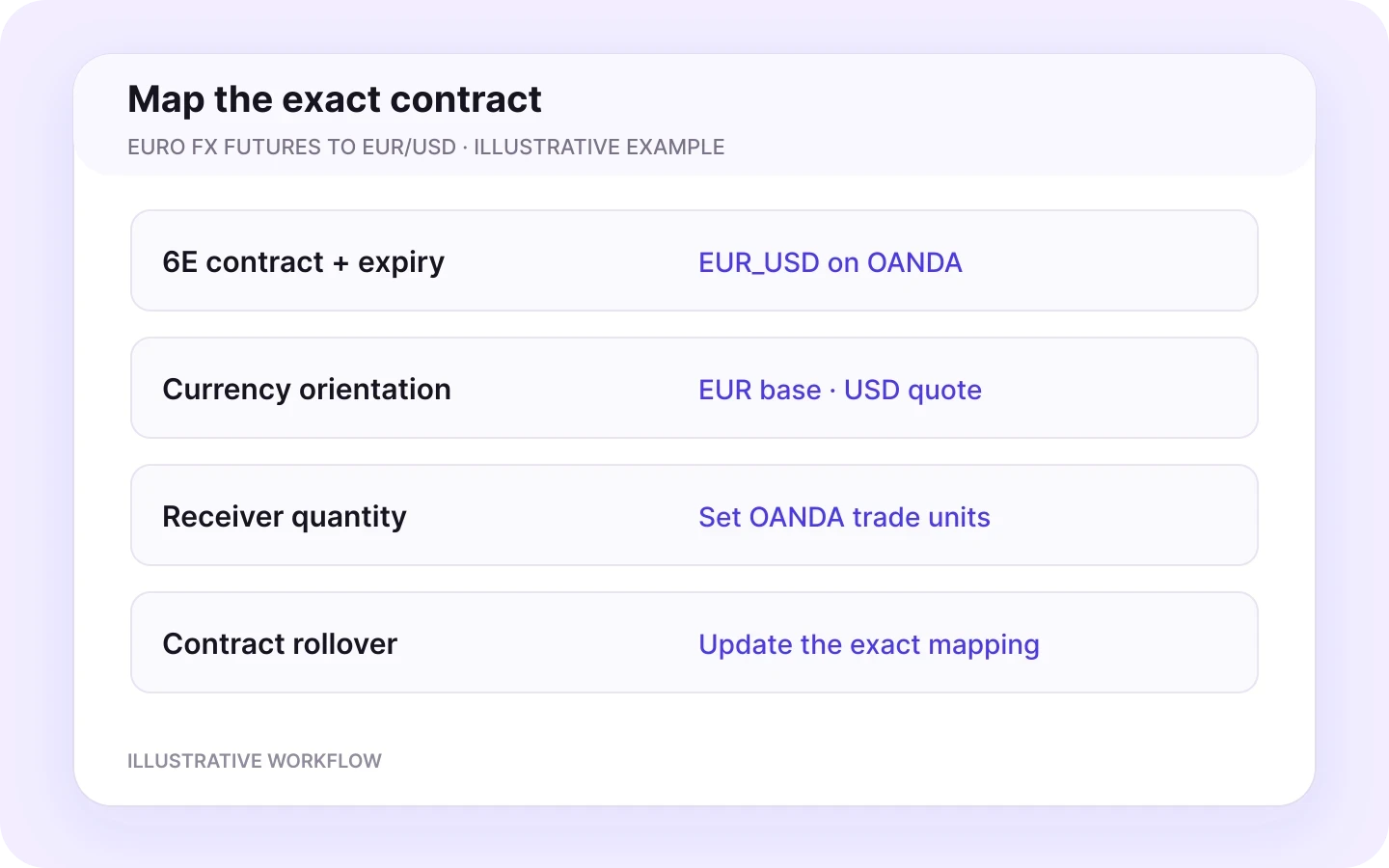
Connect the exact source contract to its destination symbol. Euro FX futures and EUR/USD illustrate how this mapping works.
6E → EUR_USD
Map the exact Euro FX futures contract and expiry from Tradovate to the EUR_USD instrument on your OANDA receiver.
Keep currency direction clear
EUR_USD names EUR as the base currency and USD as the quote currency. Use that orientation when defining the source-to-receiver relationship.
Set receiver size independently
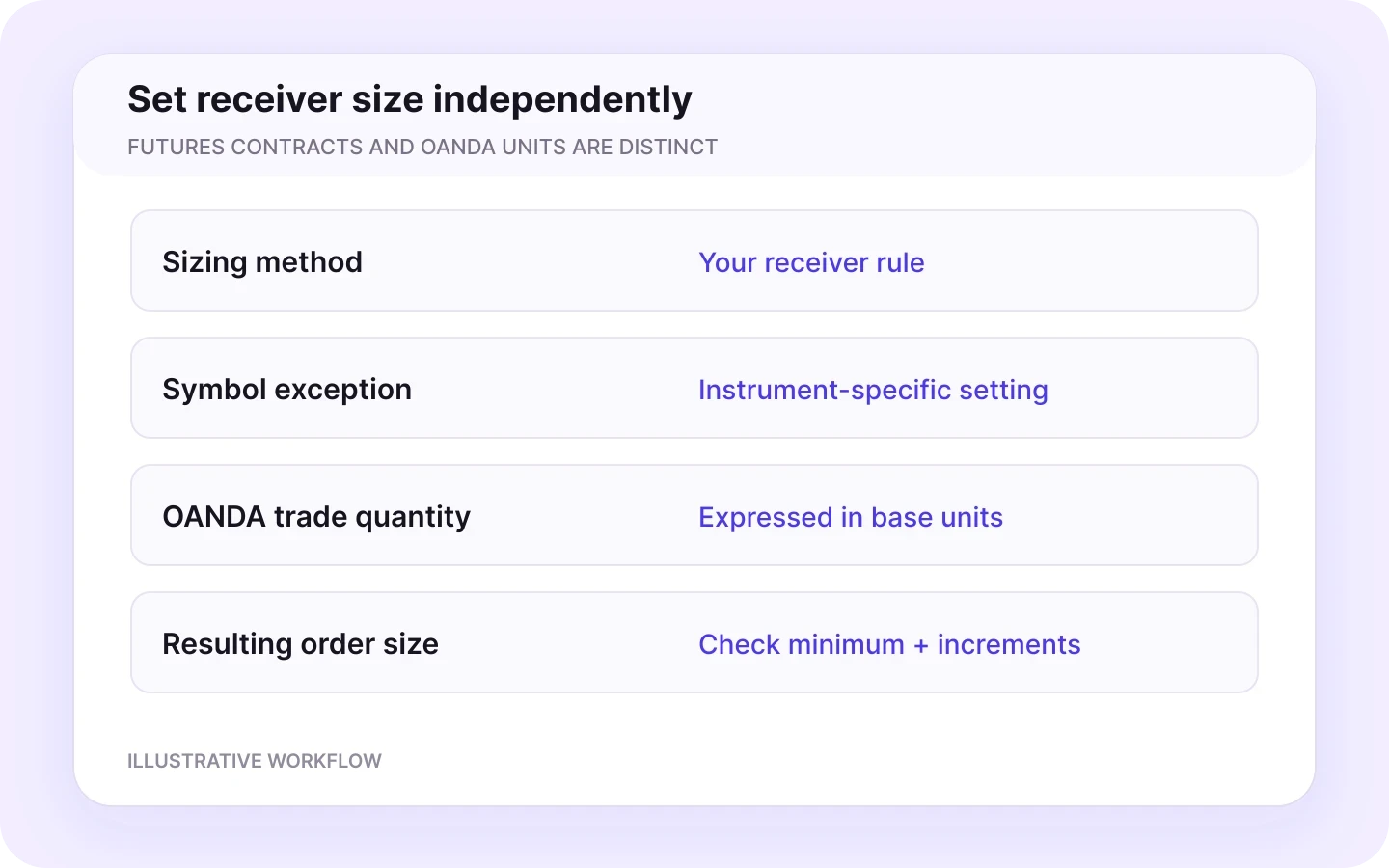
Choose the OANDA quantity through your receiver sizing settings and symbol exceptions. Futures contracts and OANDA units use different sizing conventions.
Update the mapping at rollover
When you switch to a new Tradovate contract month, update the source contract in your mapping while keeping the intended OANDA destination.
Use the exact instrument identifier shown for your OANDA account. API instrument names use an underscore between the currencies, such as EUR_USD.
A worked example
Set OANDA sizing independently from futures contracts
One futures contract does not automatically equal one OANDA lot. Use receiver sizing and symbol exceptions to define your destination quantity.
Euro FX to EUR/USD
Tradovate source: 6E contract
OANDA receiver: EUR_USD
Independent receiver quantity
Illustrative mapping example
Source contract and expiry
Select the exact Euro FX futures contract reported by your Tradovate connection, including its contract month.
OANDA quantity in units
OANDA expresses order quantities in units of the base currency. For EUR_USD, the base currency is EUR.
Sizing method and exceptions
Choose your Copygram receiver sizing method and use a symbol-specific exception for a tailored EUR_USD position size.
Minimum quantity and precision
Use the OANDA instrument’s minimum trade size and quantity precision when setting the receiver size.
Costs and account currency
Allow for the destination’s fees, spread and account currency when comparing monetary exposure.
Independent account exposure
Define the destination exposure for each receiver using its account balance, instrument specifications and position size.
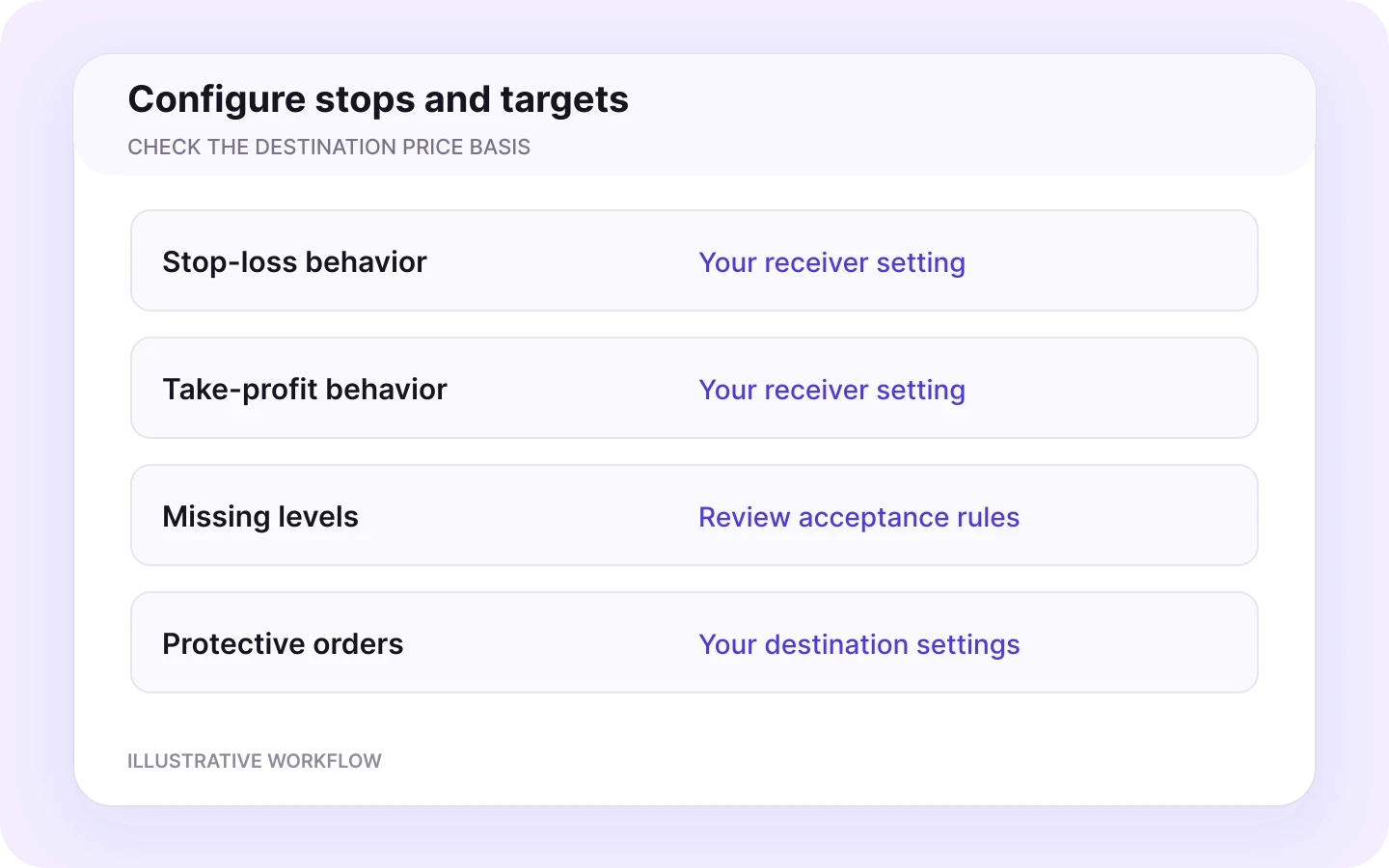
Use the destination price for stops and targets
Euro FX futures and OANDA EUR/USD have their own quotes. Configure protective orders using the OANDA instrument’s price basis and your receiver settings.
Separate symbol mapping from sizing
Mapping selects the destination instrument. Your receiver sizing rule determines the quantity. Set both so the automation follows your intended position size.
This example explains instrument mapping and quantity conventions; it is not a position-size recommendation.
OANDA receiver controls
Control how each OANDA receiver copies trades
Configure each receiver for its account and instrument. Use independent sizing, symbol rules and trade-management settings for accounts following the same Tradovate sender.
Money management and symbol exceptions
Choose your receiver sizing method and use symbol-specific lot exceptions for individual instruments. OANDA expresses the resulting order quantity in units. Set each receiver’s quantity independently.
Receiver sizing
Symbol exceptions
Check exposure

Symbol filters and naming rules
Choose which symbols may be copied. Use explicit mapping and applicable prefix or suffix rules when names differ. Review the allowed list when your provider changes an instrument name or you change futures contracts.
Eligible symbols
Exact mapping
Contract expiry
Stops and targets for the destination
Configure stop-loss and take-profit behavior, including whether to accept an instruction without those levels. Set protective orders using the destination instrument’s price basis and your receiver settings.
Stop loss
Take profit
Destination prices
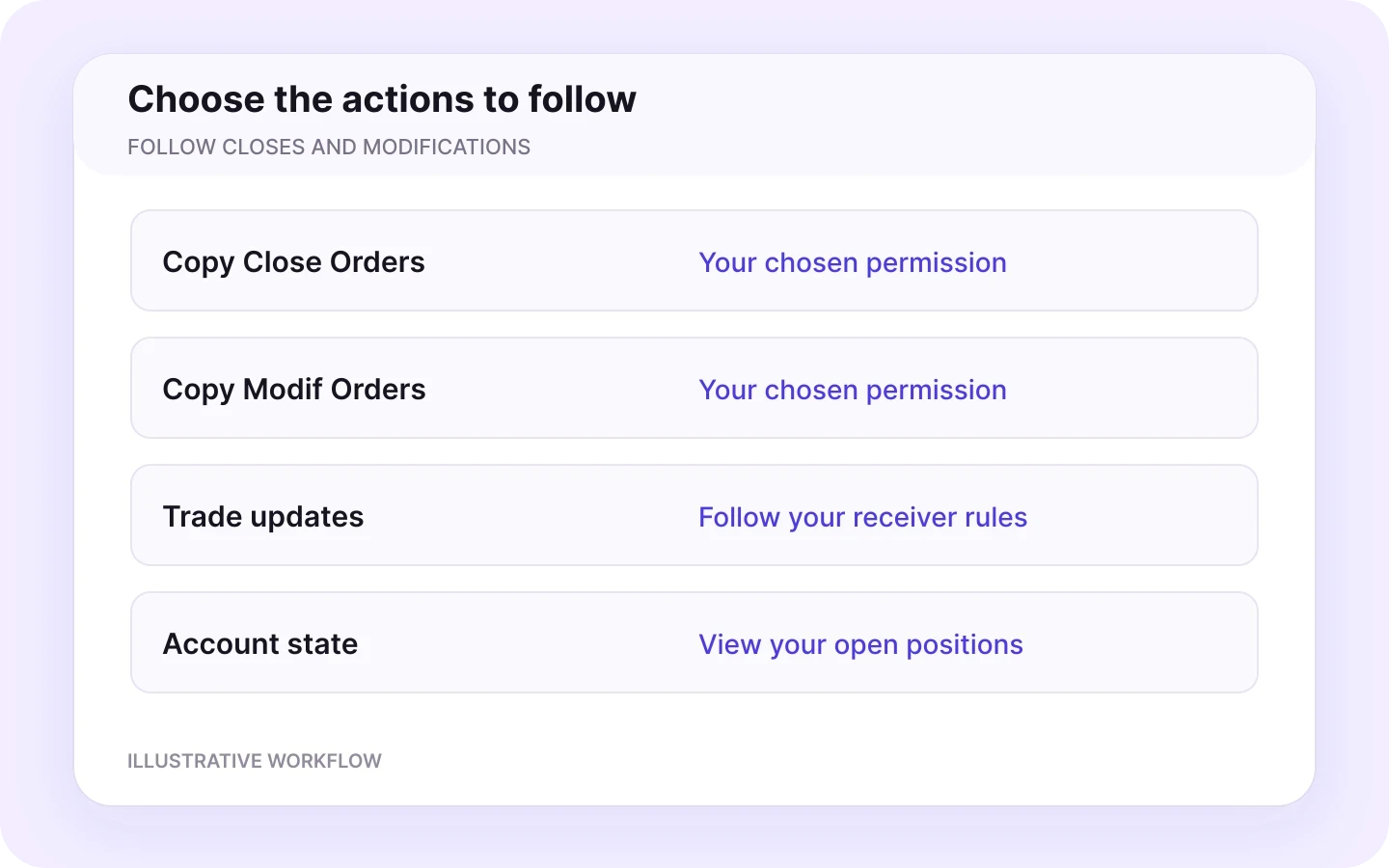
Close and modification controls
Enable Copy Close Orders and Copy Modif Orders to follow closes and trade updates from your Tradovate sender. Manage these settings independently for each OANDA receiver.
Close permissions
Trade modifications
Full lifecycle
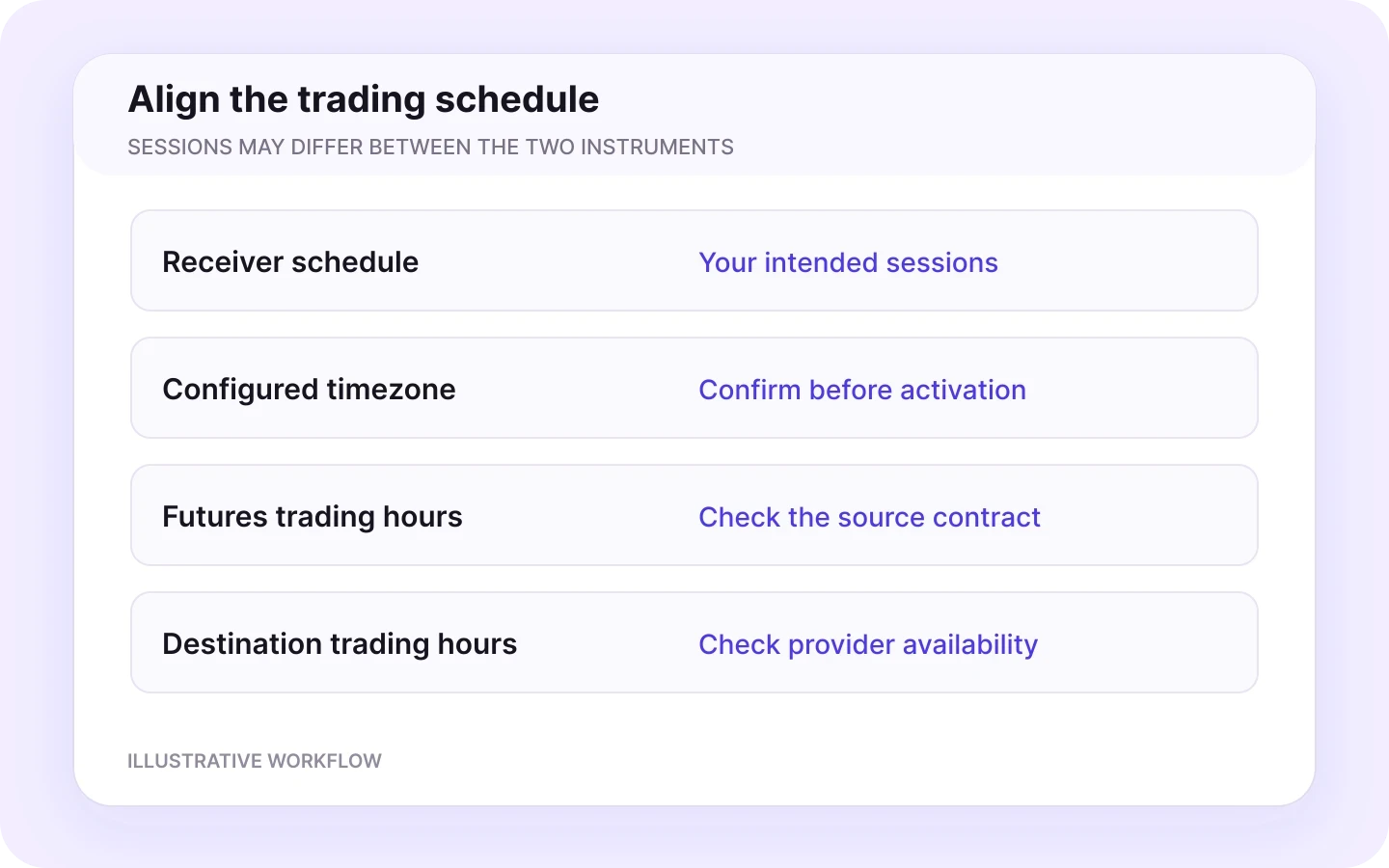
Trading schedule and timezone
Define when the receiver accepts instructions. Check the configured timezone, the futures session and the destination’s trading hours. The two accounts and instruments may have different availability.
Trading schedule
Timezone
Market hours
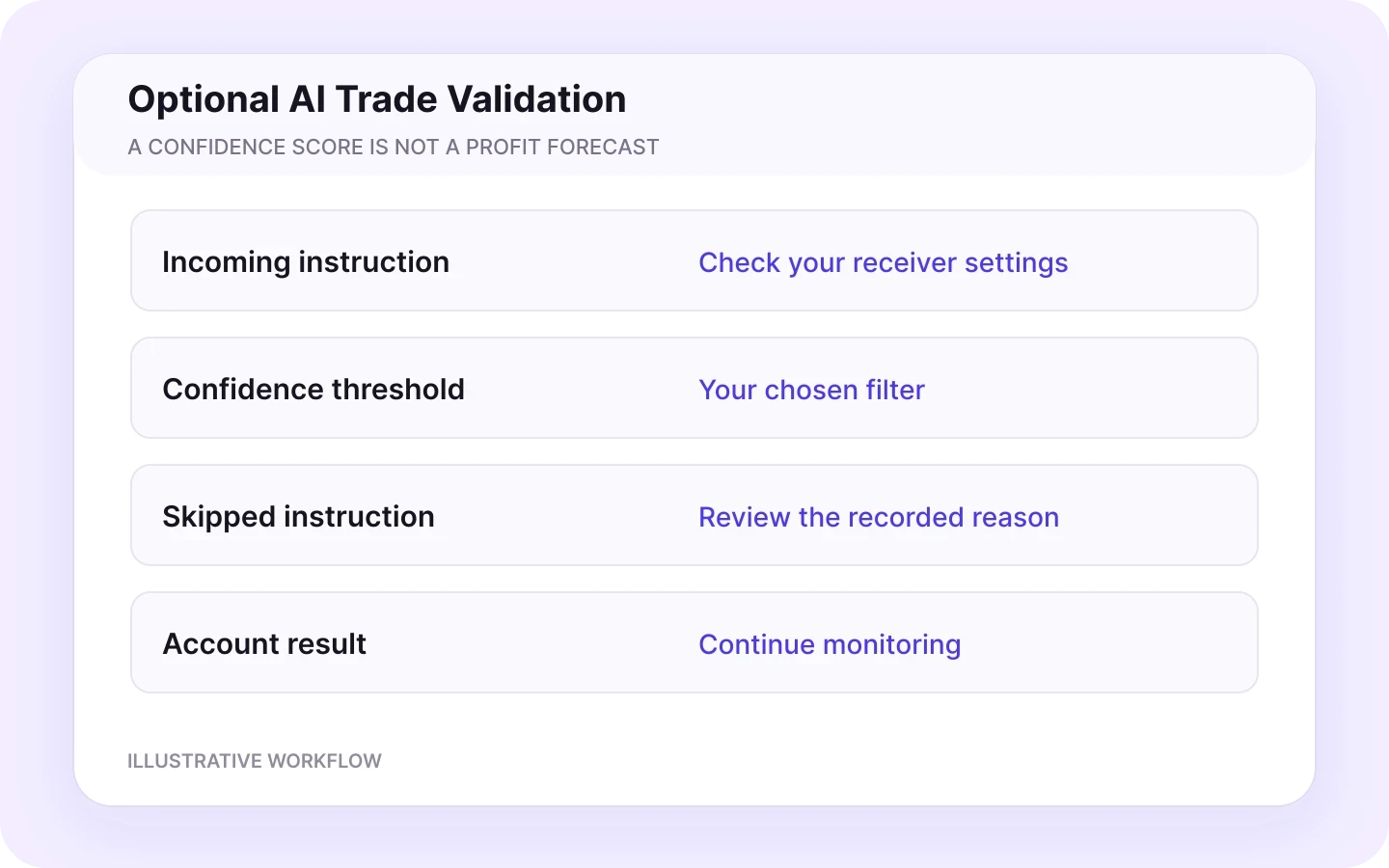
Optional AI Trade Validation
If enabled, AI Trade Validation uses your confidence threshold to filter incoming instructions. Review skipped signals in the logs. A confidence score is not a probability of profit or proof that a trade meets a provider’s rules.
Optional filter
Your threshold
Skipped-trade logs
Monitor your automation
Follow every trade from Tradovate to OANDA
View source trades, receiver settings and order activity in one workflow with Copygram’s trade logs.
Tradovate sender
View your connected Tradovate account and its OAuth authorization in Copygram.
OANDA receiver
Manage your OANDA connection, Live or Practice account type and selected receiving account in Copygram.
Room activity
Follow trades from the selected Tradovate sender in your room’s activity log.
Filters and schedule
Review symbol filters, the trading schedule and optional AI Trade Validation.
Symbol mapping and size
Review the exact source contract, mapping, destination contract specifications and symbol-specific lot exceptions.
Entries, closes and updates
Track each trade’s entries, closes and modifications alongside the receiver settings applied by Copygram.
Keep your automation in view
Use the Copygram log alongside your OANDA account to follow your automation. Your room brings the source trade, receiver settings and order activity together. Copygram support is available for help with setup and settings.


More Tradovate integrations
Explore more Tradovate integrations
Connect your Tradovate sender to other platforms with dedicated guides for account connections, mapping and receiver settings.



Tradovate to MetaTrader
Review copying from Tradovate to MT4 and MT5, with destination mapping and sizing.
Tradovate to Tradovate
Explore copying between connected Tradovate accounts.

Tradovate to TradeLocker
Copy Tradovate trades to TradeLocker with independent symbol mapping, receiver sizing and cloud automation.

Tradovate to Binance Futures
Copy Tradovate trades to Binance Futures with symbol mapping, receiver quantity and leverage controls.

Tradovate to MatchTrader
Copy Tradovate trades to MatchTrader with independent symbol mapping, receiver sizing and cloud automation.
Tradovate to DXtrade
Copy Tradovate trades to DXtrade with independent symbol mapping, receiver sizing and cloud automation.
FAQ
Tradovate to OANDA — Frequently Asked Questions
Answers about account connections, futures mapping, destination sizing and receiver controls.
Can I copy trades from Tradovate to OANDA?
Yes. Copygram connects a Tradovate sender to an OANDA receiver through a room. Trades on the source account are copied using your symbol mapping, receiver sizing and trade-management settings. Demo and live accounts are supported.
How do I connect Tradovate to OANDA with Copygram?
Connect Tradovate through OAuth and choose your sender account. Add OANDA with your API key, select Live or Practice and choose the receiving account. Create a room, add OANDA as a receiver, configure your settings and activate copying.
Do I need a Tradovate API key?
No separate Tradovate API key is needed for this Copygram connection. Connect your Tradovate account through the OAuth authorization flow and select the sender account in Copygram.
Where do I get the OANDA API credential?
Generate a personal access token under Manage API Access in the OANDA portal. Enter that token in Copygram’s API Key field, choose the matching Live or Practice account type and select your receiving account. Keep the token private.
Can I map Euro FX futures such as 6E to EUR/USD?
Yes. Map the exact Tradovate Euro FX futures contract, including its expiry, to the EUR_USD instrument on your OANDA receiver. Set receiver quantity separately and update the source mapping when you move to a new contract month.
Does one Tradovate futures contract equal one OANDA lot?
No. Futures contracts and OANDA quantities use different sizing conventions. OANDA order quantities are expressed in units of the base currency. Configure Copygram receiver sizing and symbol exceptions to define the destination quantity.
How do I manage stops, targets, closes and modifications?
Configure stop-loss and take-profit behavior in the receiver settings using the OANDA instrument’s price basis. Enable Copy Close Orders and Copy Modif Orders for the close and update actions you want the receiver to follow.
Can one Tradovate account send trades to multiple OANDA accounts?
Yes. A Copygram room connects one sender to one or more receivers. Add your OANDA accounts and configure mapping, sizing and trade-management settings for each receiver. Choose a plan that covers the connected accounts you need.
Do I need a VPS, MetaTrader or an EA?
No. This workflow connects Tradovate and OANDA through Copygram’s cloud automation. You do not need an intermediate MetaTrader account, a Copygram EA or a VPS to maintain. Keep your connections and room active to run the automation.
Can I trade through TradingView and use Tradovate as the sender?
Yes. When a trade placed through TradingView opens on your connected Tradovate account, Copygram can use that account trade as the source and copy it to OANDA. This page describes account-to-account copying from Tradovate; standalone TradingView alerts use a webhook workflow.