TRADELOCKER SOURCE → OANDA RECEIVERS
Trade on TradeLocker. Copy your account trades to OANDA with your own instrument mapping, receiver sizing and trade-management rules. Connect Live or Practice accounts in one cloud workflow.
CONNECT YOUR ACCOUNT TRADES
Your TradeLocker trades. Your OANDA receiver rules.
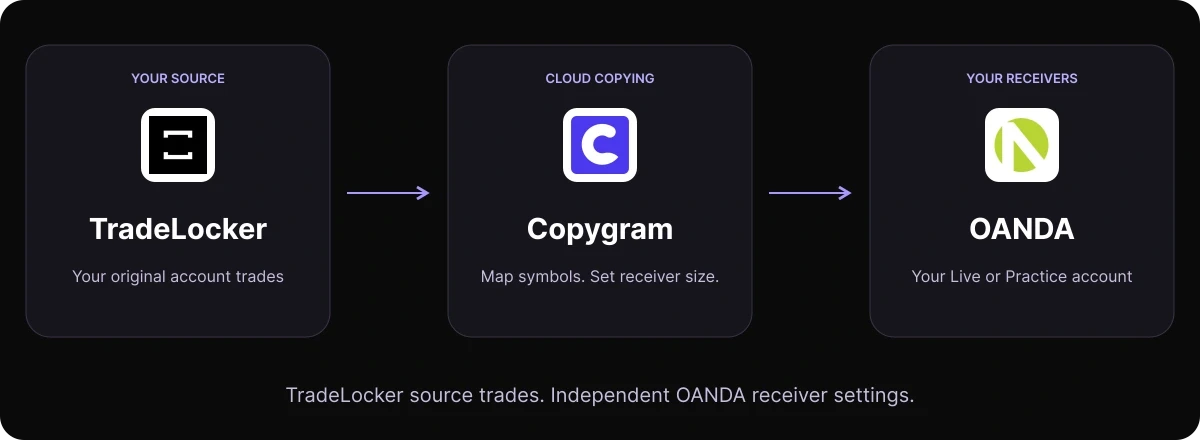
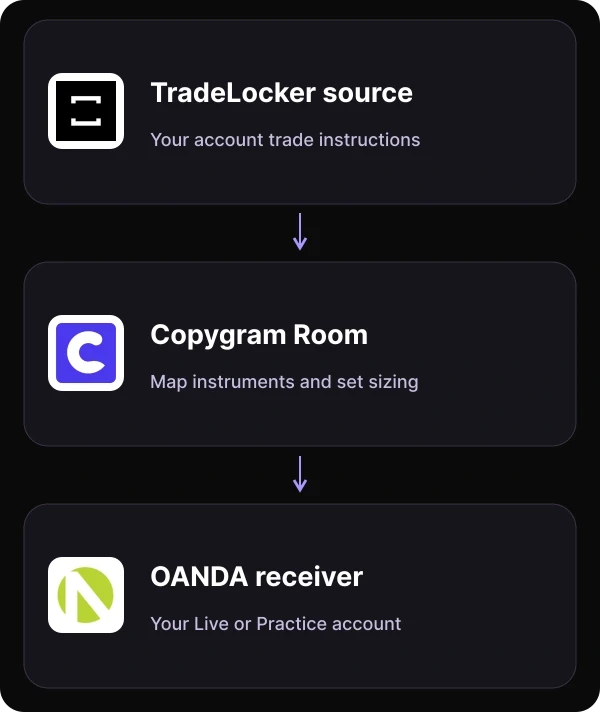
A TradeLocker-to-OANDA trade copier connects the account you trade from to an OANDA receiving account. Copygram links them in a Room and applies each receiver’s instrument mapping, sizing and trade controls. TradeLocker remains your source; OANDA receives its own orders and positions.
SETUP GUIDE
How to copy TradeLocker trades to OANDA
Connect both accounts, choose Live or Practice and configure your OANDA receiver in five steps.
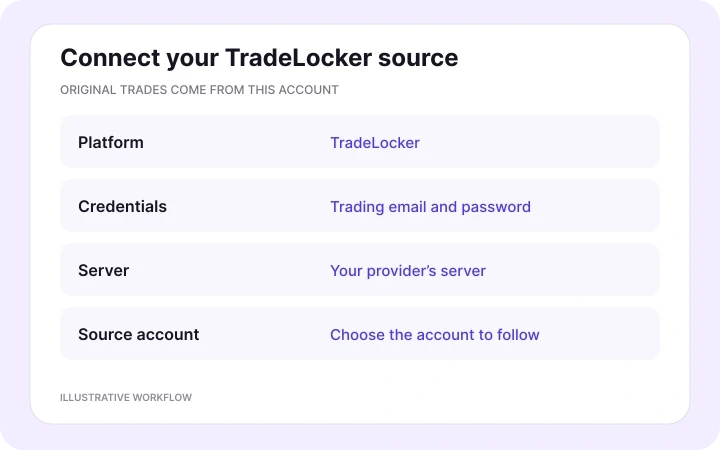
In Copygram, open Trading Accounts and add TradeLocker. Enter your trading email, password and provider’s server, then select the account you trade from. Name the connection so its source role is easy to recognize.

02 — Connect your OANDA receiver
Generate a personal access token from Manage API Access in your OANDA account portal. In Copygram, add OANDA, enter the token in API Key, choose Live or Practice under Account Type and select the receiving account. This route uses OANDA’s API account connection.
03 — Create the copying Room
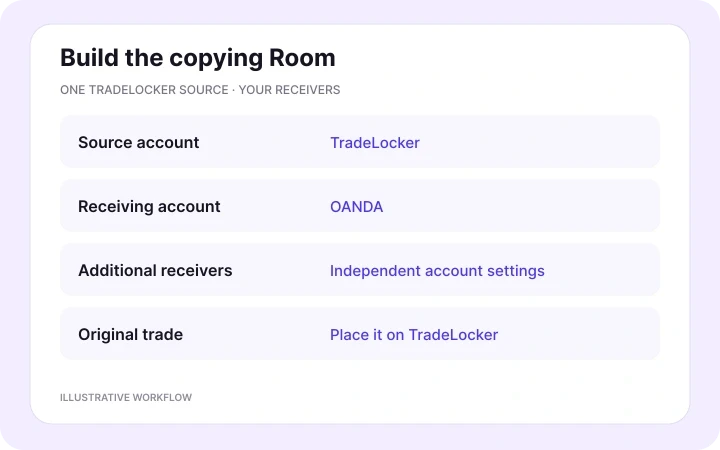
Create a Copygram Room with TradeLocker as the source and your selected OANDA account as a receiver. Add further receivers when needed. Give each account its own settings while you continue placing original trades on TradeLocker.
04 — Map instruments and choose receiver rules
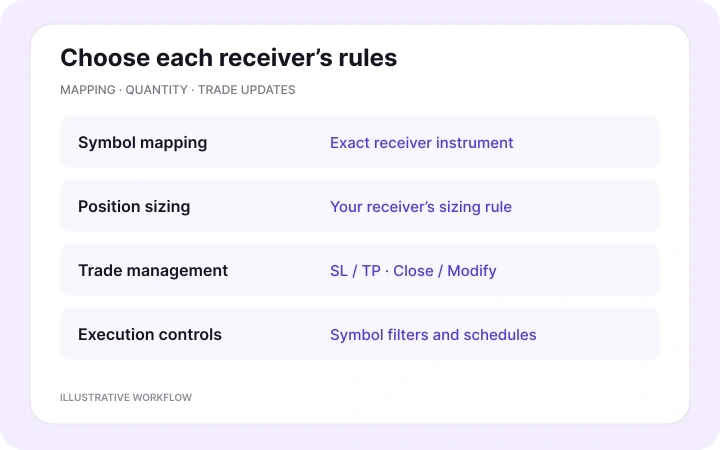
Map the exact TradeLocker source symbol to the OANDA instrument, such as EURUSD to EUR_USD. Set receiver sizing and symbol-specific lot exceptions. Configure SL/TP behavior, Copy Close Orders, Copy Modif Orders, symbol filters and trading schedules.
05 — Activate and follow the copied trades
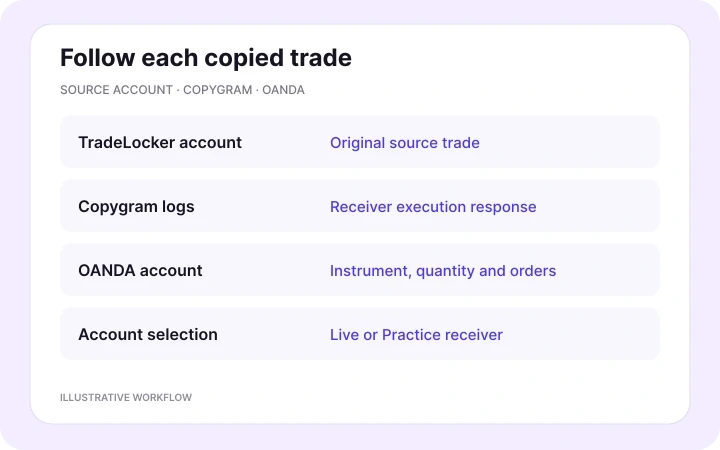
Activate the Room to copy source account activity. Use Copygram’s signal logs alongside the OANDA account history to follow the mapped instrument, resulting quantity and order response. Each receiver keeps its own positions and balance.
OANDA RECEIVER SETTINGS
Match the instrument. Choose the receiving exposure.
Exact instrument names and independent quantities keep each receiver aligned with the account you intend to trade. Configure symbol rules and trade management for every OANDA receiver.
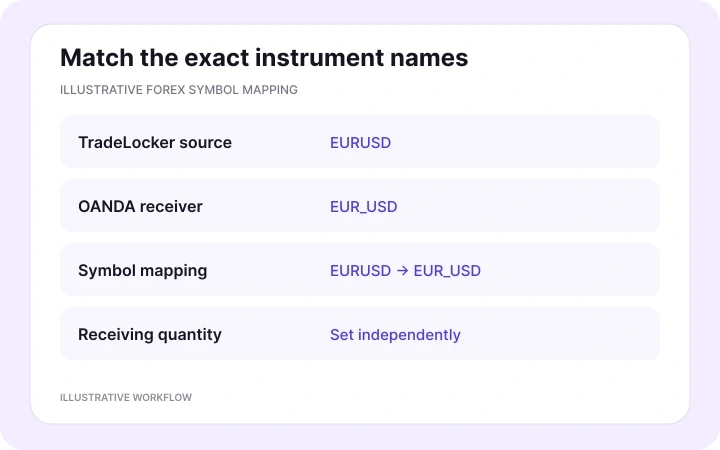
Map EURUSD to the exact OANDA instrument
Your TradeLocker provider may name a forex pair EURUSD or add a prefix or suffix. OANDA’s API uses EUR_USD for this pair. Map the exact sender symbol to the instrument shown on the receiving account. Naming differences should not send the trade to a different market.
Choose instruments from the connected OANDA account and keep your symbol filters aligned with that mapping. Instrument availability belongs to the account; a symbol mapping cannot add a market. OANDA’s instrument specifications also define quantity precision and minimum trade size.
Understand source lots and OANDA units
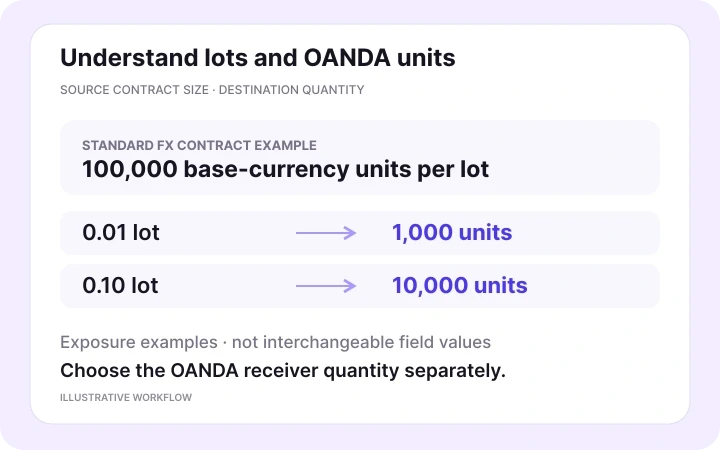
OANDA expresses order quantity in units, while source volumes and Copygram’s controls can use lots. With a standard FX contract of 100,000 base-currency units per lot, 0.01 lot represents 1,000 units and 0.10 lot represents 10,000 units. These numbers explain exposure; they are not interchangeable values to enter into a field. Set each receiver’s sizing rule and symbol-specific lot exceptions separately, using the instrument’s specifications.
An EURUSD-to-EUR_USD copying example
Suppose your TradeLocker source uses EURUSD. Map it to EUR_USD on the selected OANDA account and choose that receiver’s sizing method. If the source trades 0.10 standard FX lot, its exposure is 10,000 base-currency units under a 100,000-unit contract specification. The OANDA receiver follows the sizing rule you configure, rather than treating the source number as an order quantity.
Configure stop-loss and take-profit behavior for the receiving instrument, then enable Copy Close Orders and Copy Modif Orders for the source updates you want it to follow. Source and receiver prices can differ. Follow the resulting OANDA quantity, orders and execution response in the account history and Copygram logs.

PRICING PLANS
Choose a plan for your trading accounts
Compare monthly and discounted annual plans for the accounts you want to connect.


MORE TRADELOCKER INTEGRATIONS
More TradeLocker integrations
Choose another receiver for your TradeLocker source. Explore all seven other destinations, the full TradeLocker hub and related workflows below.



TradeLocker to MetaTrader
Copy TradeLocker trades to MT4 or MT5 accounts, including the MetaTrader connection route.
Explore workflow
TradeLocker to TradeLocker
Copy your source TradeLocker account to other TradeLocker accounts. Give each receiver its own position sizing and rules.
Explore workflow

TradeLocker to Tradovate
Copy TradeLocker trades to Tradovate. Match the destination futures contract, expiry and whole-contract quantity.
Explore workflow

TradeLocker to NinjaTrader
Send TradeLocker trades to NinjaTrader accounts. Select the receiving futures contract and configure its order quantity.
Explore workflow
TradeLocker to DXtrade
Connect TradeLocker to DXtrade with broker-specific symbol mapping, independent position sizing and receiver controls.
Explore workflow

TradeLocker to MatchTrader
Copy trades to MatchTrader accounts. Map the destination broker’s symbols and choose each receiver’s position size.
Explore workflow

TradeLocker to Binance Futures
Route TradeLocker trades to Binance Futures. Match the futures market and configure receiver quantity and margin settings.
Explore workflow
TradeLocker trade copier
Explore every destination for a TradeLocker source and configure each receiver independently.
Explore workflow

MetaTrader to OANDA
Use an MT4 or MT5 source to copy account trades to OANDA with independent receiver settings.
Explore workflow
FREQUENTLY ASKED QUESTIONS
TradeLocker to OANDA FAQ
Answers about API keys, Live and Practice accounts, instrument mapping, lots versus units and copied trade updates.
Can I copy trades from TradeLocker to OANDA?
Yes. Connect your TradeLocker source account and OANDA receiver in Copygram, then link them in a Room. Map the instruments, choose each receiver’s sizing and trade-management rules, and activate the Room. You continue placing your original trades on TradeLocker.
What credentials do I need for TradeLocker and OANDA?
For TradeLocker, enter your trading email, password and provider’s server, then select the source account. For OANDA, enter your personal access token in Copygram’s API Key field, choose Live or Practice under Account Type and select the intended receiving account.
Where do I get the OANDA API key?
Open Manage API Access in your OANDA account portal and generate a personal access token. Copygram calls this credential an API key. Enter it in the OANDA connection form and keep it private. If you replace or revoke the token, update the Copygram connection before resuming copying.
Can I use OANDA Live and Practice accounts?
Yes. Copygram supports both OANDA Live and Practice environments. Choose the matching Account Type when connecting OANDA and select the receiving account you intend to use. Each connection and receiver can have its own instrument mapping, sizing and trade-management settings.
Is this the same as copying to an OANDA MT4 or MT5 account?
This page covers Copygram’s OANDA API connection, which uses a personal access token and an OANDA API account. An OANDA-branded MetaTrader account uses Copygram’s MetaTrader connection instead. Use the TradeLocker-to-MetaTrader guide for that route; a broker name alone does not identify the connection type.
How do I map TradeLocker symbols to OANDA instruments?
Enter the exact source symbol and the receiving instrument shown on your connected accounts. For example, a TradeLocker EURUSD symbol can map to OANDA’s EUR_USD. Include source prefixes or suffixes when present. Mapping selects the instrument; receiver sizing determines the quantity.
How do TradeLocker lots relate to OANDA units?
OANDA order quantities are expressed in units, while source volumes and Copygram controls can use lots. With a standard FX contract of 100,000 base-currency units per lot, 0.01 lot represents 1,000 units and 0.10 lot represents 10,000 units. These are exposure examples, not interchangeable field values. Configure receiver sizing separately for the instrument.
Can one TradeLocker account copy to multiple OANDA accounts?
Yes. Add multiple OANDA receivers to the same Copygram Room and configure each account independently. Receivers can use different sizing, symbol mappings, filters and trade-management rules. Choose a Copygram plan with enough trading-account connections for your setup.
Can OANDA follow TradeLocker trade closures and modifications?
Yes. Enable Copy Close Orders and Copy Modif Orders for the source actions you want each OANDA receiver to follow. Configure stop-loss and take-profit behavior in the receiver settings. Use the logs and account history to follow the resulting updates.
Will OANDA use exactly the same entry and SL/TP prices?
Different accounts can quote different prices and fill at different levels. Configure the OANDA receiver’s stop-loss and take-profit behavior for its instrument and trade conditions. Symbol mapping does not guarantee identical fills, protective prices or trigger times between the source and receiver.
Can I copy gold or index trades to OANDA?
Use instruments available to the connected OANDA account, with the exact source-to-receiver symbol mapping and an appropriate sizing rule. Gold and indices have their own contract and quantity specifications. The standard forex lot example does not apply universally, and a mapping cannot create access to an unavailable market.
Why did a TradeLocker trade not open on my OANDA receiver?
Review the receiver’s recorded status in Copygram’s signal logs. Check the Room activation, API connection, Live or Practice selection and receiving account. Then check the exact instrument mapping, quantity limits, available margin, market hours and receiver filters. Use the recorded response to address the cause before sending another instruction.