TRADELOCKER SOURCE → NINJATRADER FUTURES
Keep trading on TradeLocker. Copy your trades to NinjaTrader futures accounts with independent contract quantities, instrument mapping and trade-management settings.
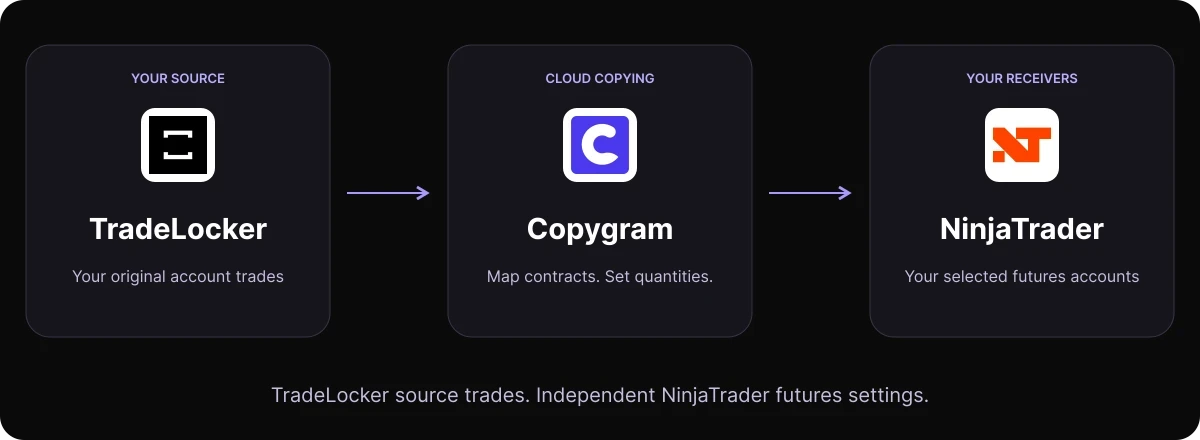

CONNECT ACCOUNT TRADES TO FUTURES
Your TradeLocker trades. Your NinjaTrader contract rules.
A TradeLocker-to-NinjaTrader trade copier routes source account trades into a connected NinjaTrader futures account. Copygram links them in a Room. You choose the receiving instrument, expiry and whole-contract quantity, while continuing to place your original trades on TradeLocker.
SETUP GUIDE
How to copy TradeLocker trades to NinjaTrader
Connect both accounts, build the Room and configure the receiving futures instruments in five steps.
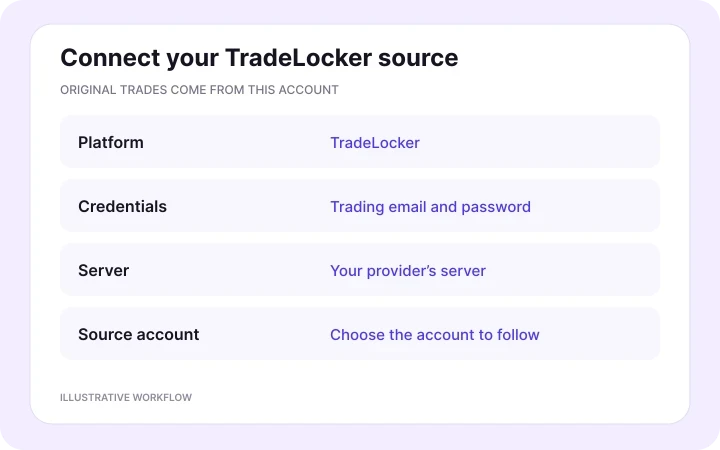
In Copygram, open Trading Accounts and add TradeLocker. Enter your trading email, password and provider’s server, then select the account you trade from. Name the connection so its source role is easy to recognize.
02 — Connect your NinjaTrader receiver
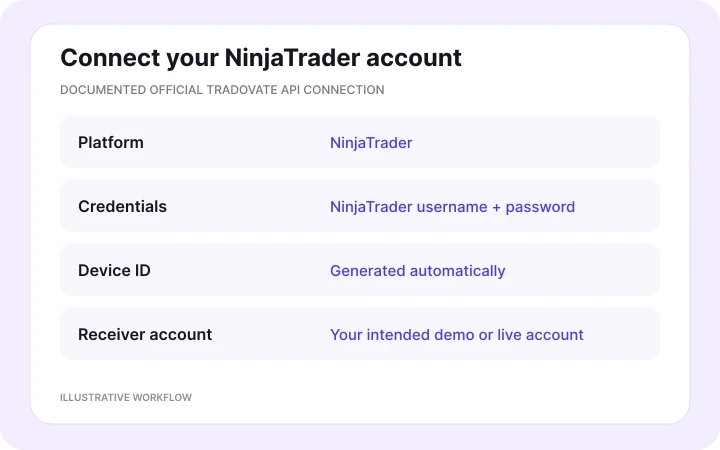
Add a trading account and select NinjaTrader. Enter your NinjaTrader username and password; Copygram generates the Device ID automatically. Choose the receiving account and the intended demo or live environment. The connection uses the official Tradovate API.
03 — Link the accounts in a copying Room
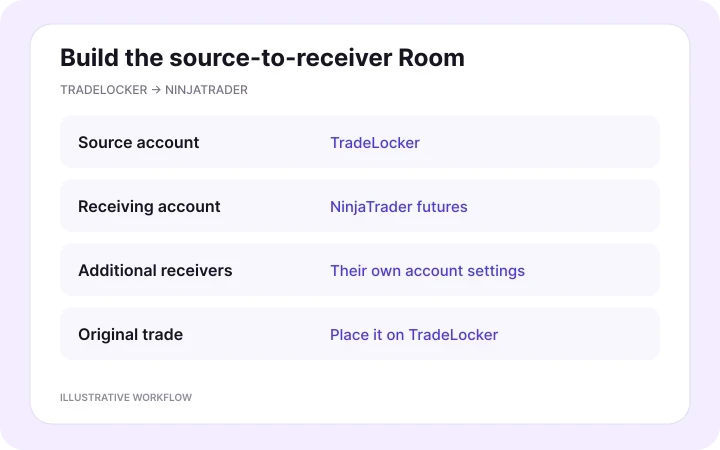
Create a Copygram Room with TradeLocker as the source and NinjaTrader as the receiver. Add more receiving accounts if needed, each with its own configuration. Place original trades on the TradeLocker source account.
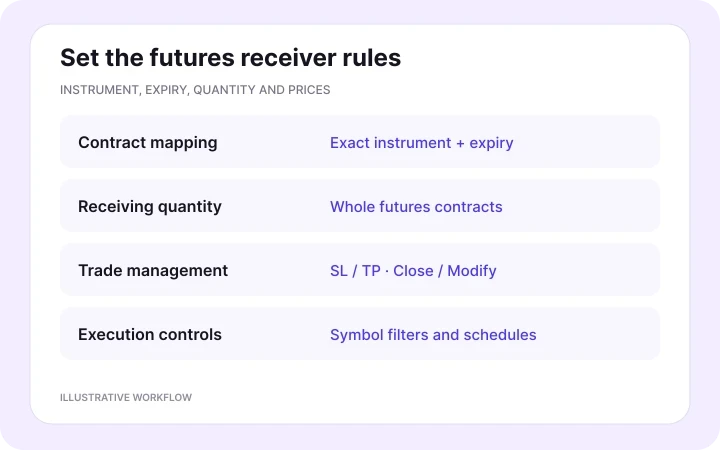
04 — Choose contracts, quantities and trade rules
Map each TradeLocker symbol to the intended futures instrument and exact expiry on the receiver. Set whole-contract quantities independently of source lots. Configure SL/TP behavior, Copy Close Orders, Copy Modif Orders, instrument filters and trading schedules.
05 — Activate and monitor each receiver
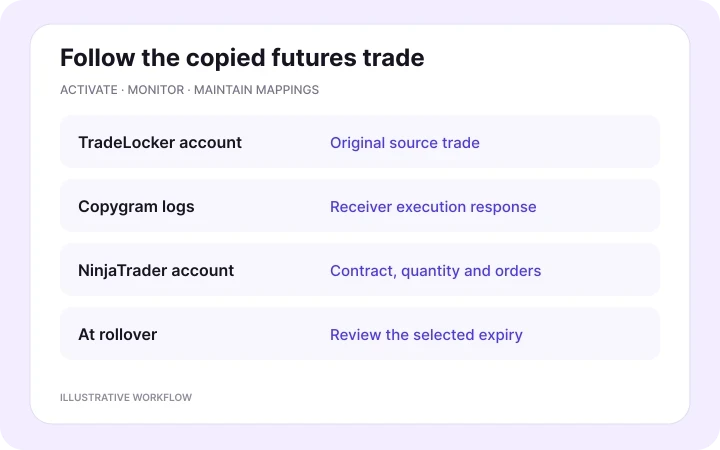
Activate the Room and follow TradeLocker account activity through Copygram’s signal logs. Review the contract, direction, quantity and resulting orders in your NinjaTrader account. Keep your contract mappings up to date when you move to a new expiry.
NINJATRADER RECEIVER SETTINGS
Choose the contract. Set the quantity. Manage its prices.
Source lots, futures contracts and price levels are separate parts of the setup. Configure each NinjaTrader receiver for the market and expiry it will actually trade.
Map an exact futures contract and expiry
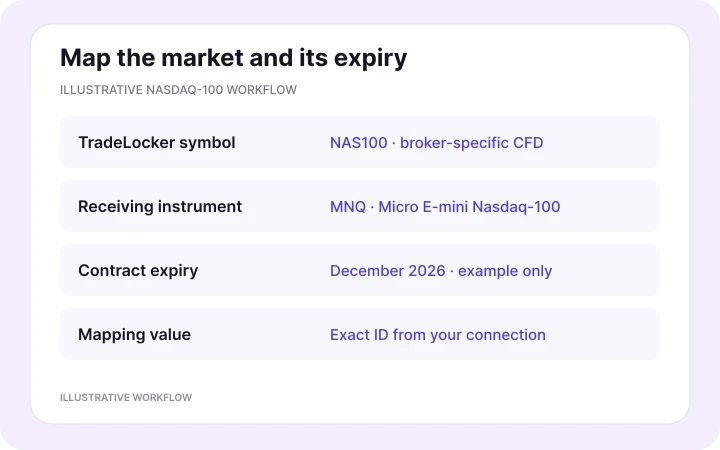
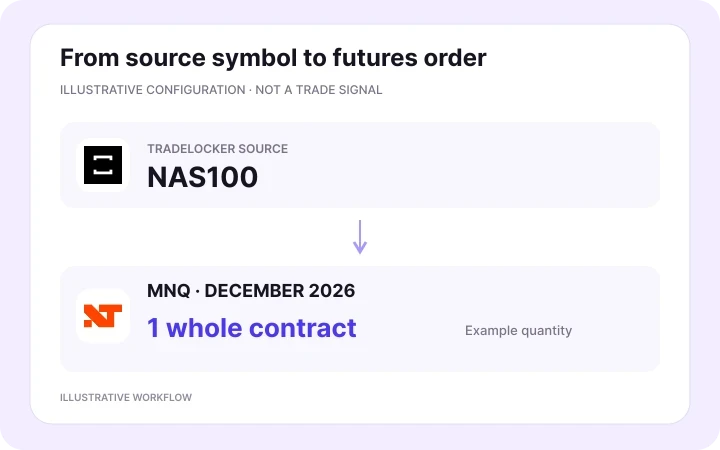
Use the precise TradeLocker source symbol and the receiving futures identifier available through your NinjaTrader connection. A broker’s NAS100 CFD can point to a selected Micro E-mini Nasdaq-100 contract, such as the December 2026 MNQ expiry. That date is an example, not a permanent mapping.
Review the mapping when you move to a later expiry, along with any symbol filters that reference it. Keep the selected instrument in your NinjaTrader workspace aligned. Updating a contract mapping does not itself close or roll an existing futures position.
Size the futures receiver in whole contracts
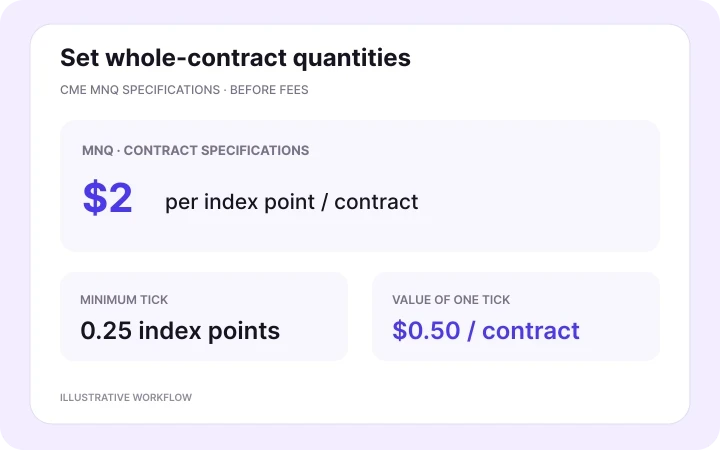
Set the receiving futures quantity independently of your TradeLocker lot size. Symbol-specific sizing exceptions override the general rule for individual instruments. For MNQ, CME specifies $2 per index point and a 0.25-point minimum tick: $0.50 per tick for one contract, before fees. Use the selected contract’s specifications and your account’s margin conditions when choosing its quantity.
A NAS100-to-MNQ copying example
Suppose your TradeLocker broker lists its Nasdaq-100 CFD as NAS100. Map it to the December 2026 MNQ contract available on your NinjaTrader receiver and set a receiving quantity of one whole contract. This illustrates the configuration; it is not a recommended size or a claim that one contract equals your source lot exposure.
The CFD and futures contract can quote different prices. Choose the receiver’s SL/TP behavior for the futures instrument, then configure Copy Close Orders and Copy Modif Orders for source updates. Symbol mapping selects the market; it does not by itself convert CFD price levels into futures prices. Follow the result in Copygram’s logs and the receiving account.
PRICING PLANS
Choose a plan for your trading accounts
Compare monthly and discounted annual plans for the accounts you want to connect.


MORE TRADELOCKER INTEGRATIONS
More TradeLocker integrations
Choose another receiver for your TradeLocker source. Explore all seven other destinations, the full TradeLocker hub and related workflows below.



TradeLocker to MT4 / MT5
Keep trading on TradeLocker while MT4 or MT5 receives your trades. Map broker symbols and set each receiver’s lot size.
Explore workflow
TradeLocker to TradeLocker
Copy your source TradeLocker account to other TradeLocker accounts. Give each receiver its own position sizing and rules.
Explore workflow

TradeLocker to Tradovate
Connect your TradeLocker source to Tradovate receiving accounts with independent futures quantities.
Explore workflow
TradeLocker to DXtrade
Connect TradeLocker to DXtrade with broker-specific symbol mapping, independent position sizing and receiver controls.
Explore workflow

TradeLocker to MatchTrader
Copy trades to MatchTrader accounts. Map the destination broker’s symbols and choose each receiver’s position size.
Explore workflow

TradeLocker to Binance Futures
Route TradeLocker trades to Binance Futures. Match the futures market and configure receiver quantity and margin settings.
Explore workflow

TradeLocker to OANDA
Use TradeLocker as your source and OANDA as your receiver, with exact instrument mapping and independent sizing.
Explore workflow
TradeLocker trade copier
Explore TradeLocker source and receiver routes across Copygram’s supported platforms.
Explore workflow

NinjaTrader to TradeLocker
Reverse the direction: use NinjaTrader as the source and TradeLocker as the receiver.
Explore workflow
FREQUENTLY ASKED QUESTIONS
TradeLocker to NinjaTrader FAQ
Answers about account connections, futures contract mapping, quantities, rollover and source trade updates.
Can I copy trades from TradeLocker to NinjaTrader?
Yes. Copygram connects a TradeLocker source account to NinjaTrader receiving accounts in a Room. Connect both sides, map the receiving futures instruments, set independent whole-contract quantities and trade-management rules, then activate the Room.
What login details do I need for this connection?
For TradeLocker, use your trading email, password and provider’s server, then select the source account. For NinjaTrader, enter your NinjaTrader username and password. Copygram automatically generates the Device ID; choose the intended receiving account and demo or live environment.
Why does the NinjaTrader connection mention Tradovate?
Copygram’s NinjaTrader connection uses the same official Tradovate API described in its platform guide. Select NinjaTrader in Copygram and log in with your NinjaTrader credentials. You do not need to create a separate Tradovate copying route for this TradeLocker-to-NinjaTrader workflow.
How do I map a TradeLocker CFD to a NinjaTrader futures contract?
Enter the exact source symbol and select the intended receiving futures instrument with its expiry. For example, a TradeLocker Nasdaq-100 CFD named NAS100 can be mapped to your chosen MNQ contract. Use the exact identifier available through your NinjaTrader connection. The mapping selects the instrument; quantity and protective price settings need their own configuration.
Does one TradeLocker lot equal one NinjaTrader contract?
No universal lot-to-contract ratio exists. A TradeLocker lot depends on the broker’s instrument specification, while NinjaTrader futures quantities are whole contracts. Configure the receiving size using the selected futures contract’s value, tick size and account conditions. Do not copy a fractional source lot number as a futures quantity.
Can I choose a Micro E-mini contract as the receiver?
Yes. Select the Micro E-mini instrument and expiry you intend to receive, such as MNQ for Micro E-mini Nasdaq-100. Micro and E-mini contracts have different values, so choose the quantity for that specific contract. Symbol-specific sizing exceptions can set an instrument’s receiving size independently of the general rule.
Will the NinjaTrader trade have the same entry and SL/TP prices?
Not necessarily. A TradeLocker CFD and a futures contract can quote different prices and follow different trading conditions. Symbol mapping does not by itself translate price levels or make the two instruments equivalent. Configure the receiver’s stop-loss and take-profit behavior for the selected futures instrument and review the resulting order prices.
What should I update when a futures contract rolls over?
Update the receiving symbol mapping to the exact contract and expiry you intend to use next, then review related filters and quantity settings. Keep any receiving workspace aligned with that choice. Changing a mapping for future copied trades does not itself close or roll an existing position.
Can one TradeLocker account copy to multiple NinjaTrader accounts?
Yes. Add multiple NinjaTrader receivers to the same Copygram Room and give each account its own contract mappings, whole-contract quantities and trade-management settings. Your Copygram plan determines how many trading accounts you can connect.
Can NinjaTrader follow TradeLocker trade closures and modifications?
Yes. Configure Copy Close Orders and Copy Modif Orders on each receiver, together with its SL/TP settings. Keep modifications consistent with the receiving futures contract’s valid price increments and order rules. Manage partial quantities in whole contracts.
Does this work with demo, live and prop firm accounts?
Copygram supports demo and live accounts. For prop firm accounts, follow the provider’s current trade-copying, account-ownership and third-party access rules. A connection to the trading platform does not change the rules of the account provider.
Do I need a local NinjaTrader trade-copier add-on?
The documented Copygram connection uses your NinjaTrader account credentials and an automatically generated Device ID through the official Tradovate API. You configure the source, receivers and copying rules in Copygram. Installing a local NinjaTrader trade-copier add-on is not part of this connection flow.
What should I check if a NinjaTrader receiver rejects a trade?
Start with the receiver response in Copygram’s signal logs. Review the account connection and environment, exact instrument and expiry, whole-contract quantity, filters, available margin and trading hours. For a price-related rejection, check the receiving contract’s tick size and your SL/TP settings.