TRADELOCKER SOURCE → BINANCE FUTURES
Trade on TradeLocker. Copy your trades to Binance USDT-margined Futures with crypto symbol mapping, independent receiver sizing and cloud-hosted automation.
TRADELOCKER TO CRYPTO
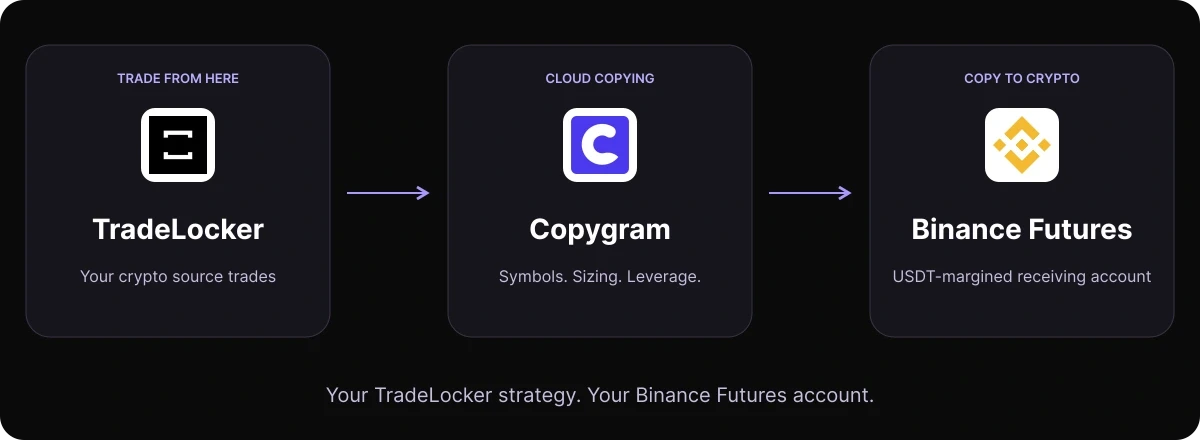
Your TradeLocker trades. Your Binance Futures account.
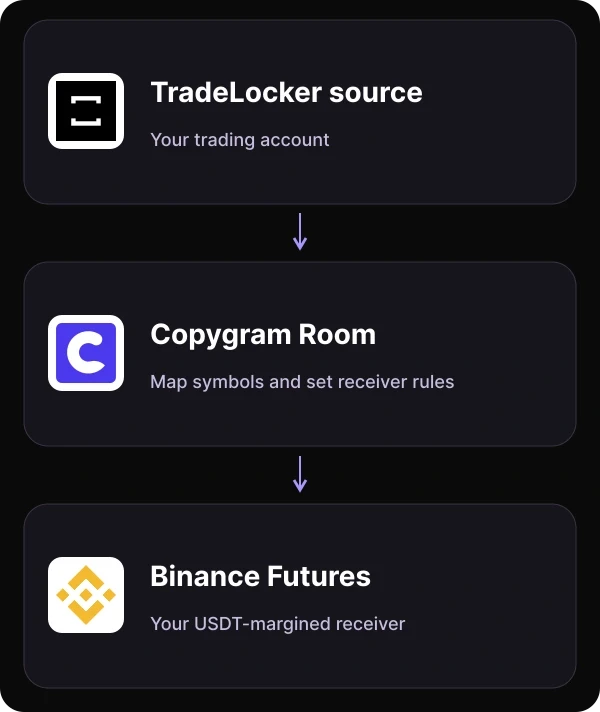
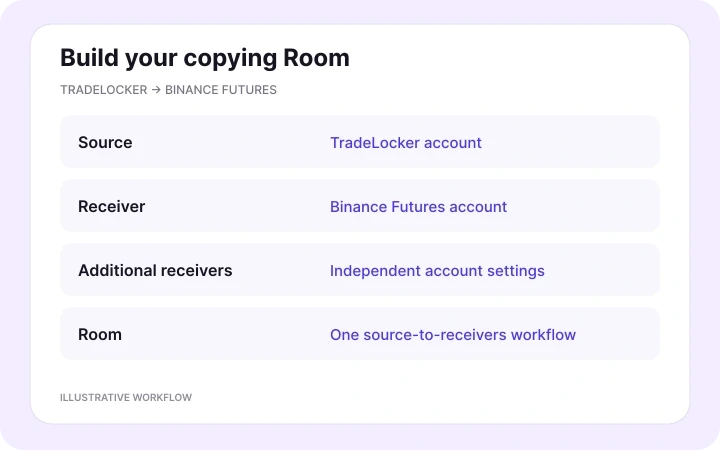
A TradeLocker-to-Binance Futures trade copier connects your source trading account to your crypto futures receiver. Copygram runs the connection in a Room, where you choose which symbols copy and how each receiving account handles them.
SETUP GUIDE
How to copy TradeLocker trades to Binance Futures
Connect the source, add your Binance API connection and configure the receiving crypto markets in five steps.
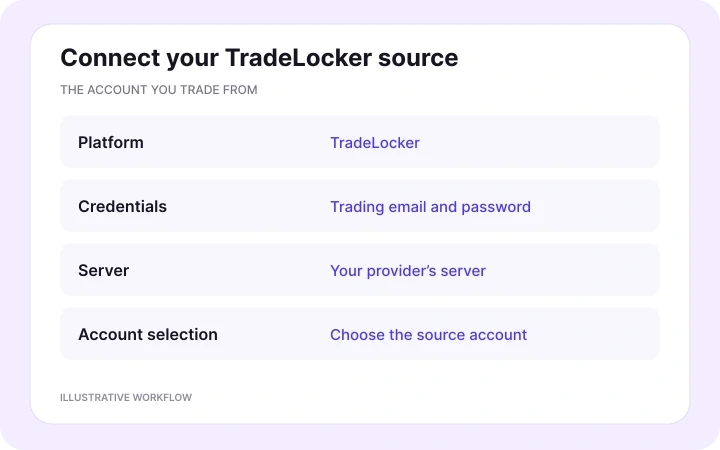
In Copygram, open Trading Accounts and choose TradeLocker. Enter your trading email, password and provider’s server. Select the account you want to copy from and give the connection a recognizable name.
02 — Connect Binance Futures by API
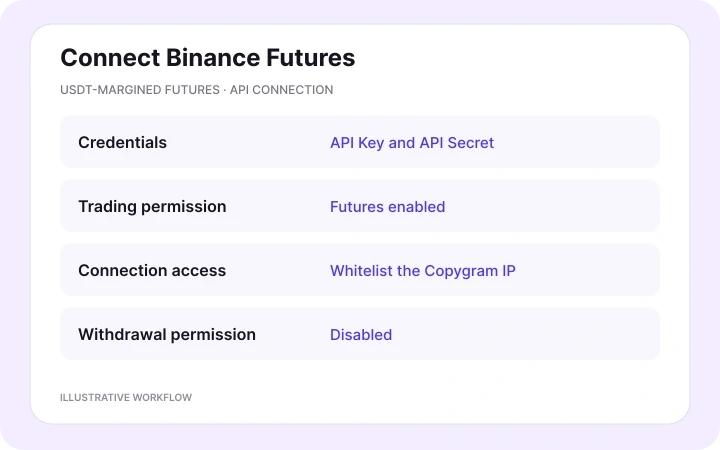
Choose Binance Futures and enter your API Key and API Secret. Enable Futures trading for the key and whitelist the Copygram IP address shown in the connection guide. This integration supports USDT-margined Futures. Keep withdrawal permission disabled.
03 — Link the accounts in a Room
Create a Copygram Room, choose your TradeLocker account as the source and add Binance Futures as the receiver. Add more receiving accounts when needed, each with its own symbol and sizing settings.
04 — Map symbols and set receiver rules
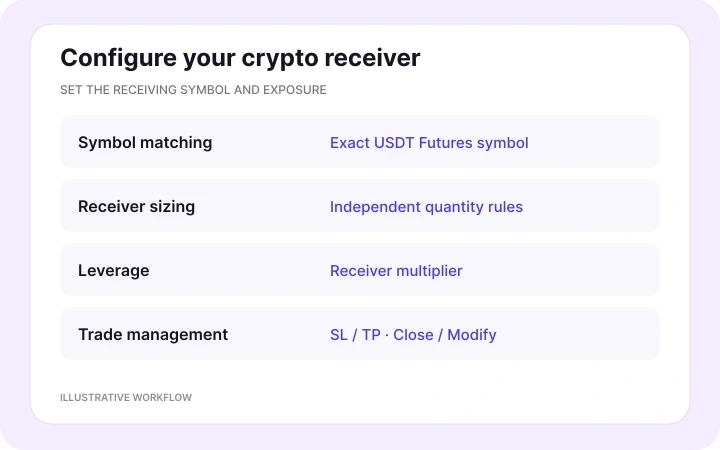
Map your source crypto symbols to the exact Binance Futures symbols. Configure receiver sizing, leverage, symbol filters and stop-loss/take-profit behavior. Set Copy Close Orders and Copy Modif Orders to control how source updates are followed.
05 — Activate and monitor the Room
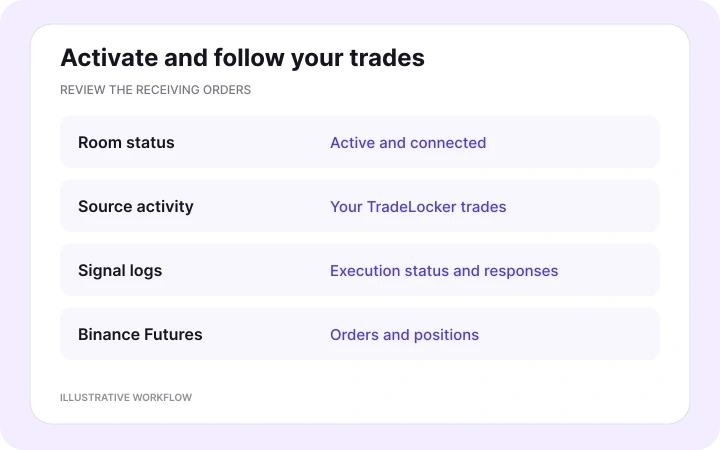
Activate the Room and trade from TradeLocker. Follow the execution status in Copygram’s signal logs and review the resulting orders and positions on Binance Futures. The logs help identify mapping, permission, quantity or margin issues.
CRYPTO RECEIVER SETTINGS
Map the market. Choose the exposure.
A source broker’s crypto instrument and a Binance Futures contract have their own symbols, quantities and prices. Give the receiving account clear rules.
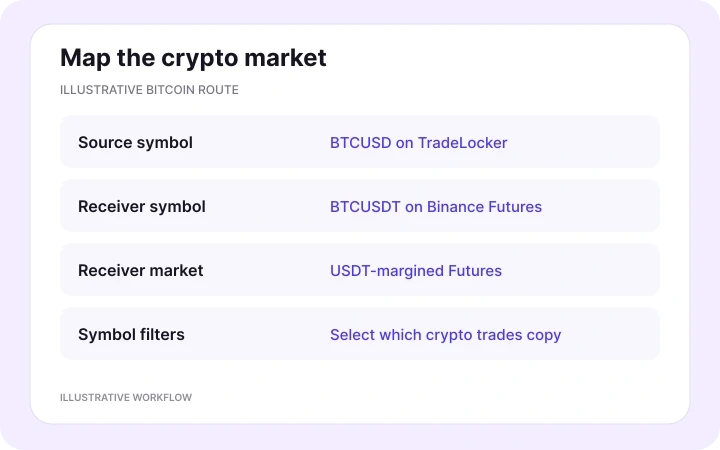
Match BTCUSD to BTCUSDT
Use the exact crypto symbol shown on your TradeLocker account as the source. Map it to the USDT-margined Futures symbol you want on Binance, such as BTCUSDT or ETHUSDT. Symbol filters let you select which crypto instruments follow this route.
A BTCUSD-to-BTCUSDT mapping identifies the receiving market. It does not make USD and USDT quotes, contract sizes or source and receiver prices identical. Keep the mapping focused on the instruments you intend to copy.
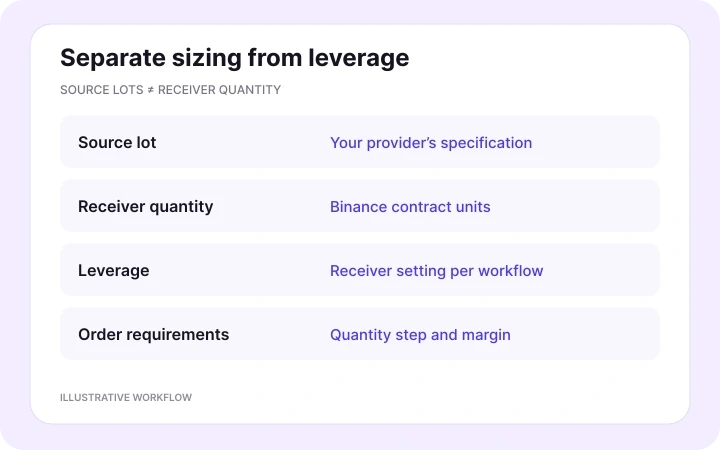
Set receiver sizing and leverage separately
Choose the Binance receiver’s sizing independently of the source lot size. Use symbol-specific exceptions when different crypto contracts need different quantities. Copygram also provides a Binance leverage setting; leaving it empty uses the account default for that symbol. The receiving order must meet the contract’s quantity step and minimum order requirements, with enough available margin.
A BTCUSD-to-BTCUSDT configuration example
Suppose your TradeLocker provider labels its Bitcoin instrument BTCUSD. Select that account as the Room’s source, map BTCUSD to BTCUSDT, and choose the Binance receiver’s size and leverage. Use a symbol filter if you want this Room to follow only your Bitcoin trades.
Review the receiver’s entry, stop-loss and take-profit settings because the two markets can quote different prices. Choose whether to follow source closes and modifications, then use the signal logs to see the receiver’s execution status. This is a configuration example, not a trade recommendation.

PRICING PLANS
Choose a plan for your trading accounts
Compare monthly and discounted annual plans for the accounts you want to connect.


MORE TRADELOCKER INTEGRATIONS
More TradeLocker integrations
Choose another receiver for your TradeLocker source. Explore all seven other destinations, the full TradeLocker hub and related workflows below.


TradeLocker to MT4 / MT5
Keep trading on TradeLocker while MT4 or MT5 receives your trades. Map broker symbols and set each receiver’s lot size.
Explore workflow
TradeLocker to TradeLocker
Copy your source TradeLocker account to other TradeLocker accounts. Give each receiver its own position sizing and rules.
Explore workflow

TradeLocker to Tradovate
Copy TradeLocker trades to Tradovate. Match the destination futures contract, expiry and whole-contract quantity.
Explore workflow

TradeLocker to NinjaTrader
Send TradeLocker trades to NinjaTrader accounts. Select the receiving futures contract and configure its order quantity.
Explore workflow
TradeLocker to DXtrade
Connect TradeLocker to DXtrade with broker-specific symbol mapping, independent position sizing and receiver controls.
Explore workflow

TradeLocker to MatchTrader
Copy trades to MatchTrader accounts. Map the destination broker’s symbols and choose each receiver’s position size.
Explore workflow

TradeLocker to OANDA
Use TradeLocker as your source and OANDA as your receiver, with exact instrument mapping and independent sizing.
Explore workflow
TradeLocker trade copier
Explore TradeLocker as a source and receiver across Copygram’s supported platforms.
Explore workflow

MetaTrader to Binance Futures
Copy trades from an MT4 or MT5 source account to Binance Futures.
Explore workflow

TradingView to Binance Futures
Use TradingView alerts as the source for your Binance Futures automation.
Explore workflow
FREQUENTLY ASKED QUESTIONS
TradeLocker to Binance Futures FAQ
Answers about API connections, USDT-margined Futures, crypto symbols, receiver sizing and trade updates.
Can I copy trades from TradeLocker to Binance Futures?
Yes. Copygram connects TradeLocker as the source and Binance Futures as the receiver. Add both accounts, link them in a Room, map the crypto symbols and configure receiver settings. Activate the Room to copy source trades to your Binance USDT-margined Futures account.
Which Binance markets does Copygram support?
This connection supports Binance USDT-margined Futures. It is a Futures receiver, not a Binance Spot connection. Use the exact symbol of the USDT-margined contract you want to receive trades on, such as BTCUSDT or ETHUSDT.
What credentials do I need for this connection?
For TradeLocker, enter your trading email, password and provider’s server, then select the source account. For Binance Futures, provide an API Key and API Secret with Futures trading permission and whitelist the Copygram IP shown in the connection guide. Withdrawal permission should remain disabled.
How do I copy BTCUSD from TradeLocker to BTCUSDT on Binance?
In the Binance receiver’s Symbol Matching settings, enter the exact TradeLocker source symbol and map it to BTCUSDT. Use a symbol filter if you only want selected crypto instruments copied. The source instrument and Binance contract have their own prices and quantity units; mapping their names does not make those values equivalent.
Does one TradeLocker lot equal the same Binance Futures quantity?
No. A TradeLocker lot follows the source provider’s contract specification. The Binance receiver uses the selected Futures contract’s quantity rules. Configure the receiver’s sizing separately and use symbol-specific exceptions where needed. Check the contract’s quantity step, minimum order size and available margin.
Can I set leverage for the Binance receiver?
Yes. Copygram’s Binance receiver settings include a leverage multiplier. Leaving it empty uses the account’s default leverage for the symbol. Choose leverage together with your intended position size and available margin; changing leverage does not make source lots and receiver quantities equivalent.
Can one TradeLocker account copy to several Binance Futures accounts?
Yes. Add multiple receiving accounts to a Copygram Room and configure each independently. Receivers can have different symbol mappings, sizing and trade-management settings. Choose a Copygram plan for the number of trading accounts you want to connect.
Can Copygram follow TradeLocker closes and modifications?
Yes. Configure Copy Close Orders and Copy Modif Orders for each Binance receiver, along with its stop-loss and take-profit settings. Binance’s valid order prices, quantity rules and account settings still apply to each receiving action.
Will entry, stop-loss and take-profit prices match exactly?
Not necessarily. A broker’s TradeLocker crypto instrument and a Binance Futures contract can quote different prices. USD and USDT are also different quote assets. Symbol mapping identifies the receiving market; it does not convert the source price levels into equivalent receiver levels. Review the receiver’s price and SL/TP settings accordingly.
Will a Binance receiver copy every market traded on TradeLocker?
The receiver needs a valid Binance USDT-margined Futures instrument for each copied symbol. Build mappings for the crypto markets you want to follow and use symbol filters to limit the route. A source forex pair or index label should not be treated as an automatically equivalent Binance market.
Do I need a copier EA or my own VPS?
No. Copygram hosts the copying connection in the cloud. You do not need a Copygram copier EA or your own VPS for TradeLocker to Binance Futures. Keep your account connections and Room active.
Why might a Binance Futures order be rejected?
Read the receiver response in Copygram’s signal logs. Check the API key’s Futures permission and IP whitelist, exact receiver symbol, quantity step and minimum order size, available margin and valid order prices. Also review symbol filters and the receiver’s trading schedule.