ONE TRADELOCKER SOURCE → YOUR OTHER ACCOUNTS
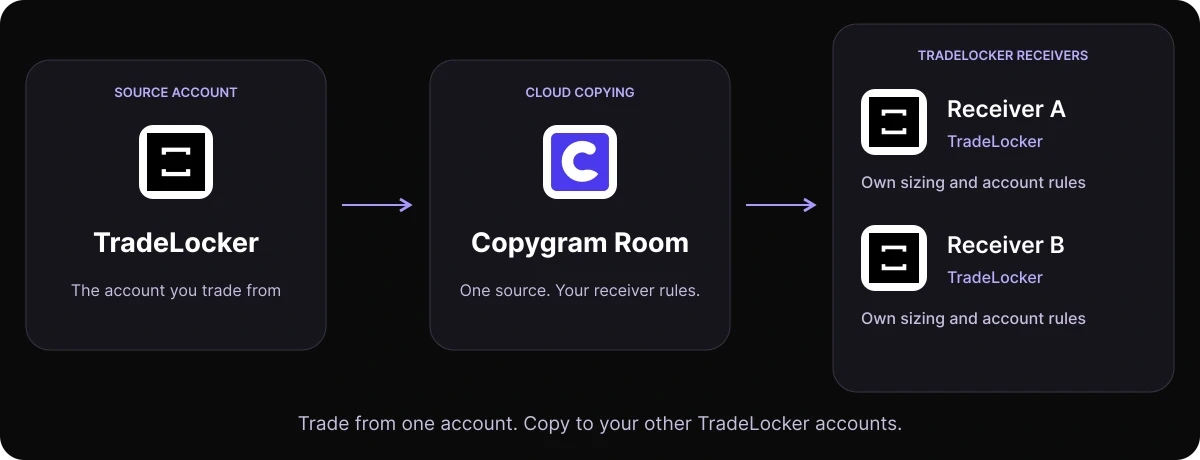
Trade from one TradeLocker account. Copy your trades to your other TradeLocker accounts with independent lot sizes, symbol mapping and trade-management settings.
TRADELOCKER ACCOUNT COPYING
One trading workflow. Separate settings for every account.
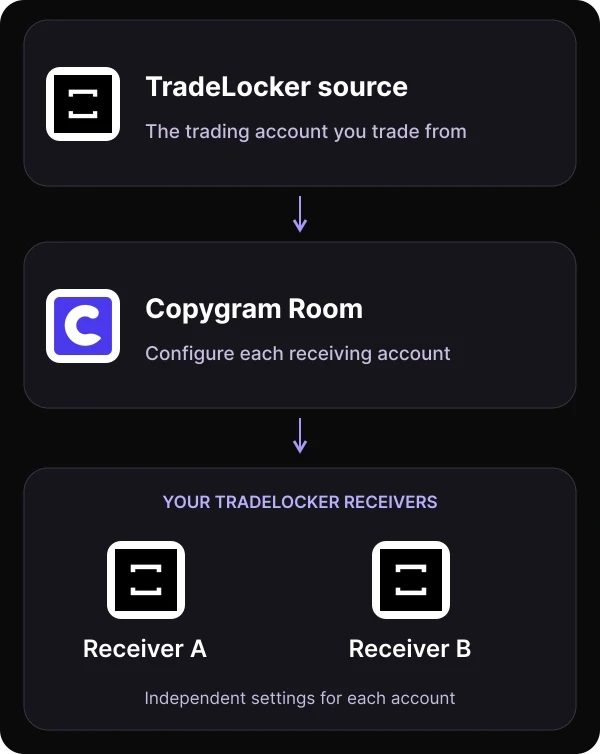
A TradeLocker-to-TradeLocker copier sends trades from one connected trading account to other TradeLocker accounts. Copygram manages the connection through a Room, while each receiver keeps its own provider, balance, position size and trade-management rules.
SETUP GUIDE
How to copy between TradeLocker accounts
Connect the exact accounts you want to use, choose one source and configure each destination before activating the Room.
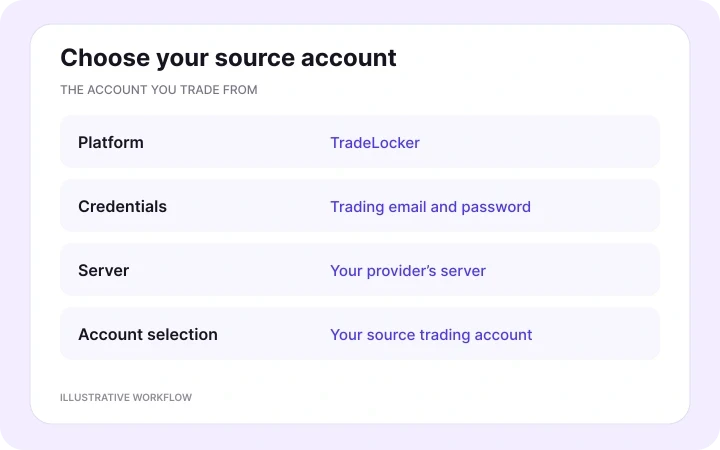
In Copygram, open Trading Accounts and choose TradeLocker. Enter your trading email, password and provider’s server, then select the account you want to use as the source. Give it a name that makes its role clear.
02 — Add your receiving accounts
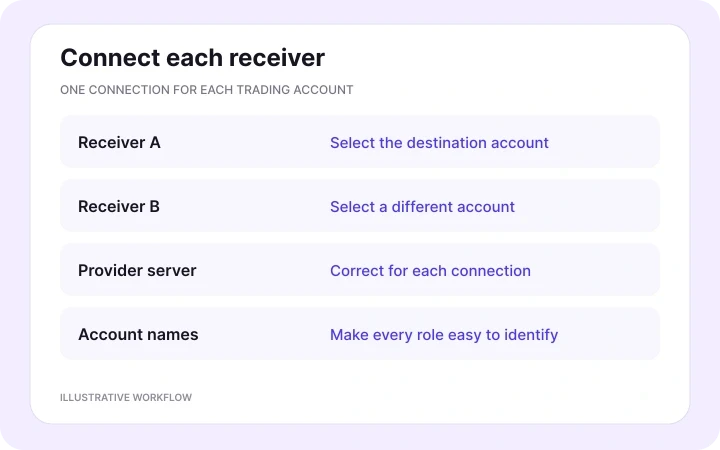
Connect each destination TradeLocker account separately. Use its correct login and server, then select the intended account from the available accounts. If one login shows several accounts, check the selected account carefully and give every connection a distinct name.
03 — Create one source-to-receivers Room
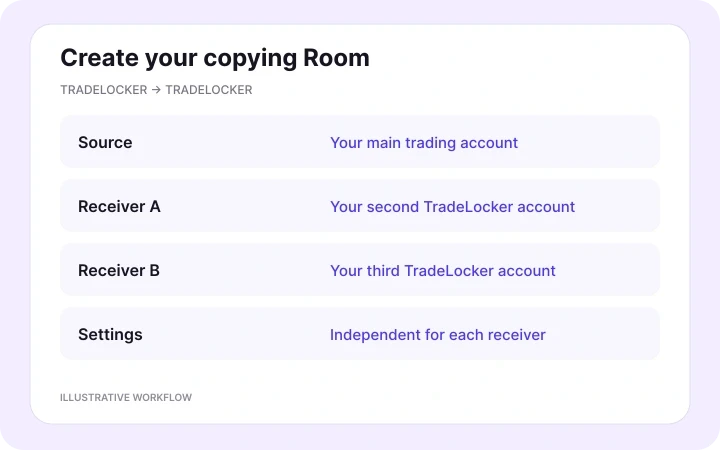
Create a Copygram Room, choose your TradeLocker source and add the TradeLocker accounts that should receive its trades. Keep the account roles clear: trade from the source and configure how each receiver follows it.
04 — Set the rules for each receiver
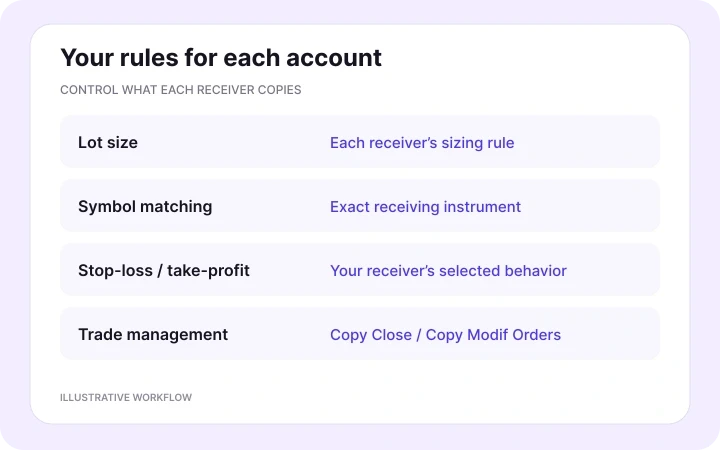
Choose the receiver’s money-management mode, symbol mapping, stop-loss and take-profit behavior. Configure Copy Close Orders and Copy Modif Orders for follow-up actions. Set symbol filters or symbol-specific lot exceptions where your workflow needs them.
05 — Activate and monitor the Room
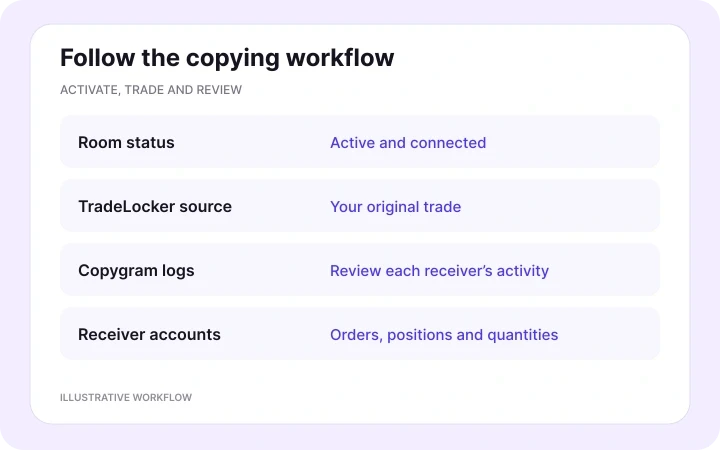
Activate the Room and continue trading from your source TradeLocker account. Follow Copygram’s activity logs and review the orders in each receiver. When a receiver differs, check its connection, symbol, sizing and trade-management settings.
INDEPENDENT RECEIVER SETTINGS
The same platform. Your settings for each account.
Control the instrument, quantity and follow-up actions separately for every receiving TradeLocker account.
Match the instrument across providers
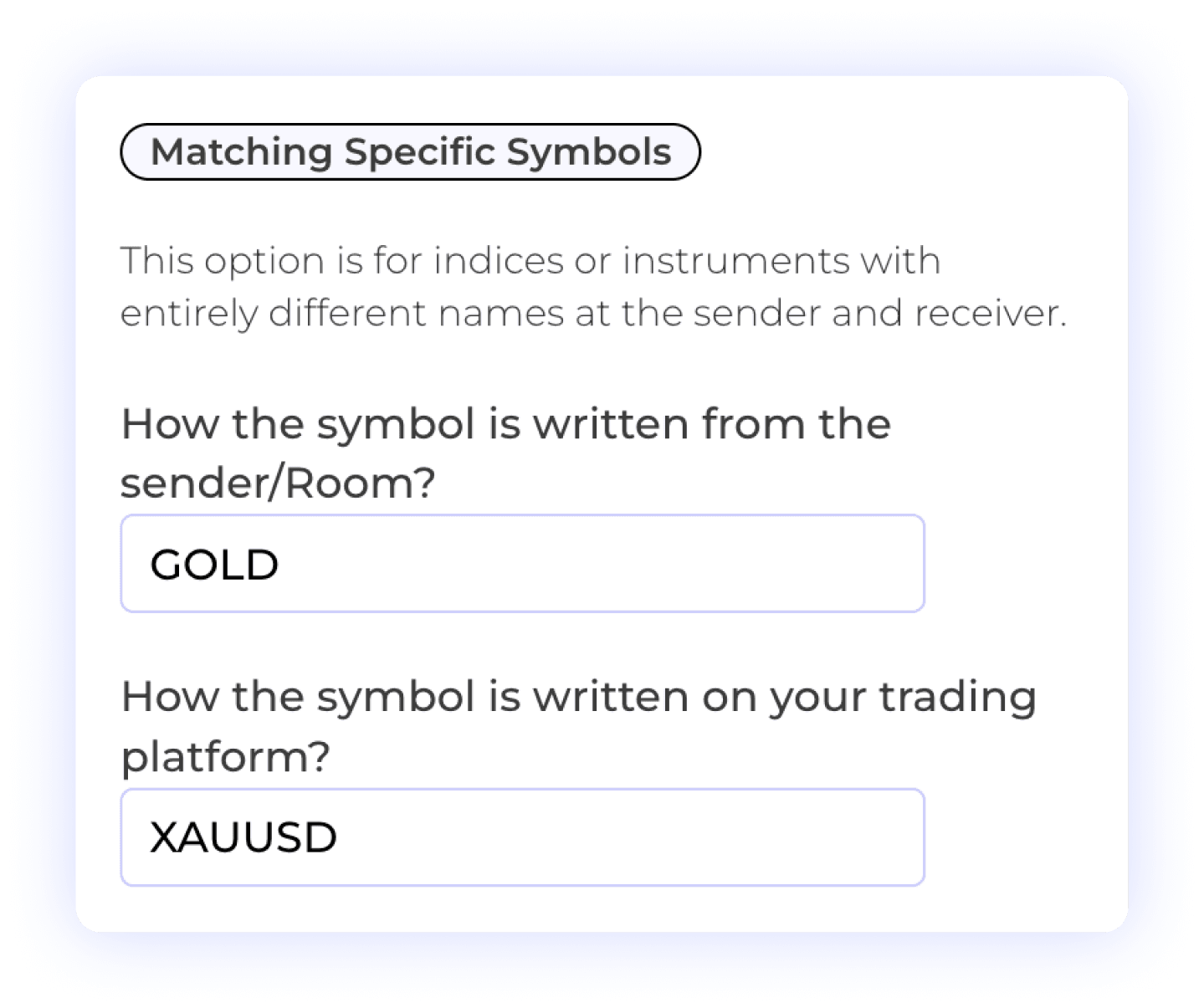
Two accounts can both use TradeLocker while their providers offer different symbol names and contract specifications. Check the exact instrument on each account and map the source symbol to the receiving symbol when the names differ.
A provider may label gold GOLD while another uses XAUUSD. Review contract size, minimum quantity and trading hours as well as the name. Each receiver can have its own mapping and symbol filters.
Size each receiving account independently
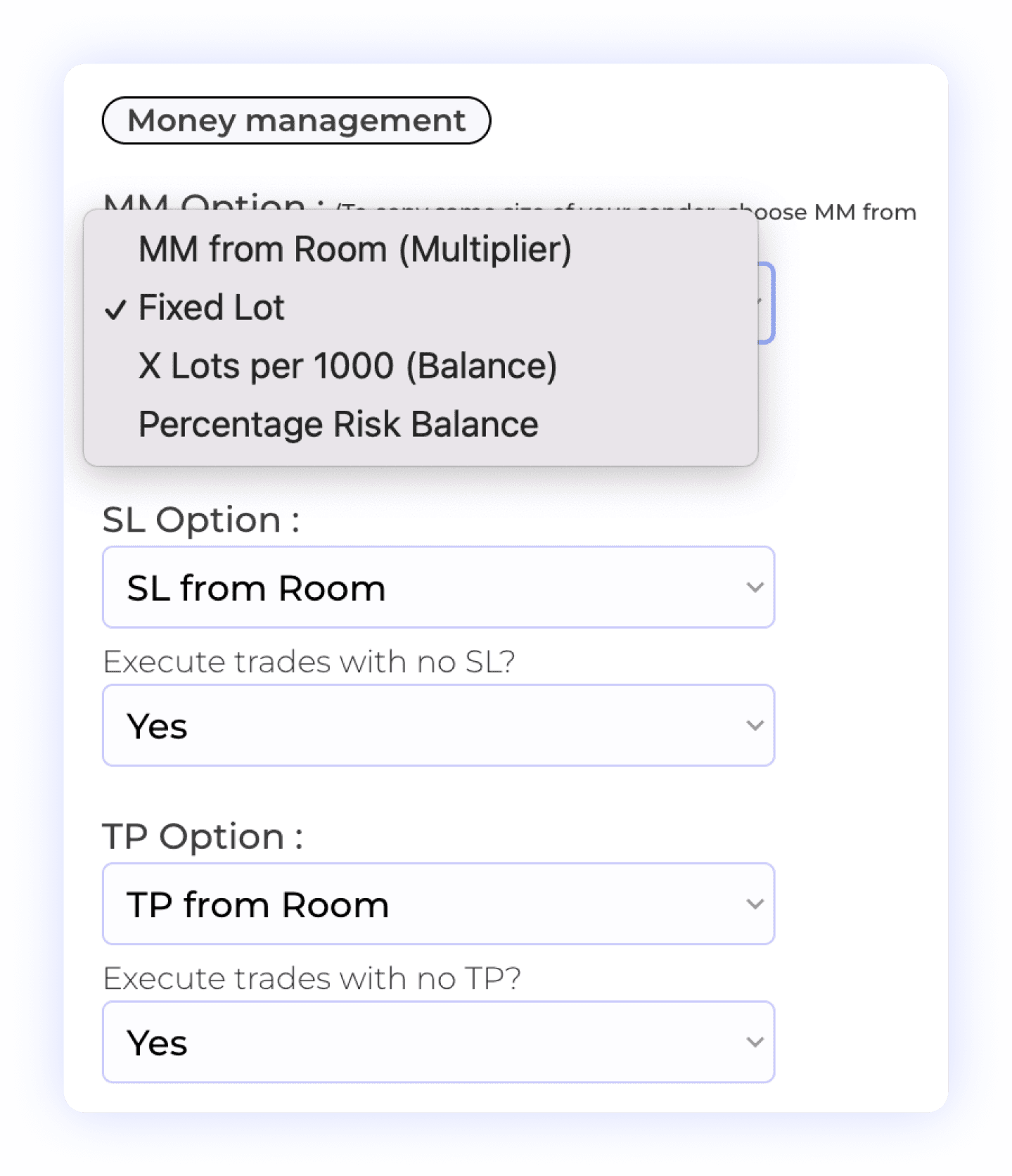
Use a fixed lot size, a multiplier or a balance- or risk-based sizing mode for each receiver. Symbol Lot Exceptions let individual instruments use their own quantity. Risk-based modes need a usable stop-loss distance. Choose the setting for that account’s balance and instrument specifications.
One source trade. Two receiver quantities.
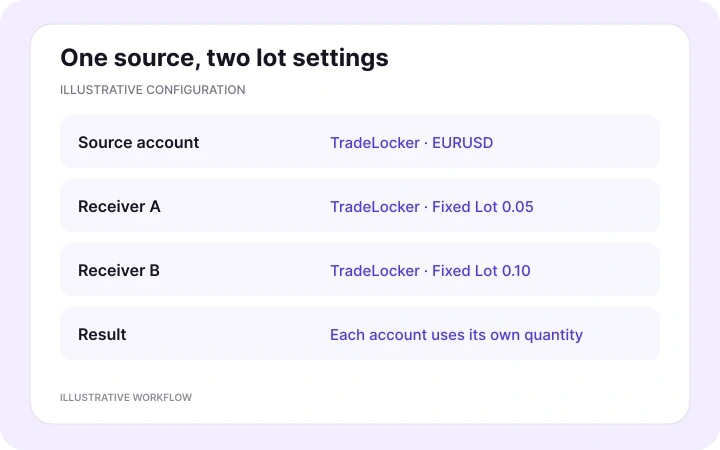
For an illustrative EURUSD workflow, set receiver A to Fixed Lot 0.05 and receiver B to Fixed Lot 0.10. When your TradeLocker source opens a trade, each receiver uses its own configured quantity. The accounts remain separate.
Configure Copy Close Orders and Copy Modif Orders to follow source closures and changes. Select each receiver’s stop-loss and take-profit behavior too. Different providers and settings can produce different fills and results.
PRICING PLANS
Choose a plan for your trading accounts
Compare monthly and discounted annual plans for the accounts you want to connect.


MORE TRADELOCKER INTEGRATIONS
More TradeLocker integrations
Choose another receiver for your TradeLocker source. Explore all seven other destinations, the full TradeLocker hub and related workflows below.


TradeLocker to MT4 & MT5
Keep TradeLocker as your source and copy trades to MetaTrader 4 and MetaTrader 5 accounts.
Explore workflow

TradeLocker to Tradovate
Copy TradeLocker trades to Tradovate. Match the destination futures contract, expiry and whole-contract quantity.
Explore workflow

TradeLocker to NinjaTrader
Send TradeLocker trades to NinjaTrader accounts. Select the receiving futures contract and configure its order quantity.
Explore workflow
TradeLocker to DXtrade
Connect TradeLocker to DXtrade with broker-specific symbol mapping, independent position sizing and receiver controls.
Explore workflow

TradeLocker to MatchTrader
Copy trades to MatchTrader accounts. Map the destination broker’s symbols and choose each receiver’s position size.
Explore workflow

TradeLocker to Binance Futures
Route TradeLocker trades to Binance Futures. Match the futures market and configure receiver quantity and margin settings.
Explore workflow

TradeLocker to OANDA
Use TradeLocker as your source and OANDA as your receiver, with exact instrument mapping and independent sizing.
Explore workflow
TradeLocker trade copier
Explore TradeLocker as a source or receiver across all supported Copygram platforms.
Explore workflow

Telegram to TradeLocker
Use Telegram trading signals as the source and route them to your TradeLocker accounts.
Explore workflow
FREQUENTLY ASKED QUESTIONS
TradeLocker to TradeLocker FAQ
Answers about account selection, multiple receivers, provider differences and copying rules.
Can I copy trades from TradeLocker to another TradeLocker account?
Yes. TradeLocker works as both a source and a receiver in Copygram. Connect the accounts, select one as the source in a Room, add the receiving accounts and configure their rules. Activate the Room to copy trades from your source account.
Can one TradeLocker account copy to several accounts at once?
Yes. You can add multiple TradeLocker receivers to one Copygram Room. Each receiving account has independent symbol mapping, position sizing and trade-management settings. Your Copygram plan determines your connected-account allowance.
Can I use TradeLocker accounts from different brokers or prop firms?
Yes. Connect each account with its own provider-issued credentials and server. Providers can offer different instruments, contract sizes and trading rules even when both accounts use TradeLocker. Match the receiver settings and follow the rules for each account.
Which credentials do I need for the TradeLocker connections?
Copygram asks for your TradeLocker trading email, password and server. After connecting, select the trading account from the available accounts. Repeat the process for your source and each receiver, using the correct account selection and server for every connection.
What if my TradeLocker login contains several trading accounts?
Choose the specific trading account after entering the login details. Add each account you want to use as a distinct Copygram connection and give it a clear name. When building the Room, check that you selected the intended source and receiving accounts.
Can each TradeLocker receiver use a different lot size?
Yes. Each receiver has its own money-management settings, including Fixed Lot, Multiplier, X Lots per 1000 Balance, Percentage Risk Balance and Fixed Risk Amount per Trade. Symbol Lot Exceptions override the general sizing rule for individual instruments. Risk-based modes need a usable stop-loss distance.
Do I need symbol mapping when both accounts use TradeLocker?
Use symbol mapping when the source and receiving provider use different names for an instrument. Check the exact symbol on each account. The same platform does not guarantee the same symbols, contract sizes, minimum quantities or trading hours across providers.
Can Copygram copy closures and stop-loss or take-profit changes?
Yes. Configure Copy Close Orders and Copy Modif Orders on each receiver to control follow-up actions. Also choose that receiver’s stop-loss and take-profit behavior. The receiving provider’s order rules apply to each update.
Do I need a copier EA or my own VPS for this route?
No. Copygram manages the copying connection in the cloud. You do not need to install a Copygram copier EA or run your own VPS for the TradeLocker-to-TradeLocker workflow. Keep the accounts connected and the Room active.
Does TradeLocker-to-TradeLocker copying work with demo and live accounts?
Yes. Copygram supports demo and live accounts. Connect the intended source and receiving accounts with their correct credentials and servers, configure the receiver settings and activate the Room.
Can I use this copier with my TradeLocker prop firm accounts?
Copygram supports the TradeLocker-to-TradeLocker route. Permission to copy trades depends on each prop firm’s current account rules. Check its requirements for copying between your own accounts, third-party tools and account access before enabling that workflow.
Will all my TradeLocker accounts have identical fills and results?
No. Each receiving account executes with its own provider and settings. Prices, spreads, available margin, lot sizes and execution conditions can differ. Copygram automates the workflow; it does not make separate accounts’ fills or trading results identical.