TRADELOCKER SOURCE → MT4 & MT5 RECEIVERS
Keep trading on TradeLocker. Copy your trades to MetaTrader 4 and MetaTrader 5 accounts with independent lot sizing, symbol mapping and trade-management rules.

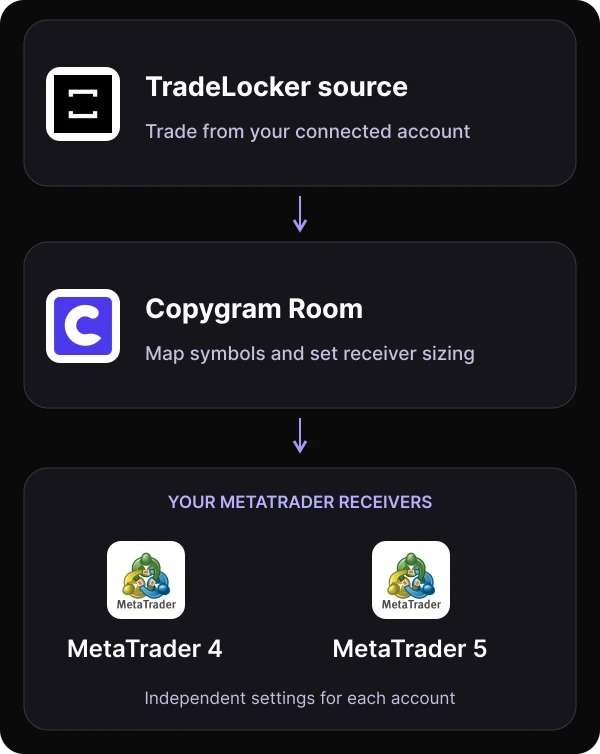
TRADELOCKER TO METATRADER
Trade on TradeLocker. Manage the copies in MT4 and MT5.
Copygram connects your TradeLocker trading account to MetaTrader receivers through a cloud-hosted Room. Your source trades drive the workflow; each MT4 or MT5 account uses its own symbol mapping, lot size and trade-management settings.
SETUP GUIDE
How to copy TradeLocker trades to MT4 & MT5
Connect your source and receivers, link them in a Room, and configure how each MetaTrader account follows your trades.
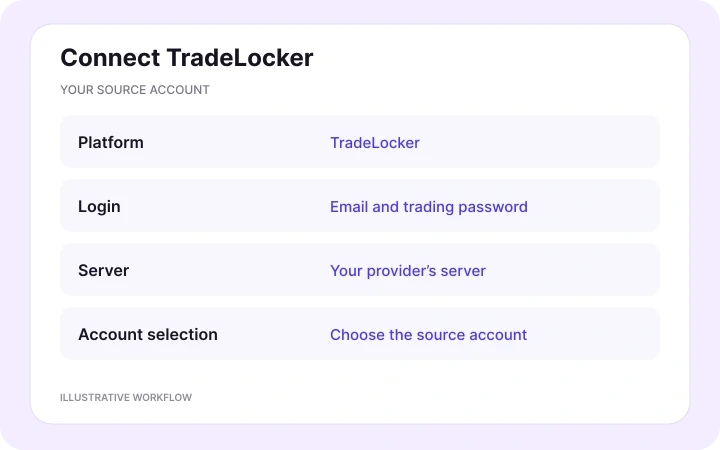
In Trading Accounts, choose TradeLocker. Enter your provider-issued trading email, password and server, then select the account you trade from. Give it a clear name so you can identify it when creating your Room.
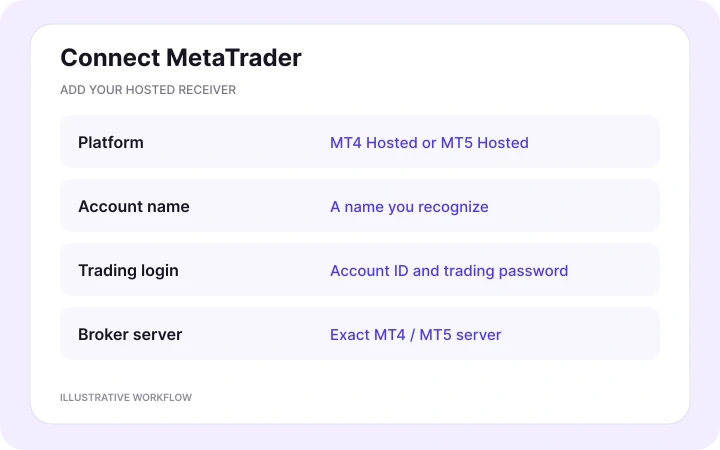
02 — Connect your MT4 or MT5 receivers
Add MetaTrader 4 Hosted or MetaTrader 5 Hosted. Enter the account name, trading login ID, trading password and exact broker server. Use a password with trading permission: an investor password cannot place copied orders.
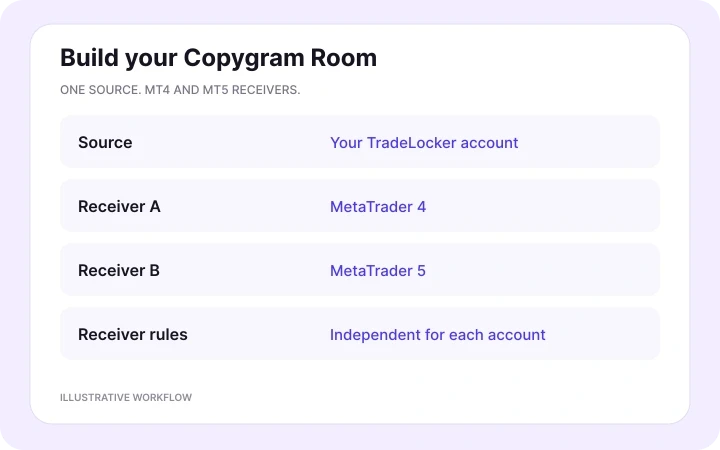
03 — Link the accounts in a Room
Create a Room and select TradeLocker as the source. Add your connected MT4 and MT5 accounts as receivers. You can include both versions in the same Room and give each receiving account its own settings.

04 — Configure the MetaTrader receiver
Map the TradeLocker symbol to the exact MT4 or MT5 broker symbol. Choose lot sizing, stop-loss and take-profit behavior, and whether to copy closures and modifications. Set symbol-specific lot exceptions where needed.
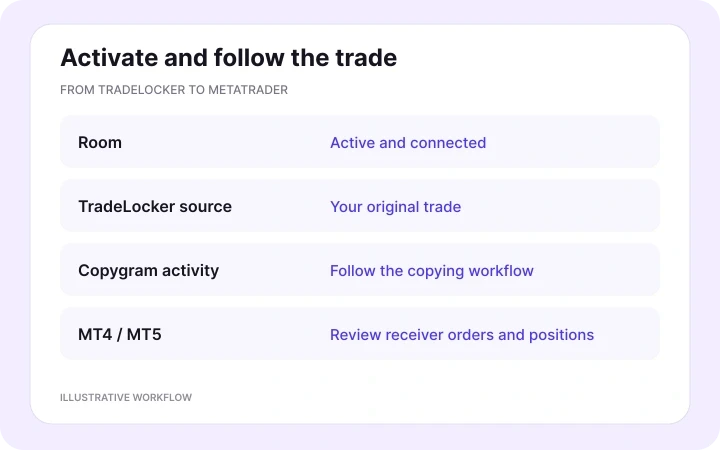
05 — Activate and follow your trades
Activate the Room and continue trading on TradeLocker. Use Copygram’s activity logs to follow each source trade, then review the orders and positions in the receiving MetaTrader accounts. Keep the accounts connected and the Room running.
METATRADER RECEIVER CONTROLS
Copy the trade with settings that fit each account
Match your broker’s instrument and set the receiving quantity independently, then choose how closures and modifications follow the source.
Map TradeLocker symbols to your broker’s symbols
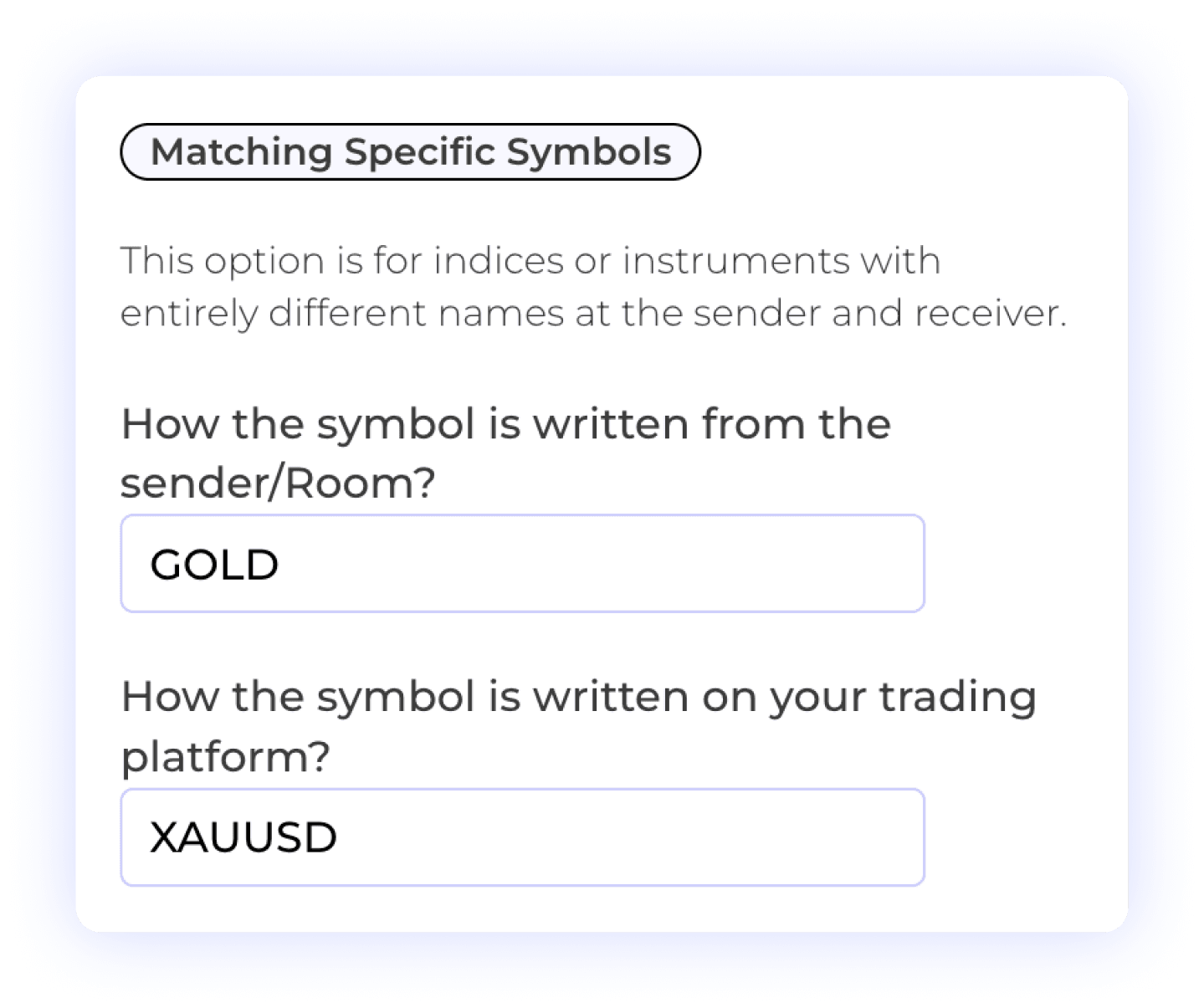
TradeLocker and MetaTrader brokers can label the same market differently. Map the exact TradeLocker source symbol to the exact MT4 or MT5 symbol, including any prefix or suffix.
For example, GOLD may map to XAUUSD or XAUUSDm. Check the receiving broker’s Market Watch, contract size and minimum lot increment: matching the name alone does not determine the correct quantity.
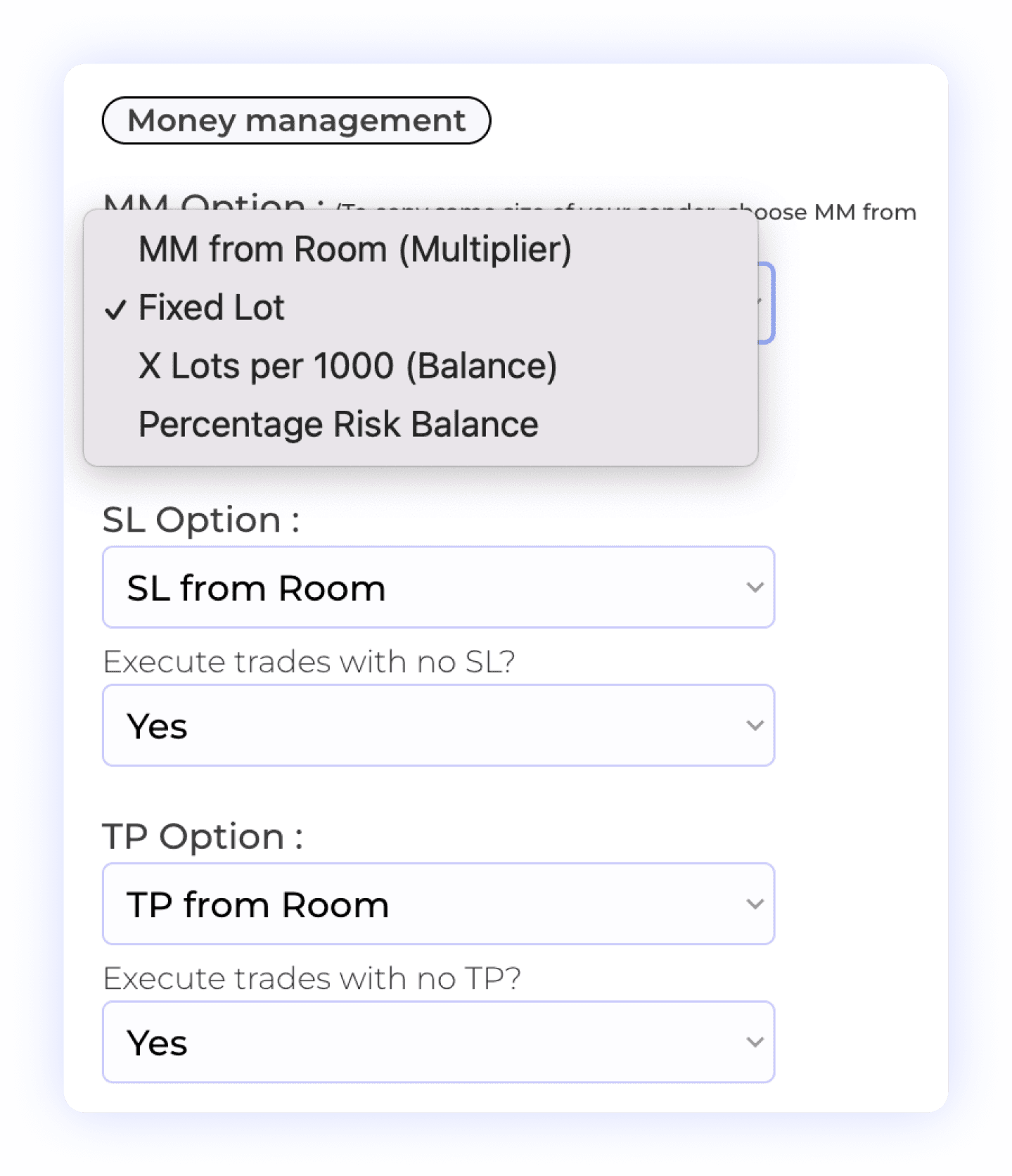
Choose each MetaTrader account’s lot size
Use Fixed Lot, a Multiplier, X Lots per 1000 Balance, Percentage Risk Balance or Fixed Risk Amount per Trade. Give each receiver its own rule and use Symbol Lot Exceptions for individual instruments. Risk-based sizing uses the stop-loss distance.
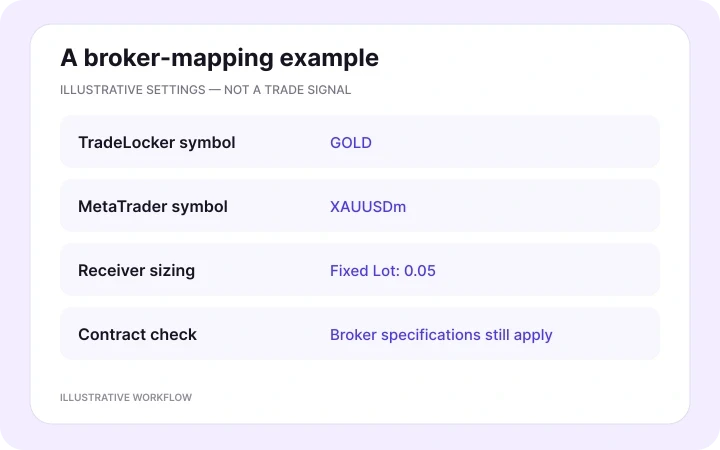
From a TradeLocker symbol to a MetaTrader order
Suppose your TradeLocker source calls gold GOLD and your MT5 broker lists it as XAUUSDm. Map GOLD → XAUUSDm and select Fixed Lot 0.05 for that receiver. The copied order then uses the receiver’s symbol and configured lot size.
Choose Copy Close Orders and Copy Modif Orders to follow source closures and changes. Stop-loss and take-profit behavior remains configurable per receiver. This is an illustrative setup; broker contract specifications and order rules apply.
PRICING PLANS
Choose your Copygram plan
Compare monthly and discounted annual plans for your connected trading accounts.


MORE TRADELOCKER INTEGRATIONS
More TradeLocker integrations
Choose another receiver for your TradeLocker source. Explore all seven other destinations, the full TradeLocker hub and related workflows below.


TradeLocker to TradeLocker
Copy your source TradeLocker account to other TradeLocker accounts. Give each receiver its own position sizing and rules.
Explore workflow

TradeLocker to Tradovate
Copy TradeLocker trades to Tradovate. Match the destination futures contract, expiry and whole-contract quantity.
Explore workflow

TradeLocker to NinjaTrader
Send TradeLocker trades to NinjaTrader accounts. Select the receiving futures contract and configure its order quantity.
Explore workflow
TradeLocker to DXtrade
Connect TradeLocker to DXtrade with broker-specific symbol mapping, independent position sizing and receiver controls.
Explore workflow

TradeLocker to MatchTrader
Copy trades to MatchTrader accounts. Map the destination broker’s symbols and choose each receiver’s position size.
Explore workflow

TradeLocker to Binance Futures
Route TradeLocker trades to Binance Futures. Match the futures market and configure receiver quantity and margin settings.
Explore workflow

TradeLocker to OANDA
Use TradeLocker as your source and OANDA as your receiver, with exact instrument mapping and independent sizing.
Explore workflow
TradeLocker trade copier
Explore all supported destinations for your TradeLocker source and the workflows that copy into TradeLocker.
Explore workflow
MetaTrader to TradeLocker
Need the reverse direction? Use MT4 or MT5 as the source and copy account trades into TradeLocker.
Explore workflow
MT4 & MT5 trade copier
Explore account copying between MetaTrader 4 and MetaTrader 5, with a source account and independent receivers.
Explore workflow
FREQUENTLY ASKED QUESTIONS
TradeLocker to MT4 & MT5 FAQ
Direct answers about connecting MetaTrader receivers and managing copied trades.
Can I copy trades from TradeLocker to MT5?
Yes. Connect TradeLocker as the source in a Copygram Room and add your MetaTrader 5 account as a receiver. Set the receiving symbol, lot sizing and trade-management rules, then activate the Room. TradeLocker sender support is live.
Can I copy trades from TradeLocker to MT4?
Yes. Add your TradeLocker source and MetaTrader 4 Hosted receiver in Copygram, link them in a Room and configure the receiver’s rules. Copygram runs the account-copying connection in the cloud.
Can one TradeLocker account copy to MT4 and MT5 at the same time?
Yes. A Room can connect one TradeLocker source to multiple MT4 and MT5 receivers. Each receiver has independent symbol mapping and position-sizing settings. Your Copygram plan determines your connected-account allowance.
Do TradeLocker and MetaTrader need to use the same broker?
No. You can connect separate trading accounts from different providers. Each account keeps its own login, server, balance and positions. Match the receiver’s instruments and contract specifications, and follow the rules that apply to both accounts.
Which credentials do I need for an MT4 or MT5 receiver?
Select MetaTrader 4 Hosted or MetaTrader 5 Hosted in Copygram, then enter an account name, the trading login ID, password and broker server. Use the trading password for a receiver; an investor password provides read-only access and cannot place orders.
Do I need a Copygram EA, VPS or an open MetaTrader terminal?
No. Copygram hosts the MT4/MT5 copying connection, so you do not need to install a Copygram copier EA or keep your own terminal or VPS running for this route. Keep your accounts connected in Copygram and the Room active.
How do I match TradeLocker symbols to my MT4 or MT5 broker?
Use the exact source symbol and the exact receiver symbol in Symbol Mapping. A source might use GOLD while a MetaTrader broker uses XAUUSD or XAUUSDm. Check the receiver’s Market Watch and instrument specifications. Prefix, suffix and symbol-specific settings help handle broker naming differences.
Can I choose a different lot size for each MetaTrader account?
Yes. Each receiver has its own money-management settings. Choose Fixed Lot, Multiplier, X Lots per 1000 Balance, Percentage Risk Balance or Fixed Risk Amount per Trade. Symbol Lot Exceptions override the general sizing rule for individual instruments. Risk-based modes need a usable stop-loss distance.
Can Copygram copy TradeLocker trade closures and modifications?
Yes. Use Copy Close Orders and Copy Modif Orders in the receiver settings to control follow-up actions. Configure the stop-loss and take-profit options for that receiver as well. The receiving broker’s order rules still apply to each update.
Does this route work with demo and live accounts?
Yes. Copygram supports demo and live accounts. Connect the intended TradeLocker source and MT4 or MT5 receiver using the correct credentials and server, configure your Room and activate the workflow.
How does an MT5 netting account affect copied trades?
Copygram’s hosted MT5 connection supports hedging and netting accounts. With netting, MT5 combines trades on the same symbol into one position; with hedging, separate positions can remain open. Choose the account type that fits your workflow and review the receiver’s resulting positions.