Telegram signal automation
Telegram to MatchTrader Signal Copier
Automatically route Telegram signals to your supported MatchTrader account. Set your receiver rules and monitor orders from one cloud dashboard.
Cloud-based
No VPS required
Per-account settings
Signal logs

You choose the signal source. Copygram handles automation, not trading advice.
The workflow explained
What is a Telegram to MatchTrader copier?
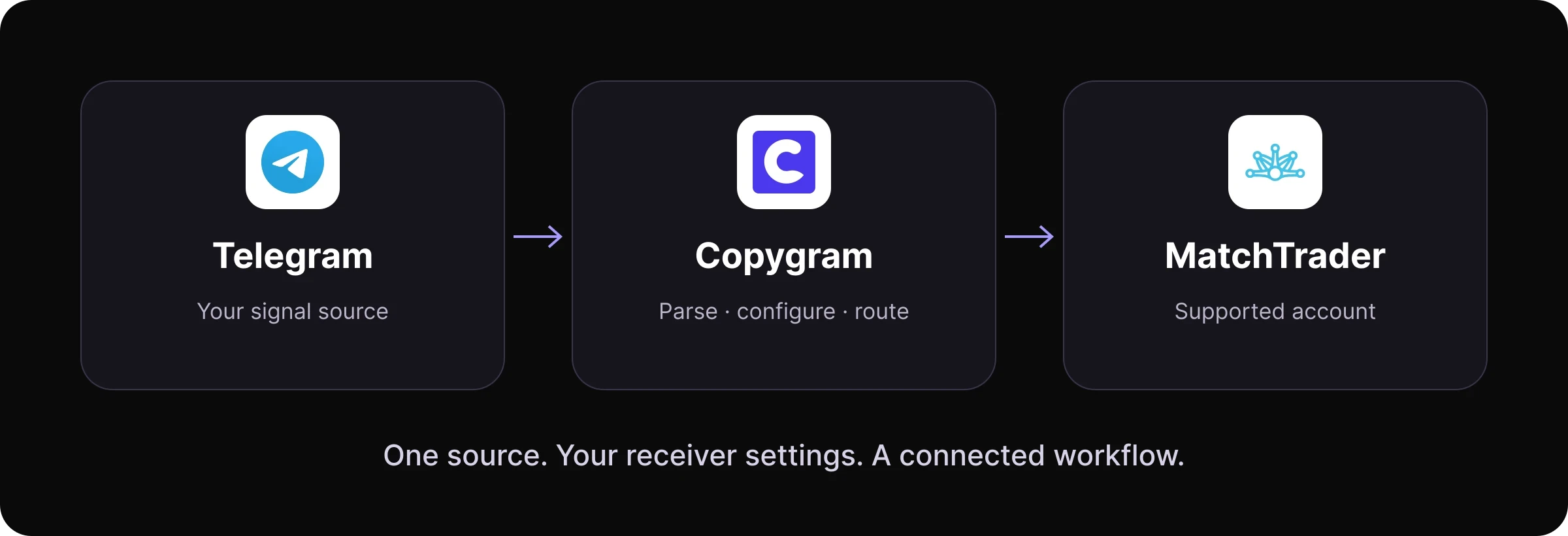
Telegram supplies the message. Copygram interprets and routes it. MatchTrader receives the order.
A Telegram to MatchTrader copier turns trading instructions posted in a Telegram source into orders on a connected MatchTrader account. Telegram supplies the message, Copygram interprets and routes it, and MatchTrader is the trading destination.
MatchTrader is also written as Match-Trader, the platform developed by Match-Trade Technologies. This workflow is for traders who already receive signals on Telegram. It is separate from following a money manager through Match-Trader’s native social trading features.
How it works · step by step
How to connect Telegram to MatchTrader
Set up the source, destination and receiver rules before you activate the room. Have access to your Telegram signal source and the MatchTrader account you want to connect.

01
Add your MatchTrader account
In Copygram, add a trading account and select MatchTrader. Choose your broker, enter the email and password for the MatchTrader connection, then select the account you want to use. If your broker is not listed, check compatibility with support before continuing.
02
Connect your Telegram source
Connect your Telegram account and select the signal source you want to follow. Confirm that you have permission to access and use its messages. Check a sample of the provider’s entries and trade updates before activating automation.

03
Create a room
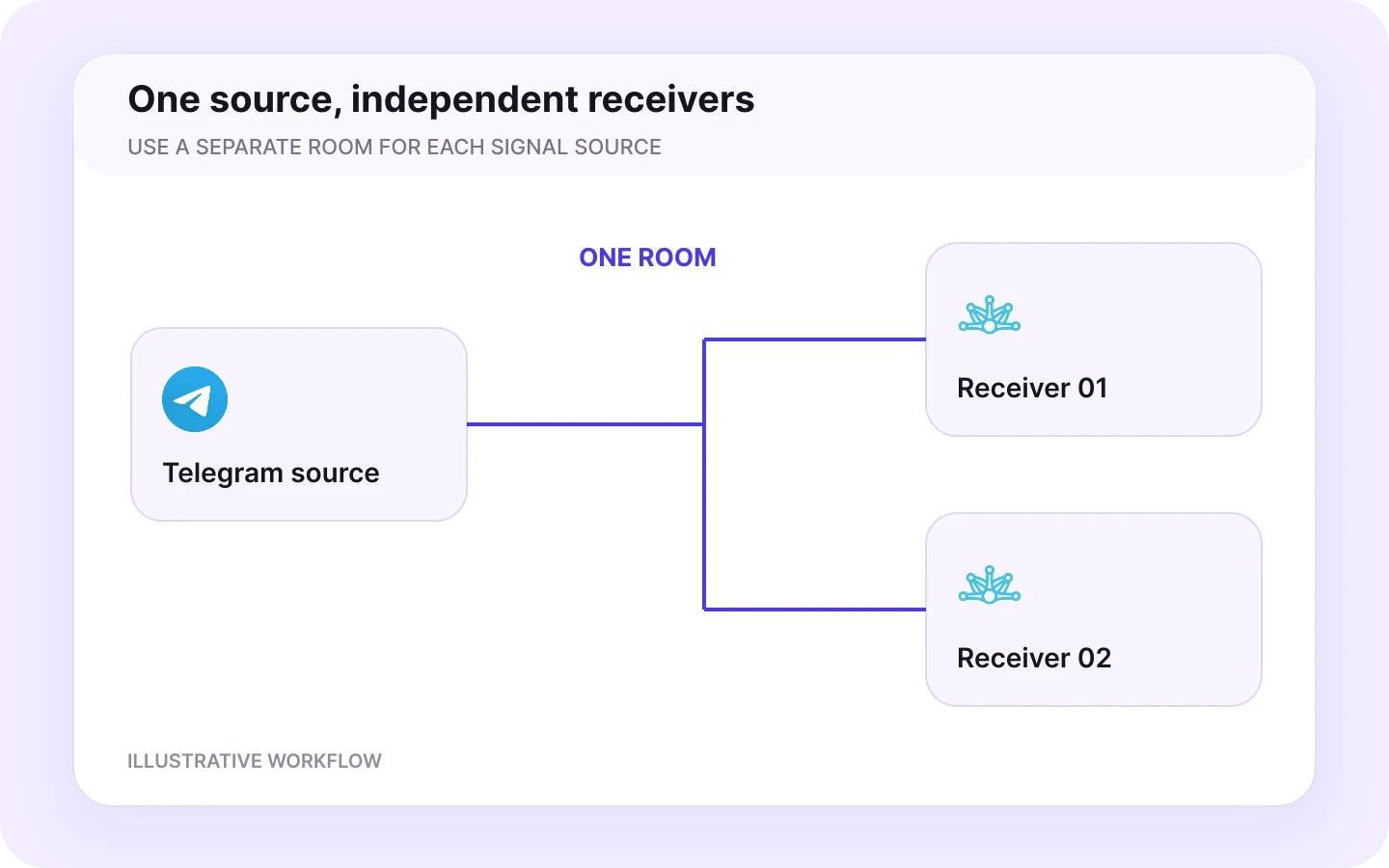
Create a room with Telegram as the sender and your MatchTrader account as a receiver. A room links one signal source to one or more receiving accounts. Use a separate room for another signal source.
04
Configure the receiver
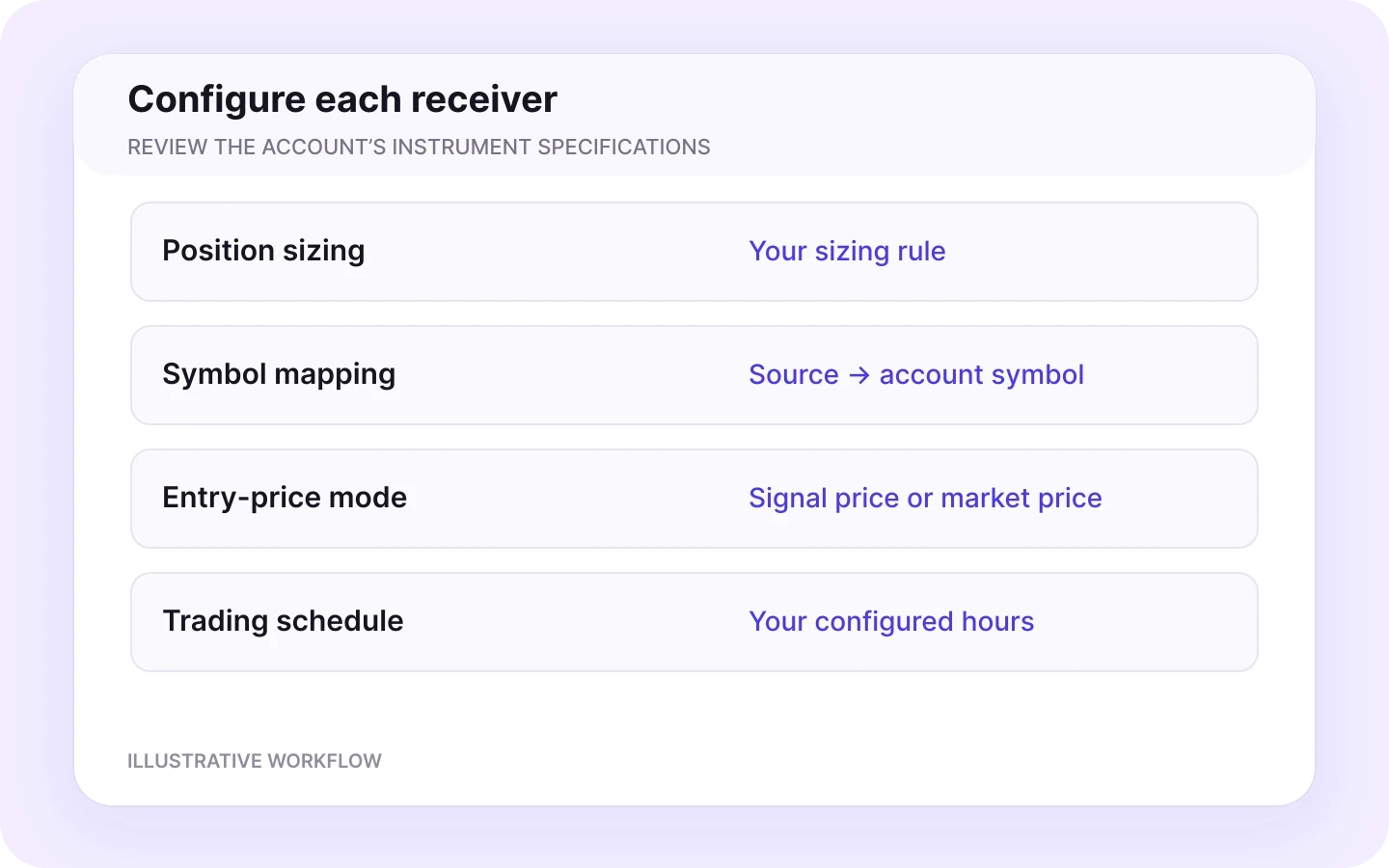
Choose your sizing method, stop-loss and take-profit behavior, symbol mappings and Telegram entry-price mode. Review filters and trading hours. Each receiver has its own settings, so check every account you connect.
05
Test, activate and monitor
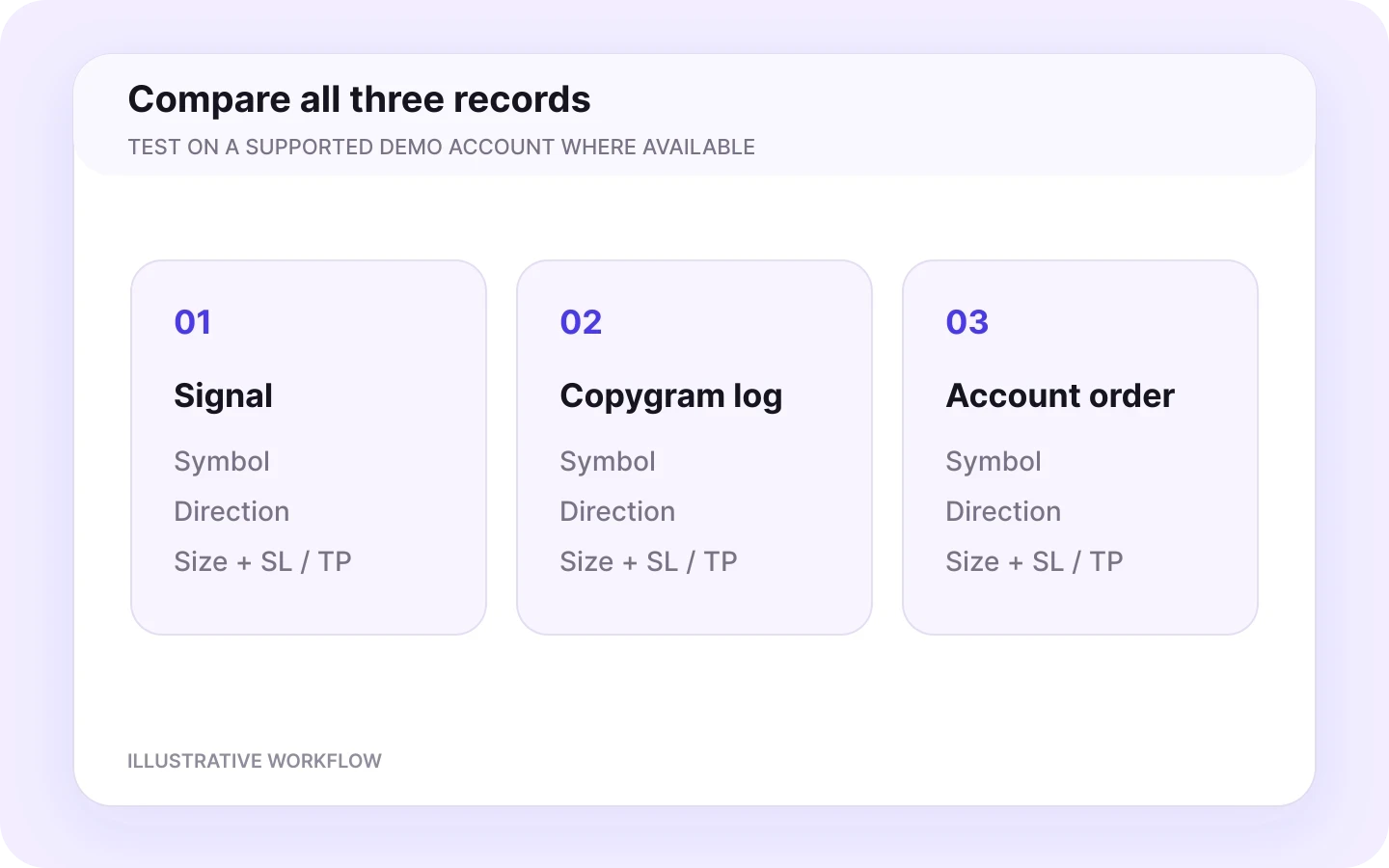
Where a supported demo account is available, use it to check the complete workflow before connecting live funds. Activate the room, compare the signal with the log and destination order, and verify the symbol, direction, size and protective levels. Continue monitoring after setup.
MatchTrader receiver controls
Configure how Telegram signals become MatchTrader orders
Your receiver settings decide which signals are copied and how orders are configured. Review the account’s instrument specifications alongside these controls.
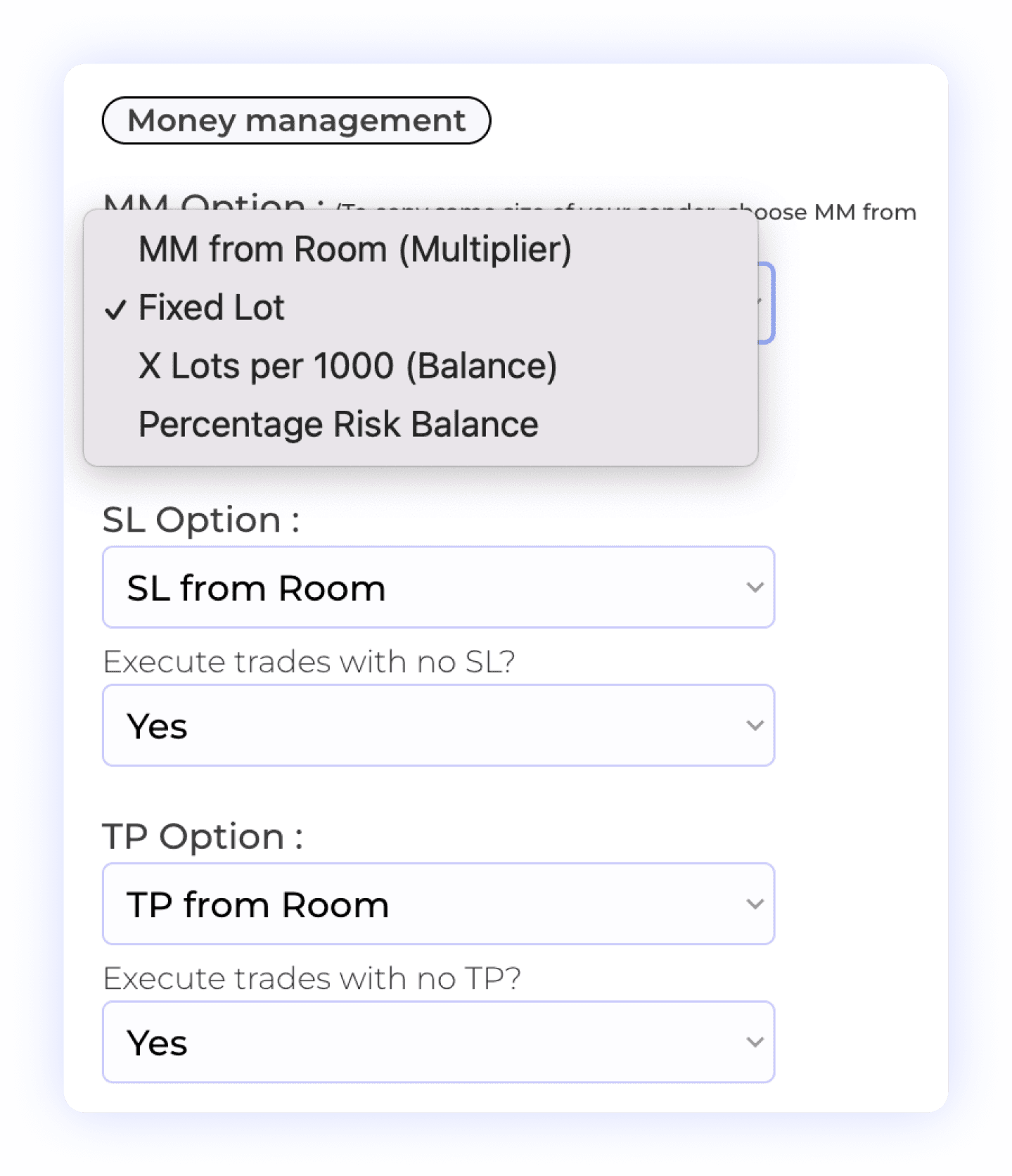
Choose your position size
Set the available money-management option for the MatchTrader receiver, such as fixed lots, a multiplier or balance-based risk sizing. Review the stop distance and resulting order volume; the same lot size can represent different exposure on different instruments.
Position sizing
Receiver settings
Review exposure
Match the exact instrument
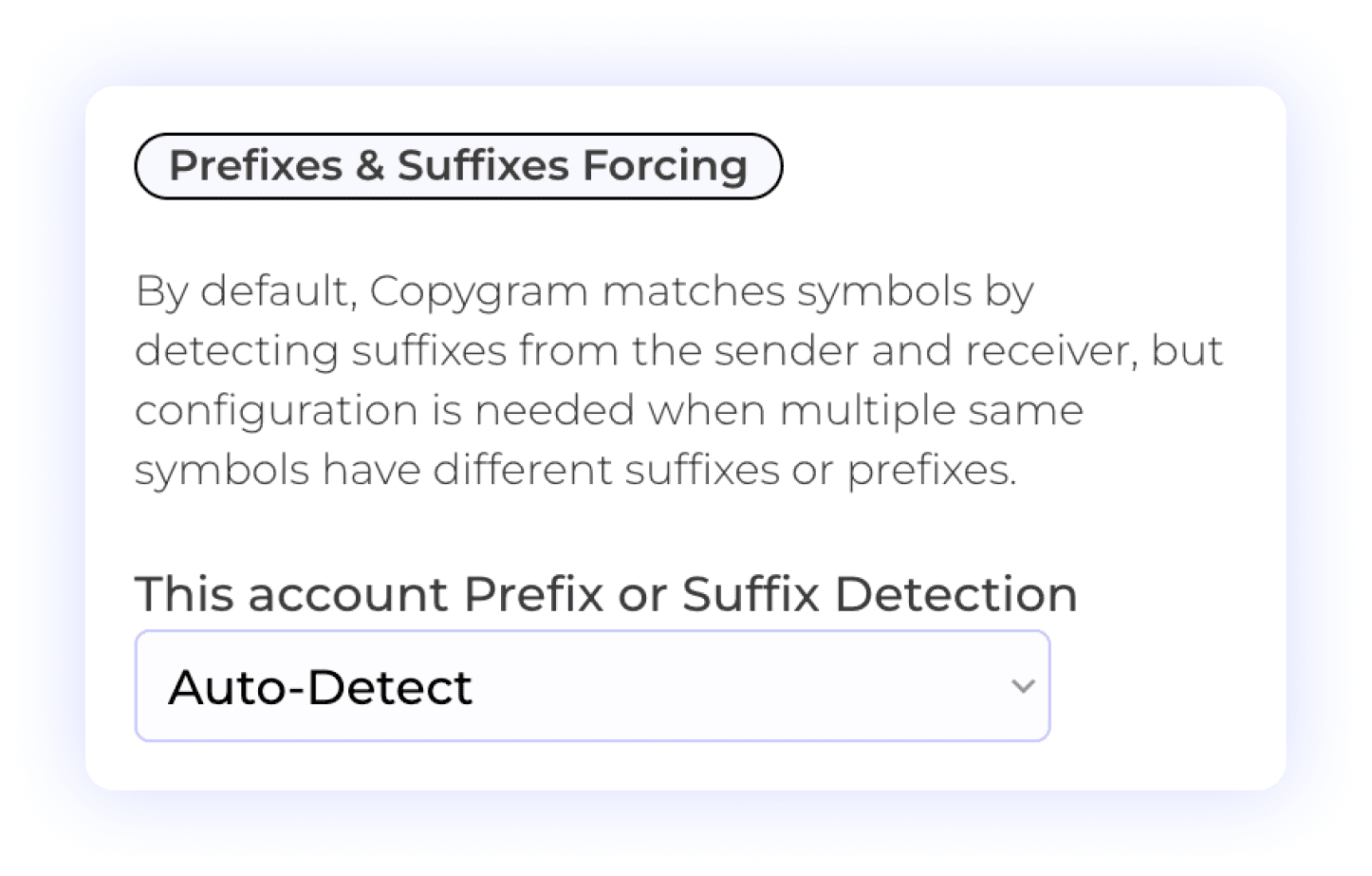
Map the symbol written in the Telegram message to the symbol on your receiving account. Use prefix and suffix settings when the account adds characters to instrument names. Check the mapping against the account’s instrument list.
Exact instrument
Prefix & suffix
Symbol mapping
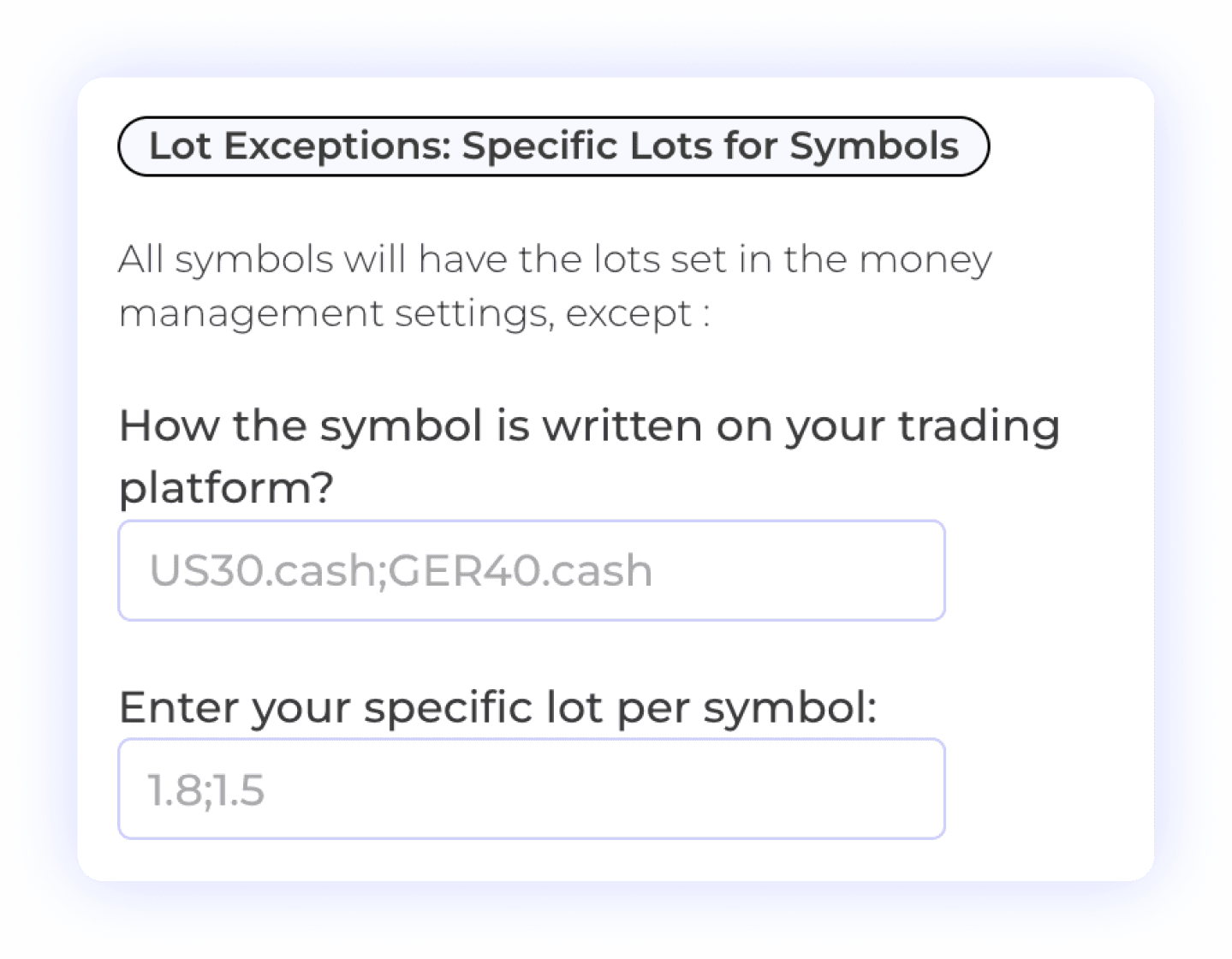
Set exceptions for individual symbols
Use symbol-specific lot exceptions when an instrument needs a different volume from your default setting. Review these exceptions before changing the room’s sizing rules, because they can override the default.
Per-symbol rules
Lot exceptions
Review overrides
Decide how SL and TP are applied
Configure stop-loss and take-profit handling for the receiver. Check the available behavior for signals that omit these levels before enabling the room. A configured stop loss does not guarantee a fill at that price.
Stop-loss settings
Take-profit settings
Account order rules
Configure multiple take profits
For Telegram signals with several targets, set the available percentage controls for each TP level. Test the resulting behavior on your account, especially when small order sizes or instrument volume increments affect the allocation.
Multiple targets
Percentage controls
Check order sizes

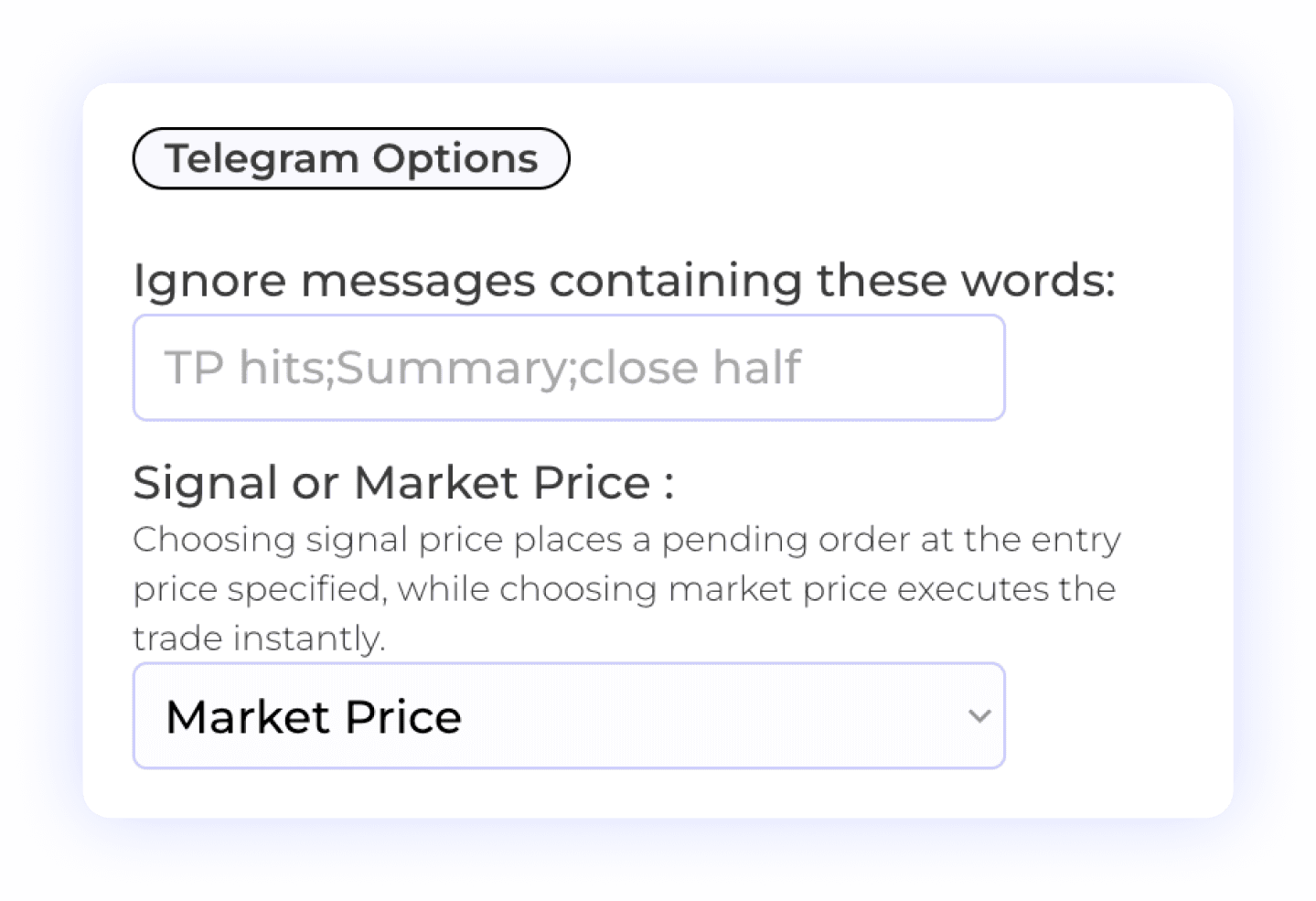
Choose signal price or market price
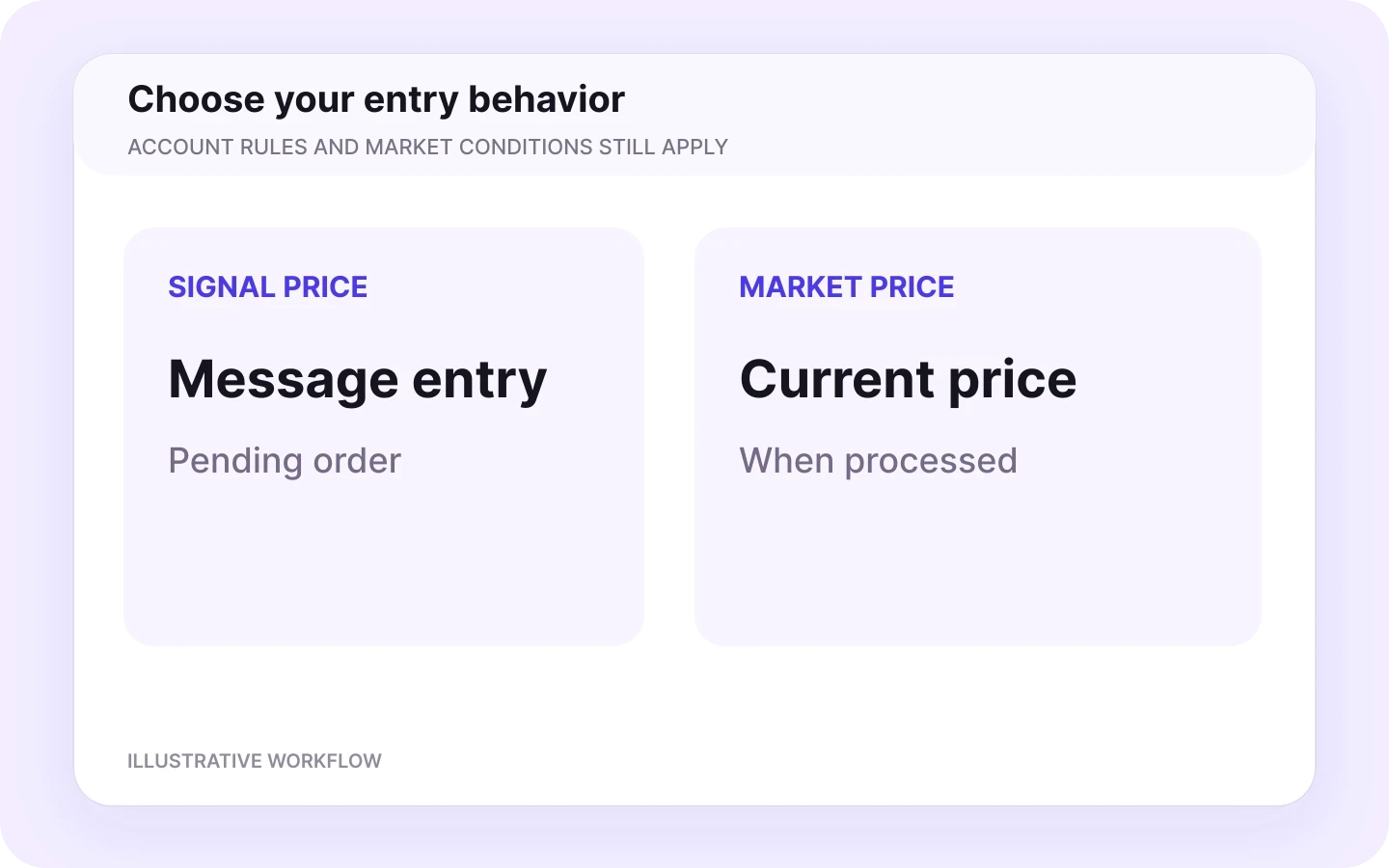
Use Signal Price when the entry level in the message should form a pending order. Use Market Price when the order should use the current market price as the signal is processed. Account rules and market conditions still determine acceptance and execution.
Signal Price
Market Price
Pending orders
Filter messages and instruments
Ignore messages containing words or phrases you specify, and use the symbol controls to select or exclude instruments. Avoid an overly broad filter that also removes trade-management messages you want to process.
Message filters
Symbol controls
Review updates

Set a schedule and manage updates
Choose when the receiver accepts signals and whether supported close or modification actions are copied. Check the configured time zone and daylight-saving changes when planning your trading sessions. A schedule is not an automatic economic-news filter.
Trading hours
Time zone
Close & modify
A worked example
From a Telegram message to a MatchTrader order
The example below shows the fields to check. It is an illustrative message, not a live signal, recommendation or execution result.
BUY EURUSD
Entry: 1.1000
Stop loss: 1.0950
Take profit 1: 1.1050
Take profit 2: 1.1100
BUY
The parsed direction matches the message.
EURUSD
The receiver maps it to the intended instrument offered by your account.
Entry 1.1000
Signal Price and Market Price create different entry behavior. Confirm the selected mode.
Stop loss 1.0950
The receiver’s stop-loss settings and the account’s order rules accept the intended level.
Two take-profit levels
Your multiple-TP configuration reflects the way you intend to manage the position.
No volume in the message
Review the receiver’s money-management setting and the resulting order size.
After a supported test signal is processed, compare the Telegram message, Copygram log and MatchTrader order. Mapping a symbol does not make two different contracts equivalent, and market execution does not guarantee the message’s quoted price.
Keep the signal context
How Telegram replies identify the trade to update
A later message needs enough context to identify the position. Copygram’s connector documentation distinguishes a reply to the original signal from a standalone command containing a symbol.
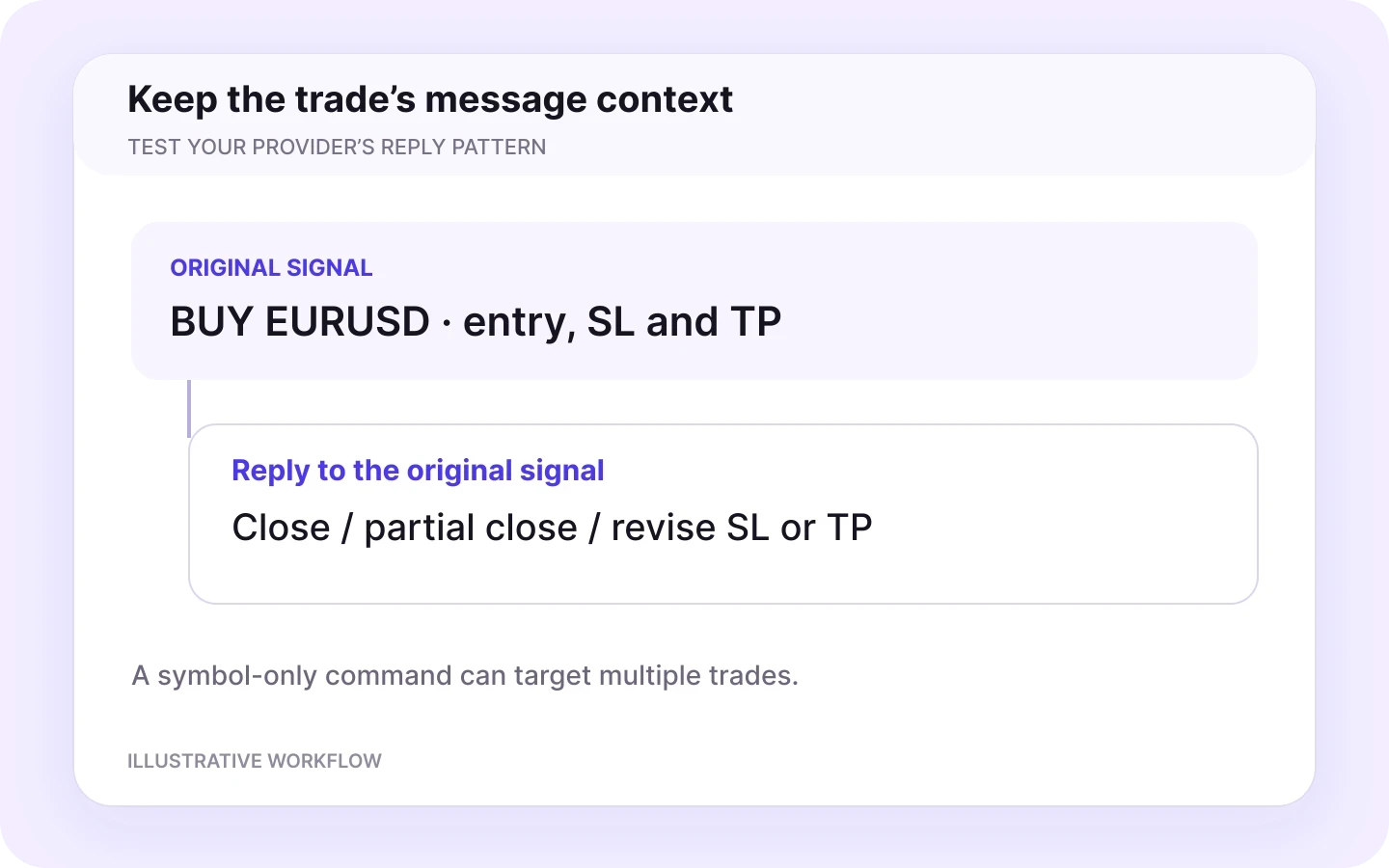
Reply with a close instruction
A reply to the original signal identifies the specific trade for closure.
Reply with partial close or breakeven
Identifies the specific position to manage.
Reply with revised SL or TP
Identifies the trade whose levels should change.
Standalone “Close EURUSD”
Targets all open trades for that symbol in the connected workflow, rather than selecting one original signal.
Close and modification settings must allow the action. Test your provider’s wording and reply pattern before relying on automated updates. A standalone message with neither a reply link nor a symbol does not identify a specific position.
Monitor your automation
Follow the signal through your Copygram room
Use signal logs to inspect what Copygram processed and compare it with the order on your MatchTrader account. When a signal does not produce the expected result, review the source message, receiver settings and account status before changing the configuration.
Review the record
Check the logged symbol, action and execution status. Use the original Telegram message and the receiving account’s order details to investigate a mismatch.
Understand AI validation
AI Trade Validation is separate from extracting the message’s trade fields. Where enabled for your setup, its configured threshold can affect whether a signal executes. An AI score is not a guarantee of trading performance.
Explore the dashboard
See how Copygram organizes connected accounts, rooms and activity before configuring your own workflow.


Other Telegram integrations
Connect Telegram to Every Major Platform
Using another supported destination? Explore the relevant integration and check its account requirements. Availability depends on the platform, provider and region.





Telegram to TradeLocker
Review the TradeLocker connection and receiver controls.


Telegram to Binance Futures
Review the Binance Futures route and its regional limitations.
FAQ
Telegram to MatchTrader — Frequently Asked Questions
Answers about setup, receiver settings, Telegram replies, compatibility and plans.
Can I copy Telegram trading signals to MatchTrader automatically?
Yes. Copygram connects a Telegram signal source to a supported MatchTrader account through a room. Copygram reads the signal, applies the receiver settings and routes the order to MatchTrader. You choose the signal source and remain responsible for the settings and trading decisions.
How do I connect my MatchTrader account to Copygram?
In Copygram, add a trading account and select MatchTrader. Choose your broker, enter the email and password used for that MatchTrader connection, and select the account. Then add it as a receiver in a room with Telegram as the signal source. Check the current setup guide if your broker is not listed.
Do I need a VPS or a computer running all day?
No. Copygram runs in the cloud, so you do not need to rent a VPS or keep a computer running for this workflow. You still need active account connections, access to the selected Telegram source and a running room. Monitor the signal logs and your MatchTrader account.
Do I need to add a bot to my Telegram channel?
Copygram’s documented Telegram workflow connects your Telegram account and lets you select your signal source without adding a channel bot. Use a source you are authorized to access, and confirm that the channel appears in Copygram before configuring the room.
Can one Telegram source send trades to several MatchTrader accounts?
Yes. A Copygram room connects one signal source to multiple receiver accounts, with independent settings for each receiver. Add the supported MatchTrader accounts you want to use and choose a plan that covers them. For separate signal sources, create separate rooms.
What if the Telegram symbol differs from my MatchTrader symbol?
Use symbol mapping to connect the name in the Telegram signal to the exact instrument name on your MatchTrader account. Prefix and suffix settings can handle naming variations. Check the instrument’s contract size and minimum order size as well; matching names alone does not establish equivalent exposure.
Can Copygram use multiple take-profit levels on MatchTrader?
Copygram provides multiple take-profit percentage settings for Telegram signals, along with stop-loss and take-profit controls. Configure the allocation for your receiver and check the resulting orders on a supported test account. Available order sizes and execution depend on the account and instrument.
Can I choose between the signal entry price and the market price?
Yes. Copygram’s Telegram Options include Signal Price and Market Price. Signal Price is used for pending orders at the message’s entry level; Market Price uses the current market price when the signal is processed. Your account must accept the order, and execution may differ from the message price.
How does Copygram know which trade a Telegram update refers to?
The documented Telegram workflow uses a reply to the original signal to identify a specific trade for a close or modification. A standalone Close EURUSD message instead targets all open trades for that symbol in the connected workflow. Check close and modification settings, and test your provider’s message pattern before relying on it.
How much does Telegram-to-MatchTrader automation cost?
Choose a Copygram plan that includes Telegram as a signal source and enough connected trading accounts for your setup. Check the current pricing page for the billing term, included features and account limits before subscribing.