Telegram signal automation
Telegram to OANDA Trade Copier
Copy Telegram signals to your OANDA Live or Practice account. Configure receiver rules and monitor the workflow from one cloud dashboard.
Live & Practice
No VPS required
Per-account settings
Signal logs
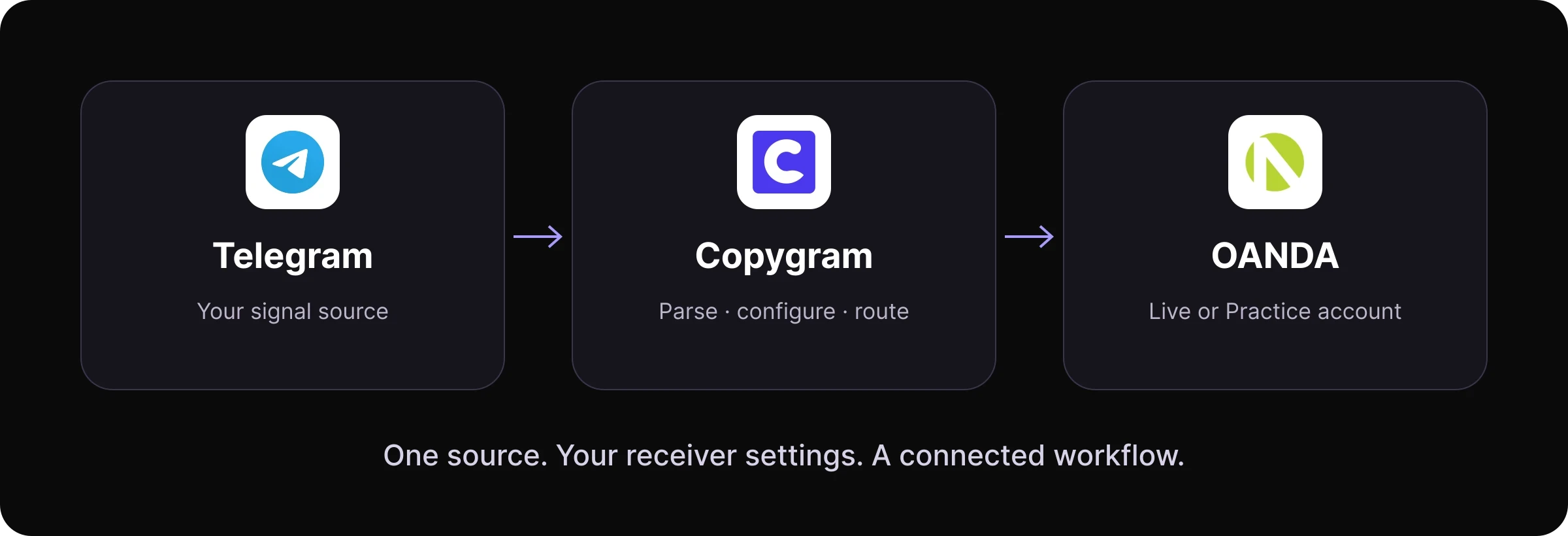

Check the full signal-to-order flow in Practice before going live.
The workflow explained
What is a Telegram to OANDA signal copier?
Telegram supplies the message. Copygram interprets and routes it. OANDA receives the order.
A Telegram to OANDA signal copier reads trade instructions from a Telegram source and routes them to an OANDA trading account. Copygram provides the connection, AI signal parsing, receiver controls and signal logs for that workflow.
The signal starts in Telegram. OANDA is the destination where the resulting order is handled. This differs from a strategy that places orders first and sends Telegram notifications afterward.
How it works · step by step
How to connect Telegram to OANDA
Connect the source and destination, configure each receiver, and test the complete workflow in Practice before using a live account.
01
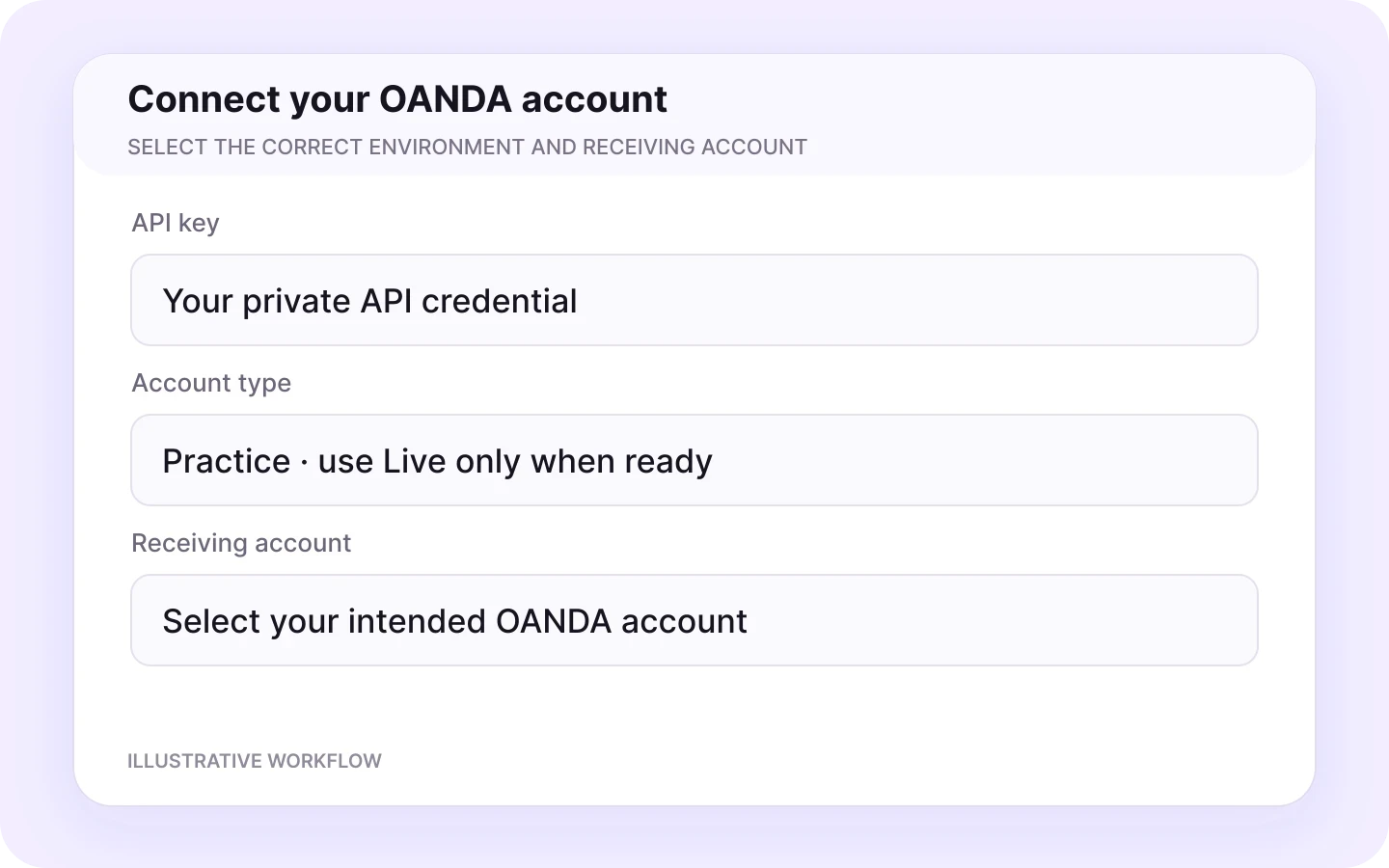
Add your OANDA account
In Copygram, add a trading account and select OANDA. Provide the API key, choose Live or Practice, and select the intended account. Eligible accounts can generate a personal access token under Manage API Access in the OANDA portal. Treat it as a password and keep it out of shared screenshots and messages.
02
Connect your Telegram source
Connect the Telegram account that can access your signal channel, then choose the source. Copygram’s Telegram connection does not require you to create a bot. Confirm that you have permission to use the provider’s signals for automation.

03
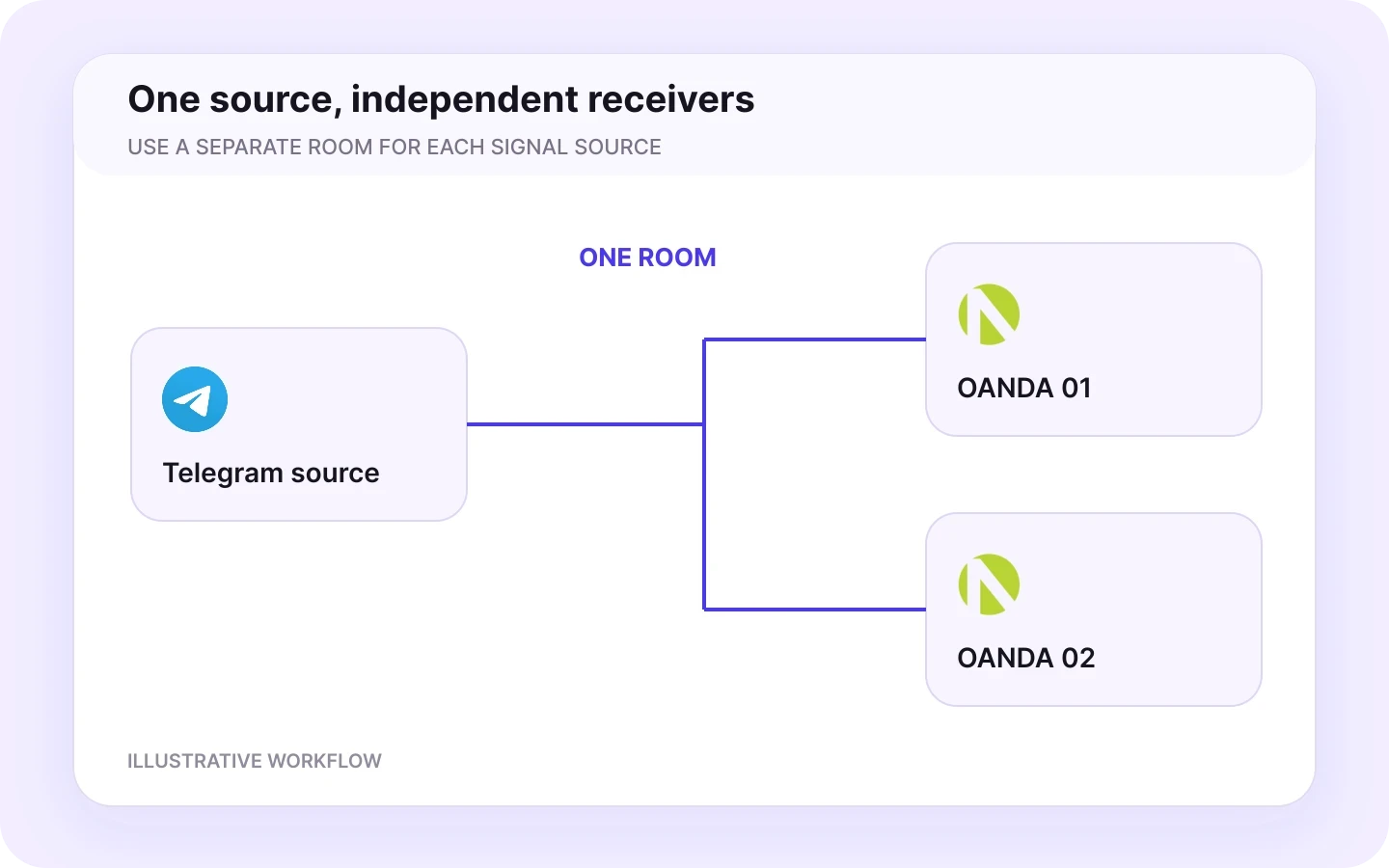
Create a room
Create a room with Telegram as the sender and your OANDA account as the receiver. One source can send to multiple receiver accounts, each with its own settings. Use separate rooms for different sources.
04
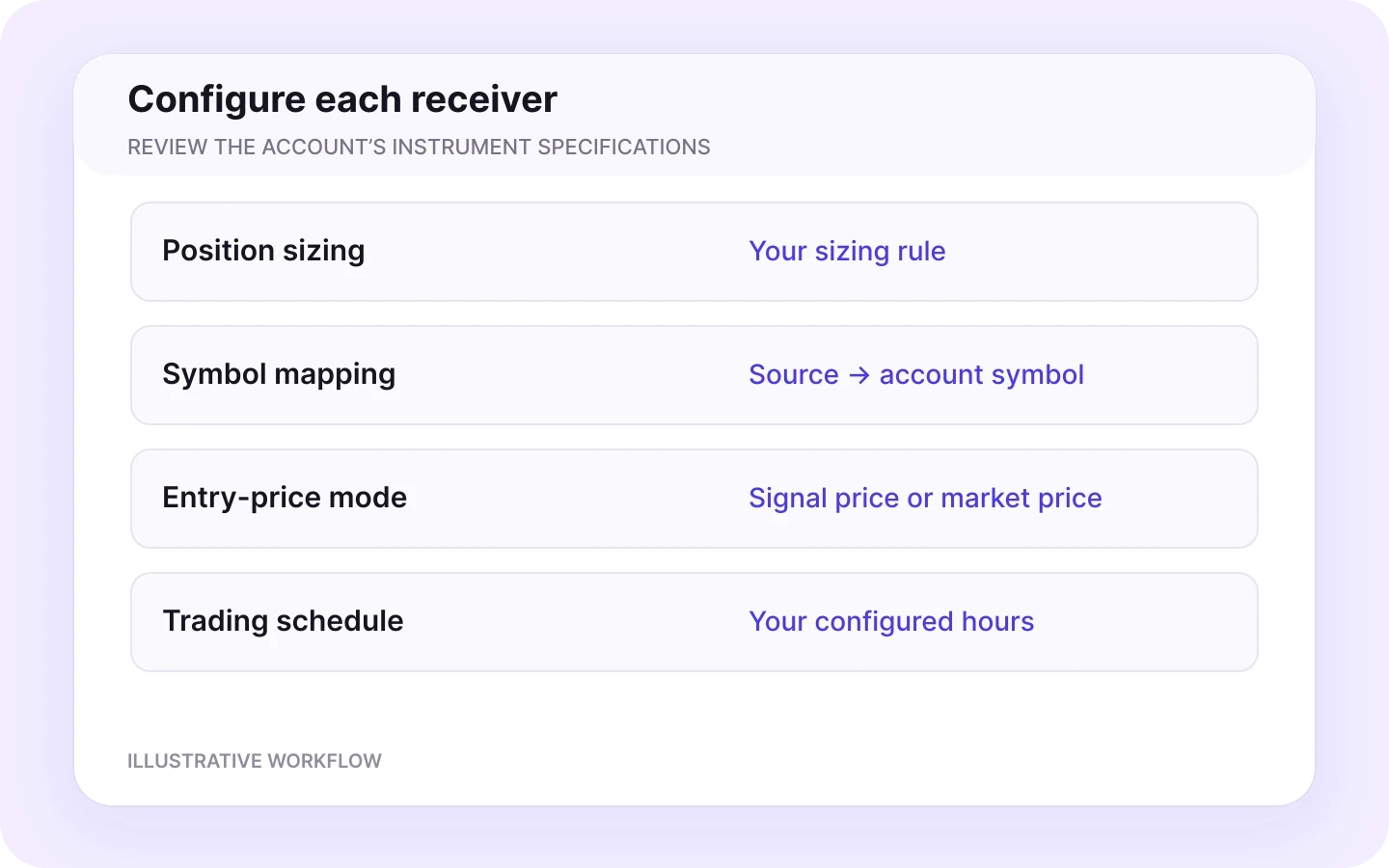
Configure receiver settings
Set sizing, symbol rules, stop-loss and take-profit behavior, and entry-price preference. Review close and modification permissions if your provider sends updates. Check the account selection and settings for every receiver in the room.
05
Test and inspect the result
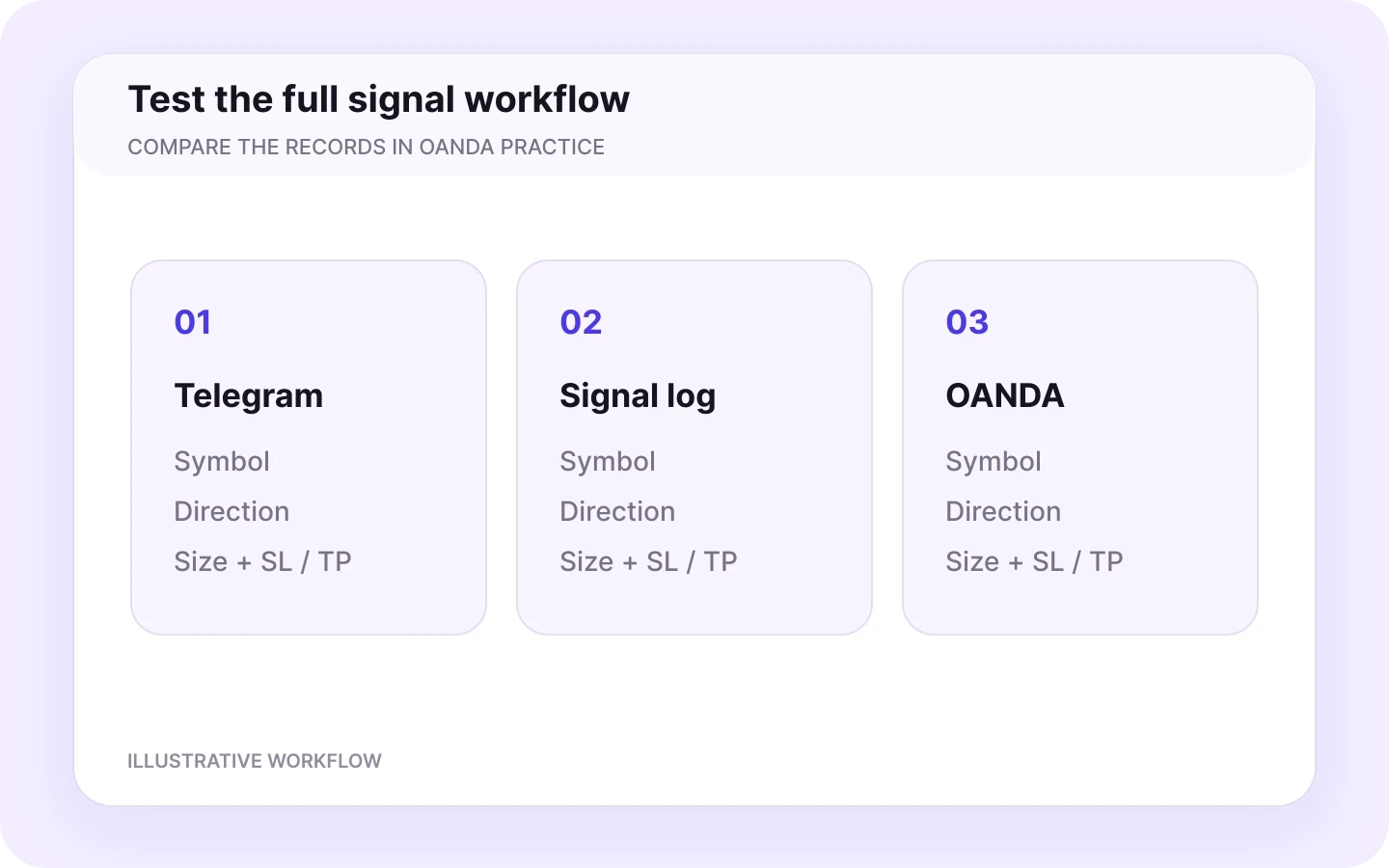
Use OANDA Practice to test your provider’s messages. Compare the parsed instruction with the account result: symbol, direction, size, stops, targets and exits. Review signal logs, resolve unexpected results, and verify the configuration before using a live account.
OANDA receiver controls
Control how Telegram signals reach OANDA
Each OANDA receiver has its own settings. Accounts following the same Telegram source can use different sizing, symbol rules and trade-management preferences.
Position sizing and symbol exceptions
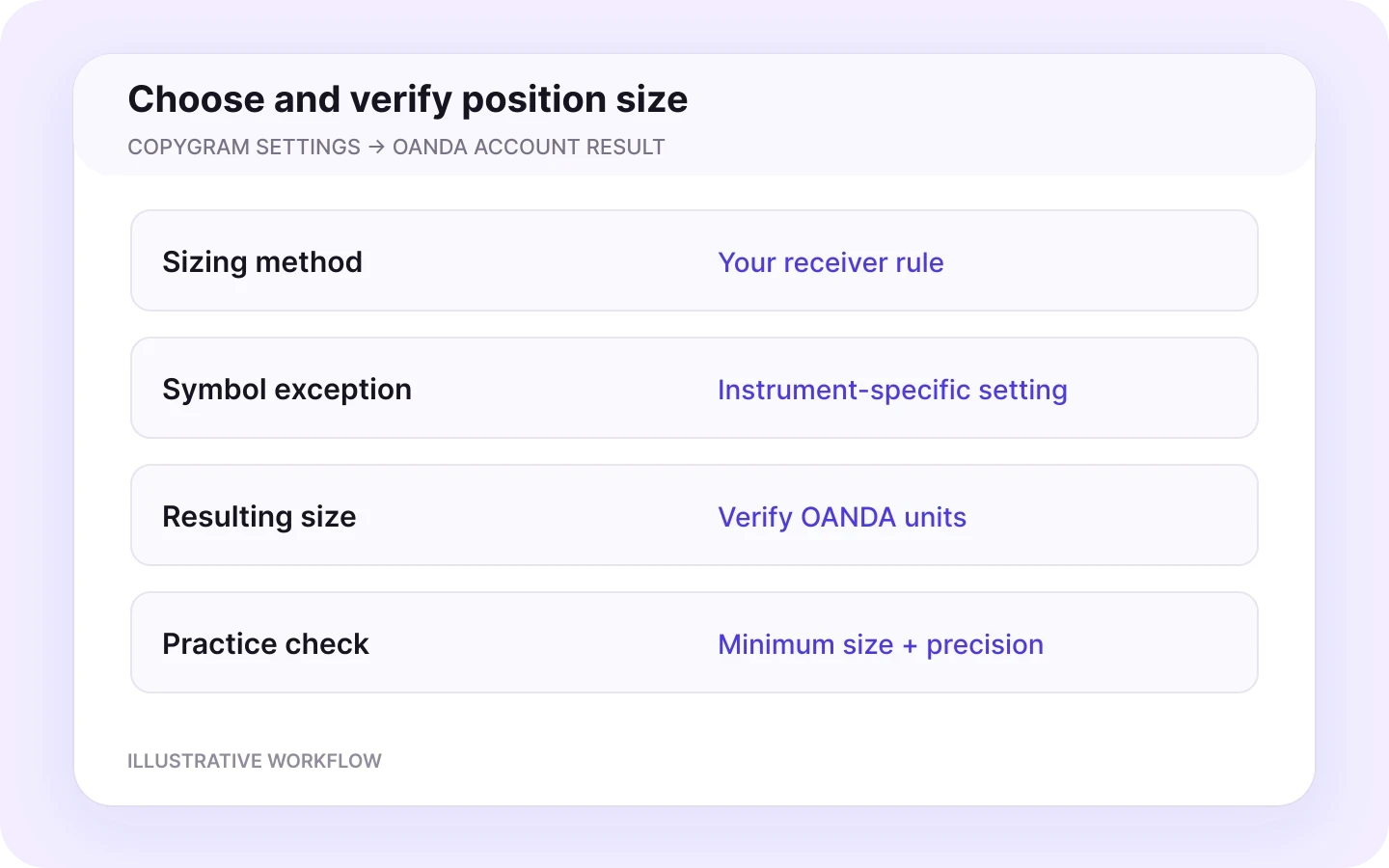
Use fixed-lot, multiplier or balance-based sizing, with symbol-specific lot exceptions when needed. An exception can override the general setting. Check the actual OANDA position size in Practice, including its units and minimum size.
Position sizing
Symbol exceptions
Verify units
Symbol mapping and filters
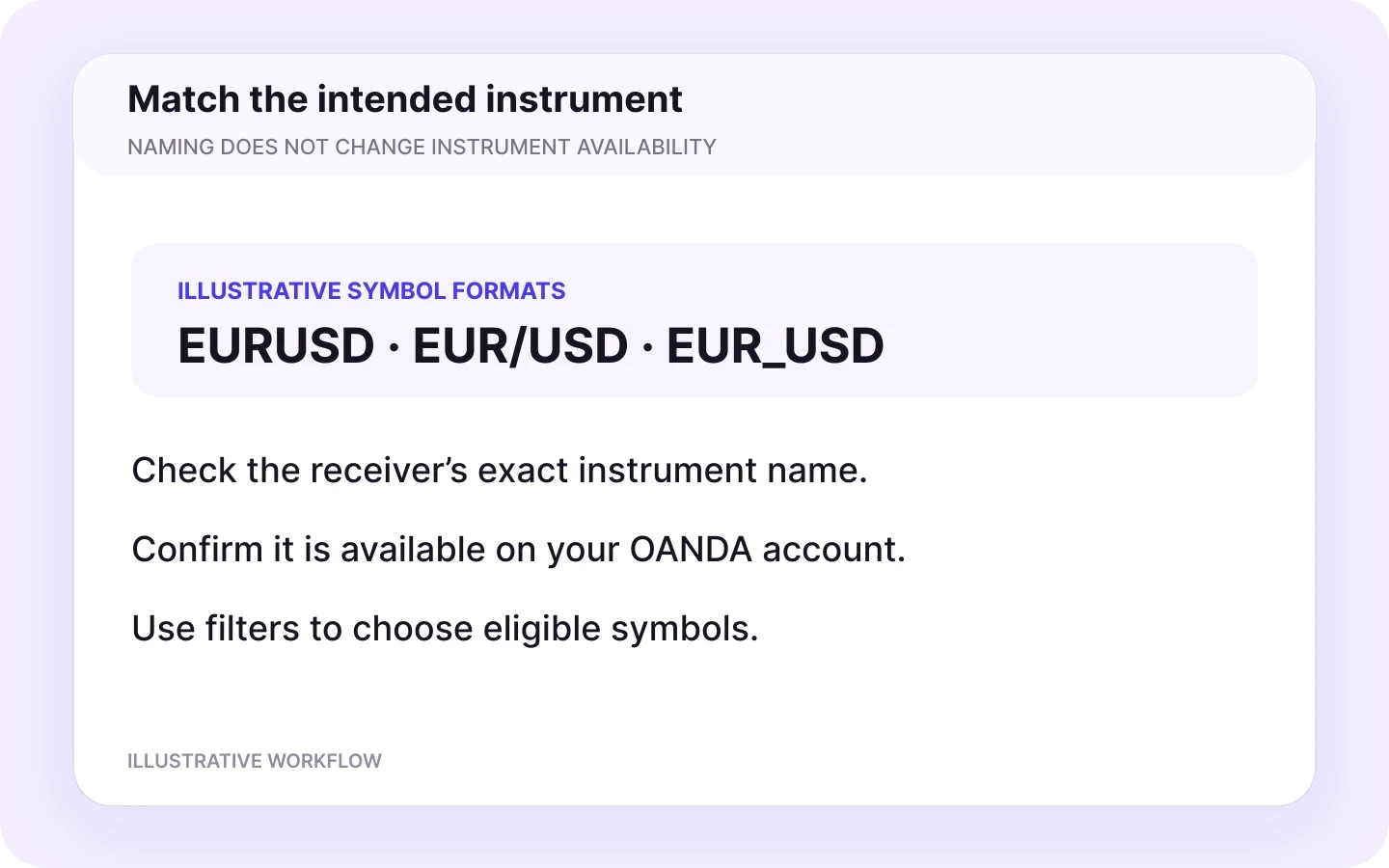
Map the provider’s symbol to the exact instrument expected by your receiver. Use symbol filters to control which instructions are eligible. Mapping changes a name; it does not make an unavailable instrument tradable.
Exact instrument
Symbol mapping
Symbol filters
Signal price or market price
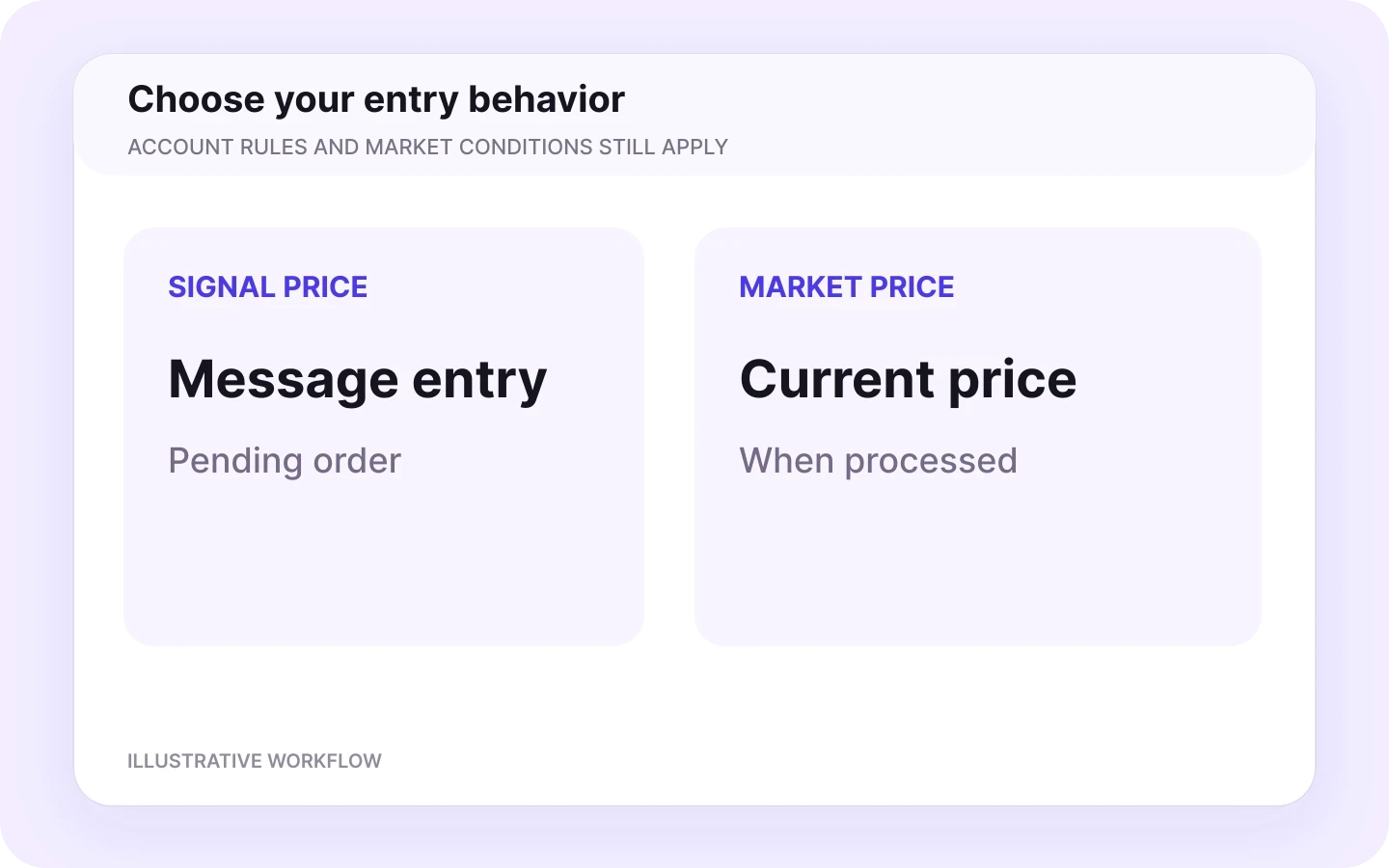
Use the signal’s entry level for a pending order, or process the instruction at the current market price. Set the mode before testing. Market conditions and account acceptance determine the eventual execution price.
Signal Price
Market Price
Pending orders
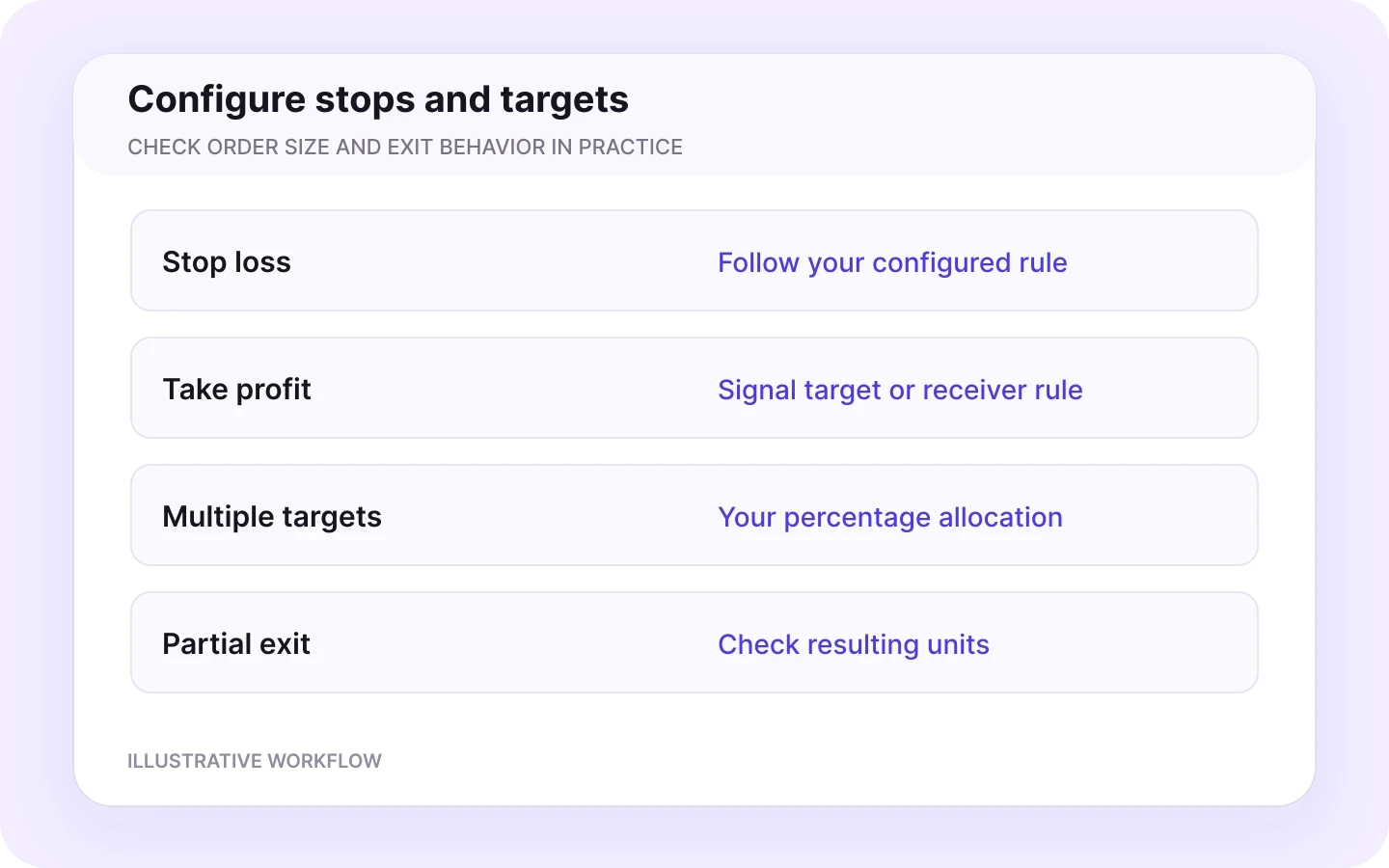
Stops, targets and multiple take profits
Choose how stops and targets are handled, including signals that omit them. Set take-profit percentages for messages with multiple targets. Test the resulting exits against your account’s minimum size and order rules.
Stop-loss settings
Multiple targets
Review exit sizes
Telegram filters and trading schedule
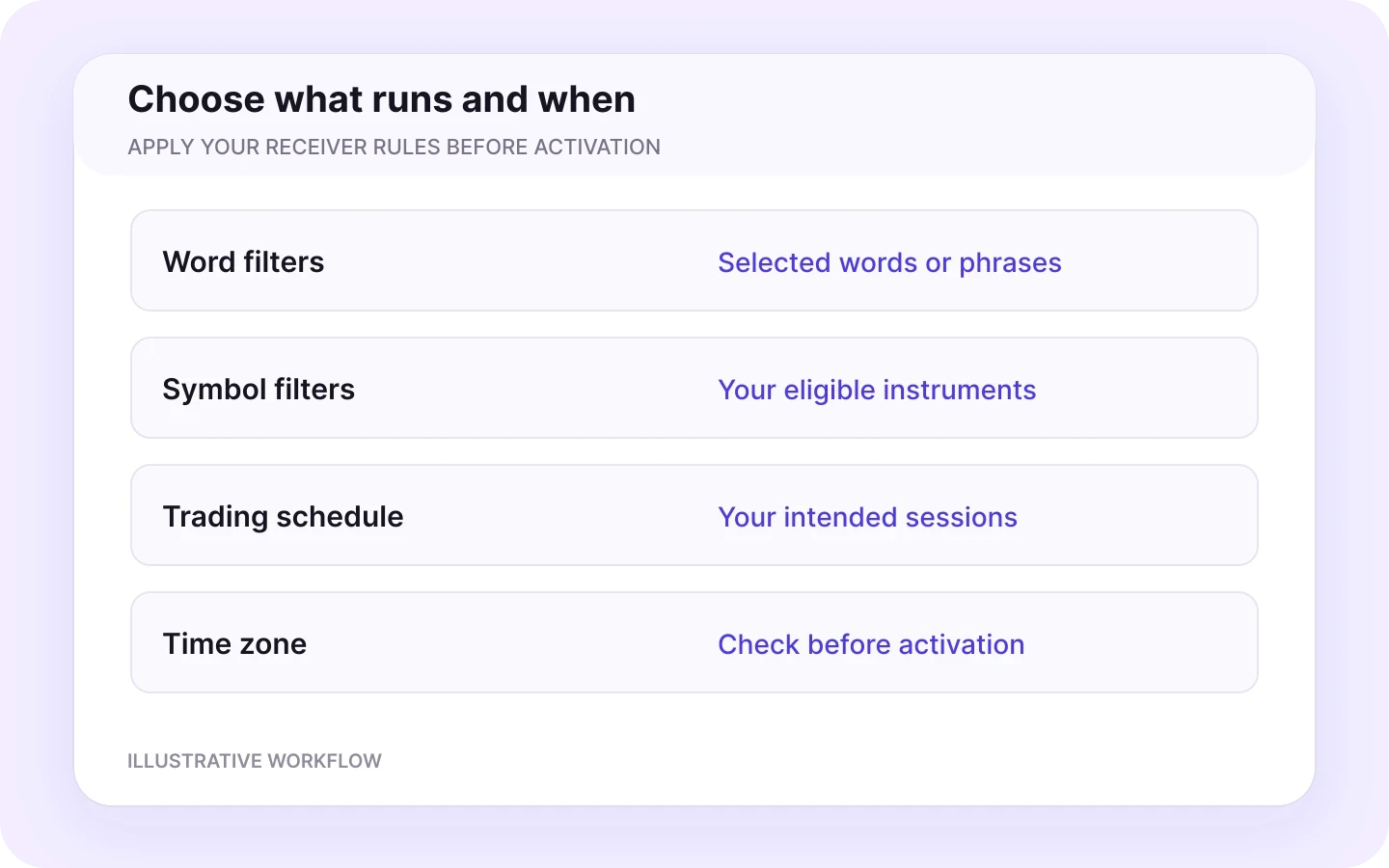
Ignore messages containing selected words or phrases and choose when the receiver accepts signals. Check the schedule’s timezone. Select filters carefully so they do not discard a legitimate trade update.
Message filters
Trading schedule
Check timezone
Close and modification permissions
Choose whether Copygram follows close and modification instructions. Replies to the original signal identify the intended trade, especially when several positions share a currency pair. Test your provider’s update sequence.
Close permissions
SL / TP updates
Reply context
A worked example
From a Telegram message to an OANDA order
A hypothetical example for checking your configuration. These are illustrative levels, not live quotes or a completed trade.
BUY EURUSD
Entry: 1.1000
Stop loss: 1.0970
Take profit 1: 1.1030
Take profit 2: 1.1060
BUY
The parsed direction matches the message.
EURUSD
Mapped to the correct instrument for your OANDA receiver.
Entry 1.1000
Signal Price and Market Price create different entry behavior. Confirm the selected mode.
Stop loss 1.0970
The receiver’s stop-loss settings and the account’s order rules accept the intended level.
Two take-profit levels
Your multiple-TP configuration reflects the way you intend to manage the position.
No volume in the message
Configure receiver sizing and check the resulting OANDA position size.
EURUSD, EUR/USD and EUR_USD
These are naming formats you may encounter in a message, trading display and OANDA API. Use the exact symbol shown for your receiver; do not assume every mapping field uses the same punctuation.
Verify units as well as lots
OANDA’s v20 API specifies trade size in units. Copygram includes lot-based controls, so verify the resulting position size in Practice. Instrument minimums and precision also matter for partial closes.
After a Practice test, compare the Telegram message, Copygram log and OANDA order. Check the exact instrument and resulting size; a quoted entry price does not guarantee a fill at that level.
Keep the signal context
Handle trade updates with the right context
Replies to the original signal connect a close, partial close, breakeven move or SL/TP change to the intended trade.
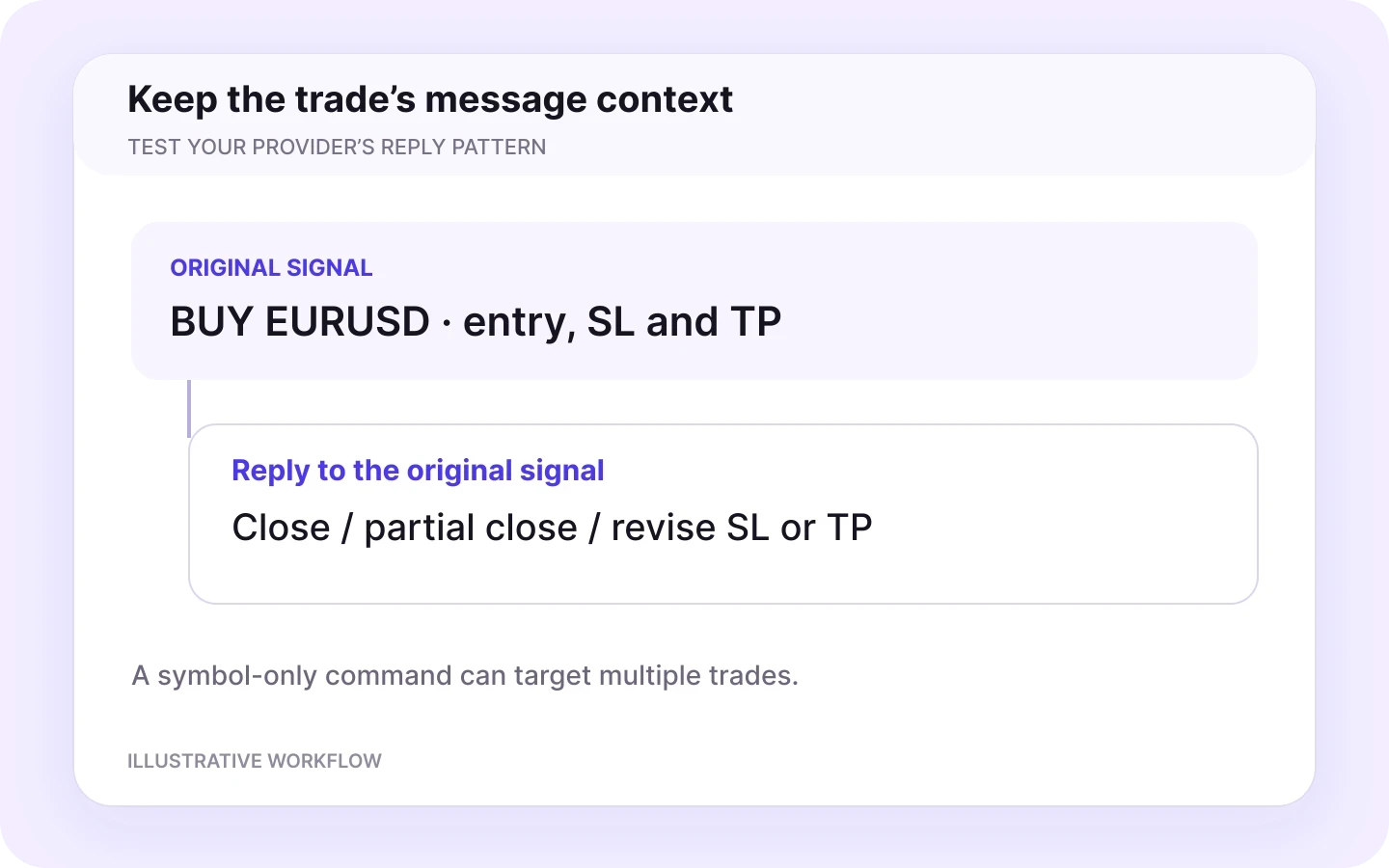
Reply with a close instruction
A reply to the original signal identifies the specific trade for closure.
Reply with partial close or breakeven
Identifies the specific position to manage.
Reply with revised SL or TP
Identifies the trade whose levels should change.
Standalone “Close EURUSD”
Targets all open trades for that symbol in the connected workflow, rather than selecting one original signal.
Enable the corresponding receiver permissions and test the complete update sequence in OANDA Practice. Check the scope of a close-by-symbol command before relying on it.
Monitor your automation
See what happened to each signal
Inspect the instruction and its reported status in Copygram, then compare it with the OANDA account. Review the existing account state before resending an unclear or delayed instruction.
OANDA will not connect
Check API access, the credential, Live or Practice selection, and the intended receiving account.
A signal is skipped
Check room activation, source selection, word and symbol filters, the trading schedule and optional AI Trade Validation.
An instrument is not accepted
Check account availability and the exact symbol expected by the receiver.
The position size is unexpected
Review the main sizing rule, symbol exceptions and the resulting OANDA units.
An order or exit is rejected
Inspect the recorded error, account rules, margin, minimum size and market hours.
A close or SL/TP update is ignored
Check the reply to the original signal, receiver permissions and the account’s order rules.
AI parsing and AI Trade Validation have different roles
Parsing interprets the instruction. Optional AI Trade Validation adds a confidence-threshold filter. A displayed confidence score is not a probability of profit. Check the source, receiver settings and account result.

Other Telegram integrations
Connect Telegram to Every Major Platform
Using a different destination? Explore Copygram’s other Telegram integrations and the setup for each connection.


Telegram to TradeLocker
Review the TradeLocker connection and receiver controls.


Telegram to Binance Futures
Explore the Binance Futures destination and its setup.
FAQ
Telegram to OANDA — Frequently Asked Questions
Answers about API setup, Practice testing, receiver controls and Telegram trade updates.
Can I copy Telegram trading signals to OANDA automatically?
Yes. Copygram connects a Telegram signal source to an OANDA receiver account and applies your receiver settings to parsed trade instructions. Connect your accounts, create a room, configure the controls and test the workflow. The OANDA account, instrument and order must meet the requirements of the connected account.
What do I need to connect OANDA to Copygram?
Copygram’s OANDA connection uses an API key, a Live or Practice account type, and account selection. You also need access to the Telegram signal source and a Copygram plan that includes Telegram. Confirm that your OANDA account supports the required API access before choosing a plan.
Where do I get my OANDA API key?
For an eligible OANDA account, open Manage API Access in the account portal and generate a personal access token. Copygram labels this credential an API key. Enter it only in the account connection flow and select the matching Live or Practice environment. Treat the token as a password and keep it out of messages and screenshots.
Can I test Telegram to OANDA with a practice account?
Yes. Copygram documents support for OANDA Live and Practice environments. Select Practice and the intended practice account, then test signal parsing, order size, symbol mapping and trade updates. Practice results help check configuration; they do not establish live execution quality or future trading results.
Can I copy XAUUSD or gold signals to OANDA?
Only if the intended instrument is available and supported on your connected OANDA account. A gold symbol appearing in a Telegram message or on a chart does not establish trading access. Check the account’s instrument list and connection compatibility before using a gold signal source; mapping cannot add an unavailable market.
Does OANDA use units or lots for trade size?
OANDA’s v20 API specifies trade size in units, while Copygram’s receiver controls include lot-based settings. Verify the resulting OANDA position size during a practice test instead of assuming the two numeric values are interchangeable. Check the instrument’s minimum size and precision before using partial exits or increasing size.
Do I need a VPS, an MT4 terminal or a Telegram bot?
Copygram runs in the cloud, so you do not need to maintain a VPS or keep your computer running. The documented OANDA connection uses an API key rather than an MT4 terminal. Copygram connects your Telegram account without requiring you to create a Telegram bot; you must have access to the chosen signal source.
Can one Telegram channel send signals to multiple OANDA accounts?
Yes. A Copygram room links one signal source to one or more receiver accounts, with independent settings for each receiver. Use separate rooms for different signal sources and stay within your plan’s account allowance. Check the intended OANDA account selection and configuration for every receiver.
Can Copygram use the Telegram entry price and multiple take profits?
Copygram provides Signal Price and Market Price choices, plus percentage settings for multiple take-profit targets from Telegram signals. Configure these in the receiver settings and test the resulting orders and exits. OANDA’s order-size, instrument and account rules still apply; a signal’s entry price is not a guaranteed fill price.
How do Telegram messages close or modify an OANDA trade?
Copygram documents replies to the original signal for a specific close, close half, breakeven or SL/TP update. Enable the relevant close and modification settings. A standalone command such as Close EURUSD targets all open trades for that symbol in the connected workflow, so test its scope and OANDA’s order-handling rules before relying on it.
Why did my Telegram signal not open an OANDA trade?
Check the room’s status and receiver connection, then review the signal logs. Common checks include Live versus Practice selection, API access, account selection, symbol availability, size, margin and market hours. Receiver filters or optional AI Trade Validation may also skip a signal. Use the recorded status to diagnose the issue before sending it again.