TradingView webhook automation
TradingView to OANDA Trade Copier
Turn TradingView indicator and strategy alerts into OANDA trades. Connect your Copygram webhook, map symbols and set independent receiver sizing. Automate Live and Practice accounts while keeping your strategy on TradingView.
Webhook automation
Indicator & strategy alerts
Live & Practice accounts
Trade management
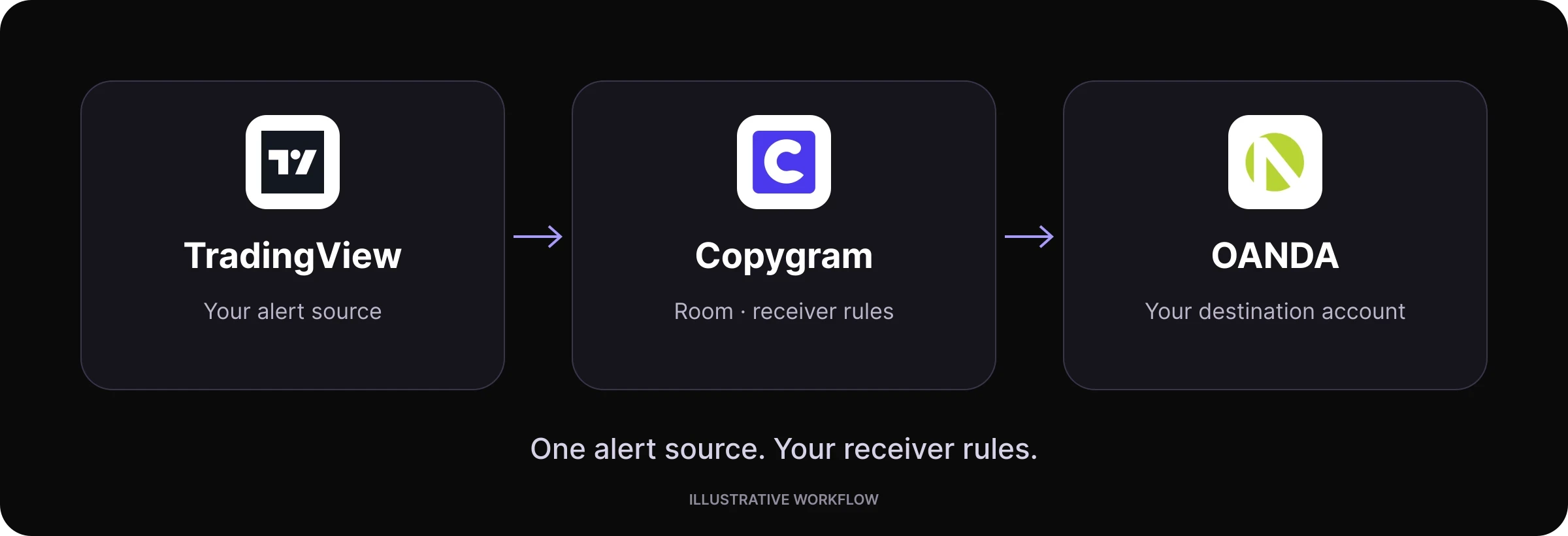
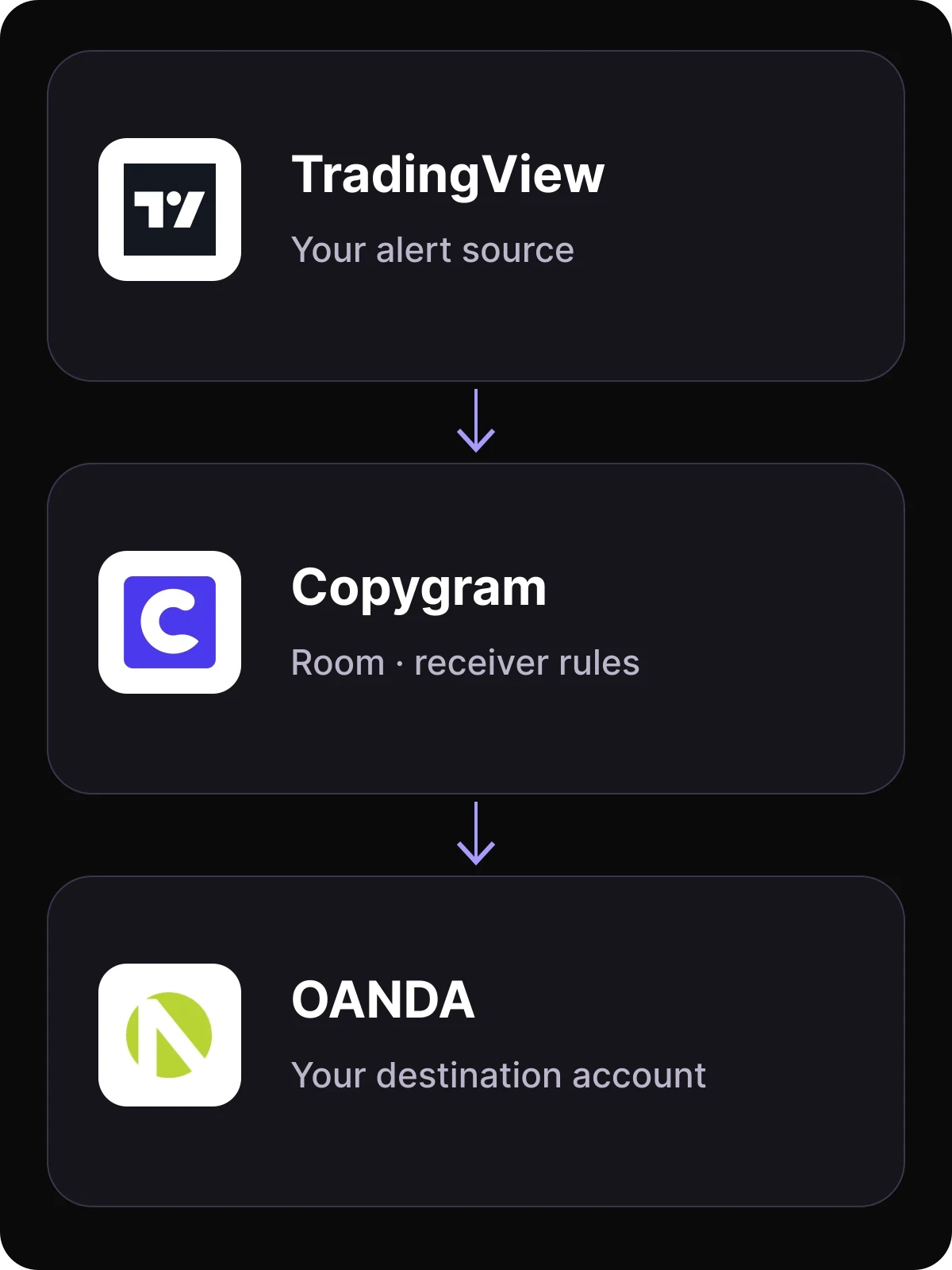
TradingView alert → Copygram webhook and receiver rules → your OANDA account.
The workflow explained
What is a TradingView to OANDA trade copier?
TradingView supplies the alert. Copygram applies your receiver rules. OANDA receives the order.
A TradingView to OANDA trade copier turns webhook alert messages into instructions for a connected OANDA account. Copygram receives the alert, interprets its action and applies your room’s symbol mapping, position sizing and trade-management settings.
Create a TradingView connector as the room’s source and add OANDA as a receiver. Use a TradingView plan with webhook notifications and two-factor authentication enabled. Your indicator or strategy supplies the alert logic; each receiver keeps its own settings.
How it works · step by step
Connect TradingView to OANDA in five steps
Connect the account, create a webhook source, configure your alert and receiver, then activate the room.
01
1. Connect your OANDA account
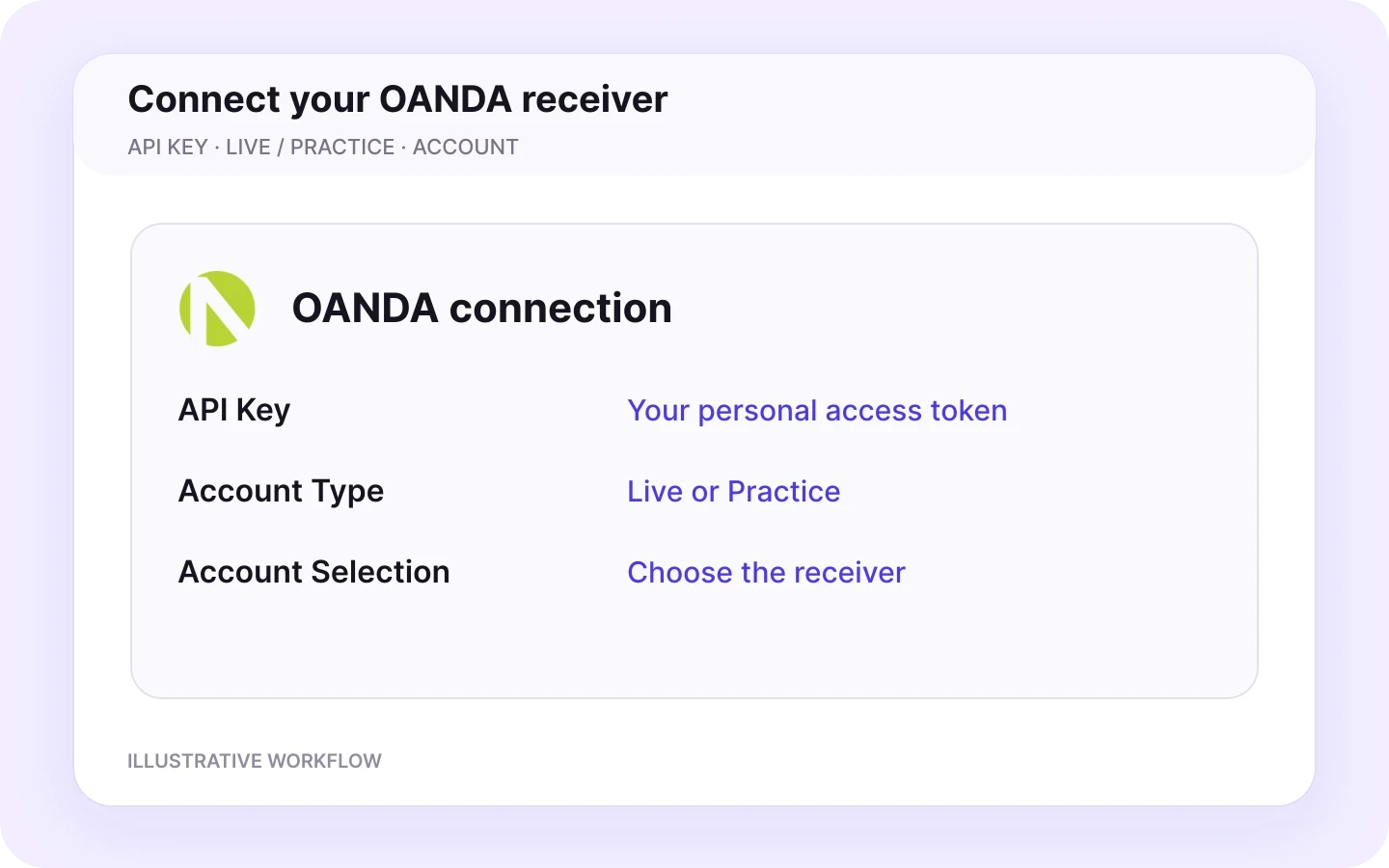
In Copygram, add a trading account and choose OANDA. Enter your OANDA personal access token in API Key, choose Account Type (Live/Practice), then use Account Selection to select the receiver. Enter the token in this connection flow; your alert message contains trade instructions.
02
2. Create a webhook source and room
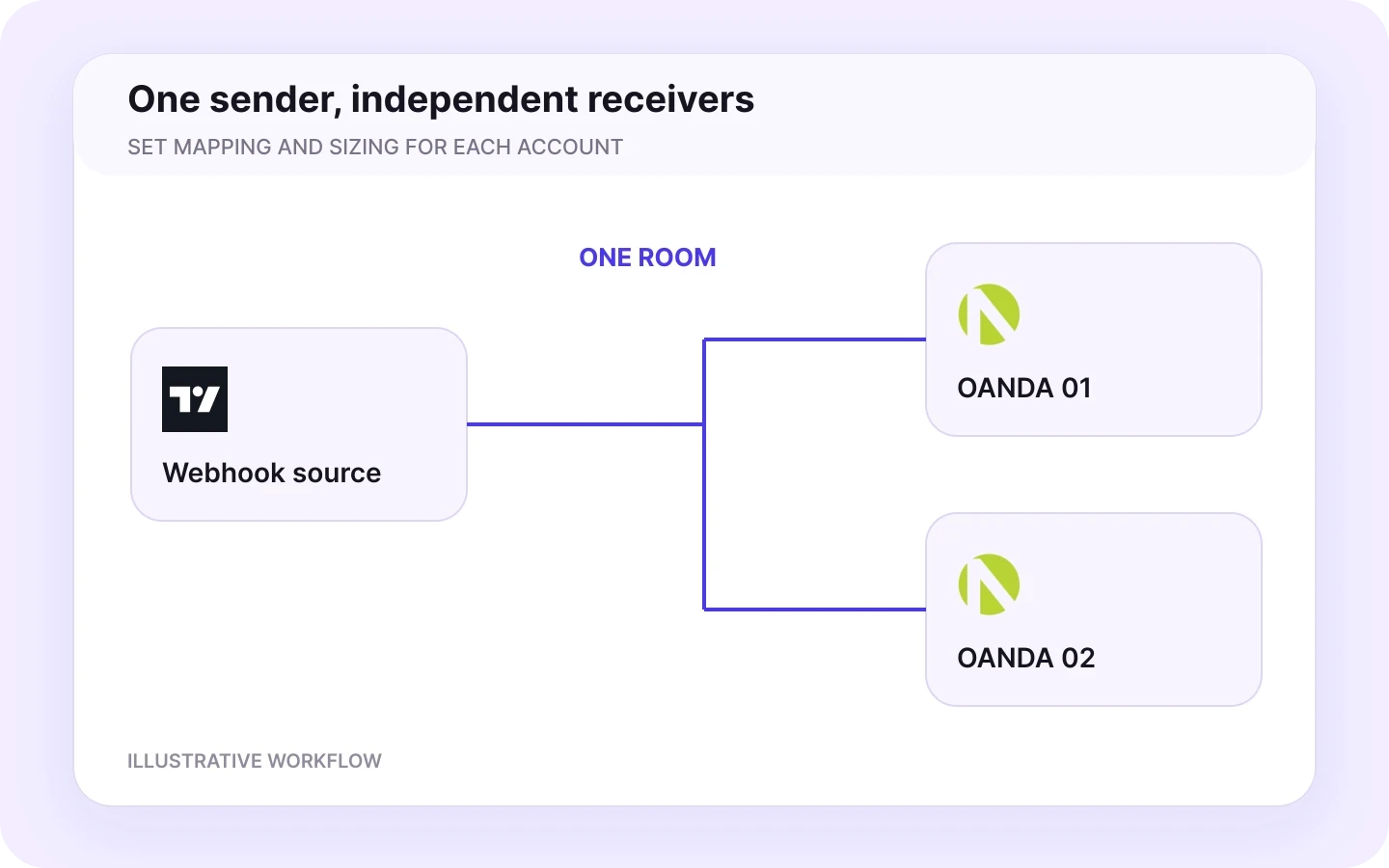
Open Connectors → TradingView in Copygram and create your webhook URL. Choose that connector as the room’s source and add OANDA as a receiver. Configure each additional receiver independently.
03
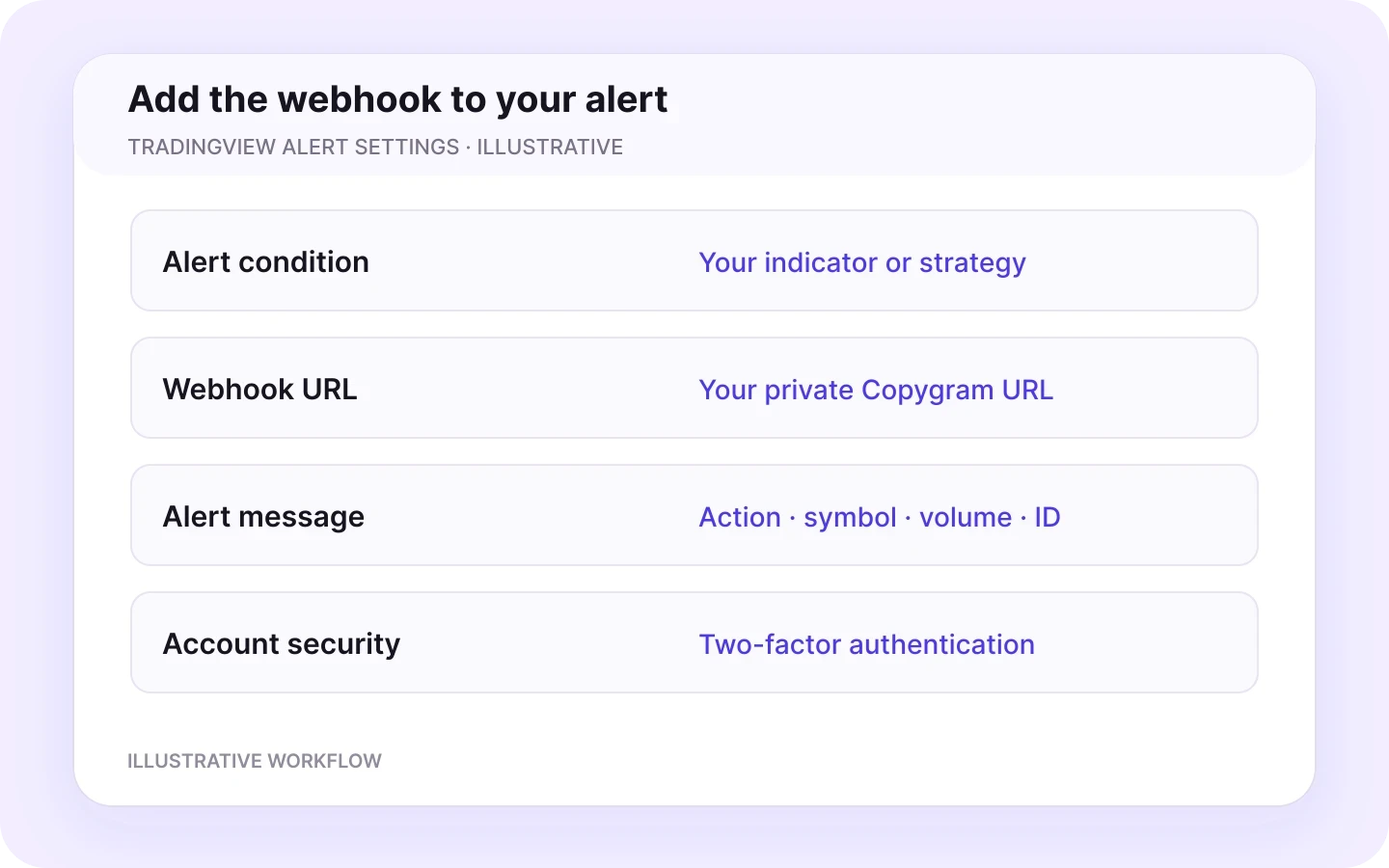
3. Add the webhook to a TradingView alert
Create an alert for your indicator or strategy event. Add the Copygram URL to the Webhook URL field and enter an actionable trade message. Enable two-factor authentication and use a TradingView plan with webhook notifications.
04
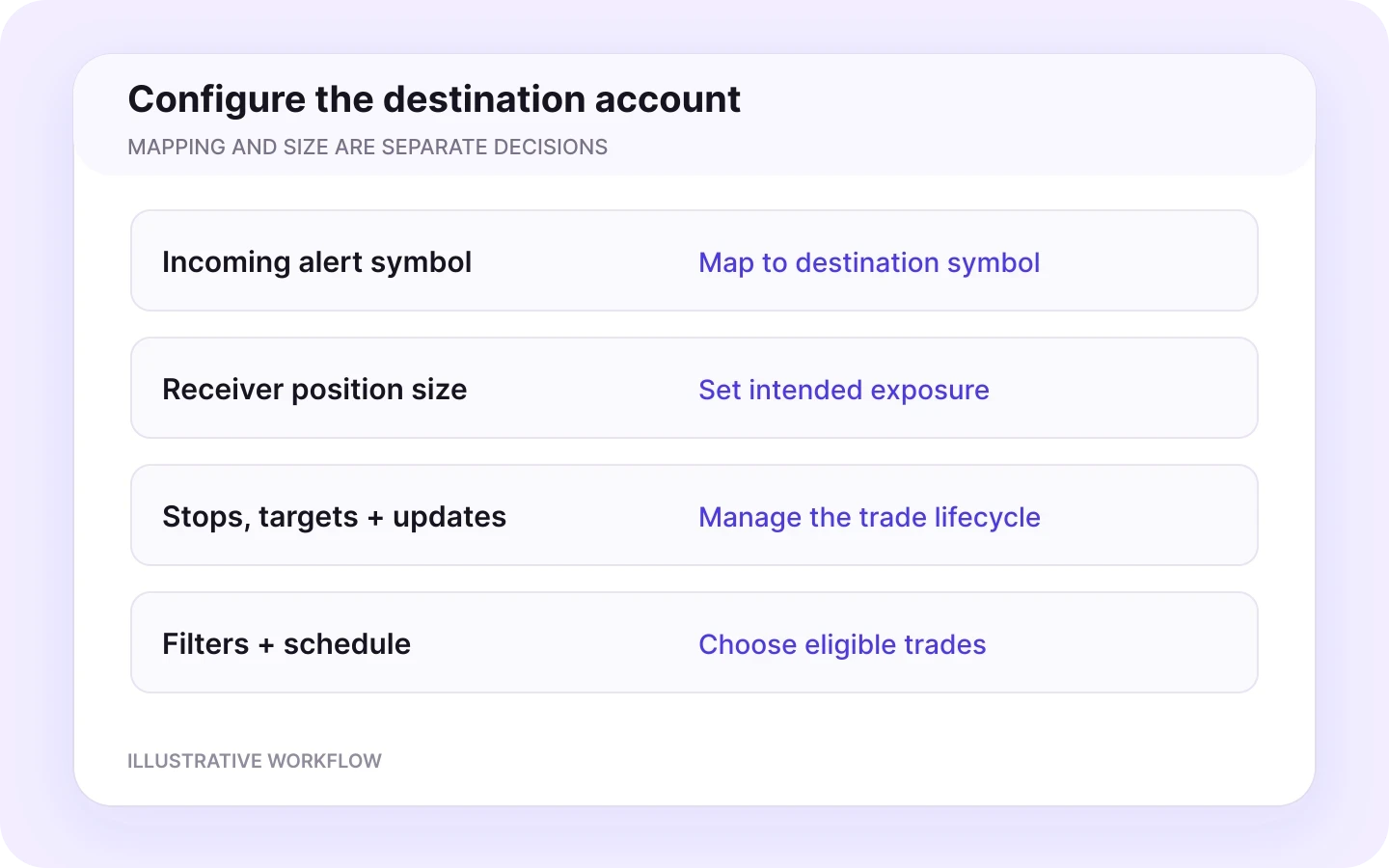
4. Configure the OANDA receiver
Map the incoming symbol to your OANDA instrument. Set receiver sizing and symbol-specific lot exceptions, then configure stops, targets, multiple take-profit allocations, close and modification controls, filters and your trading schedule.
05
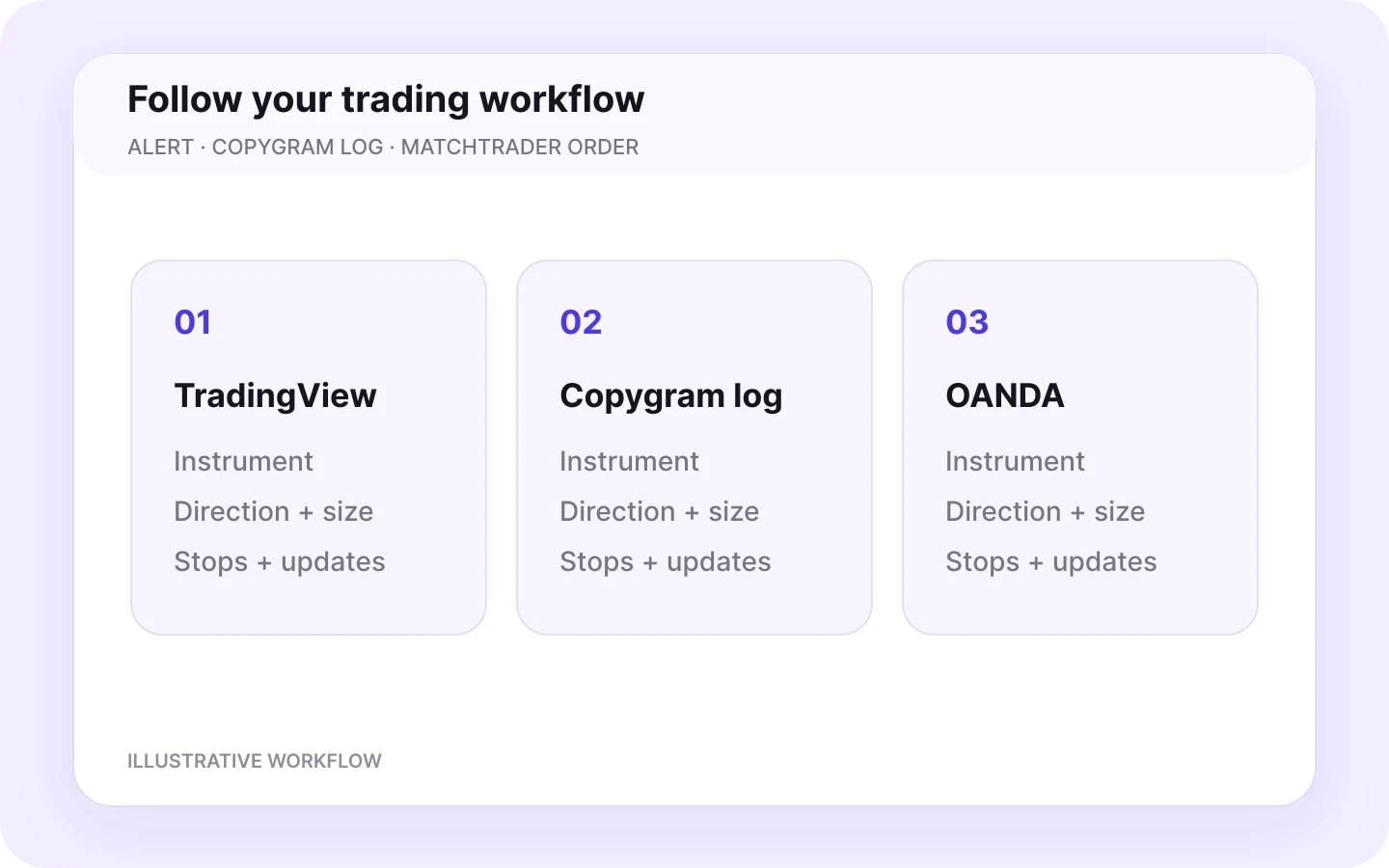
5. Activate and follow your alerts
Activate your room to route TradingView alerts to your Live or Practice OANDA account. Follow the alert, Copygram log and resulting order. Reuse the original signal_id in later alerts that modify or close the same trade.
Indicators, strategies and Pine
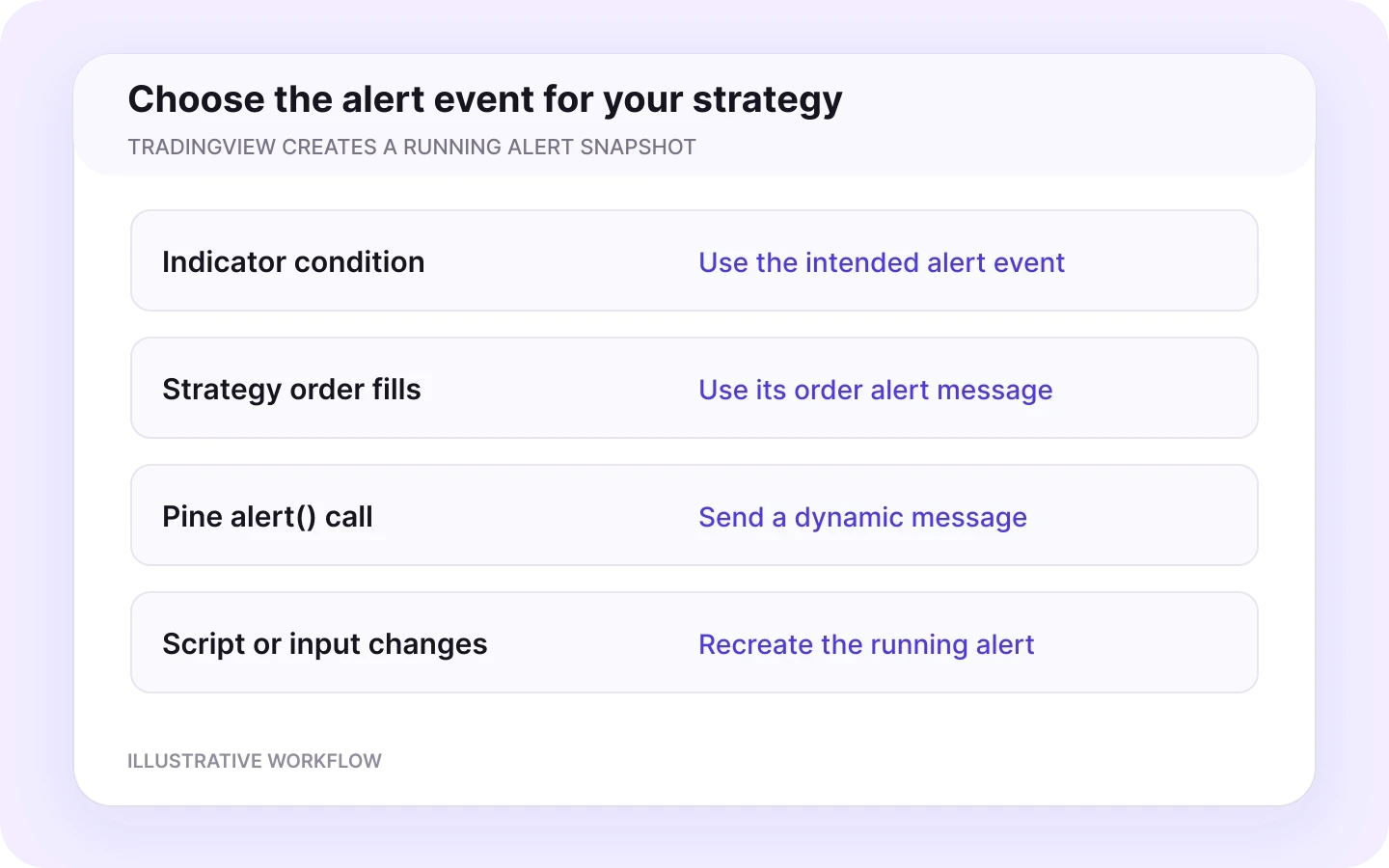
Choose the alert event for your strategy
Keep your trading logic on TradingView. Send the event and message that describe the action you want OANDA to follow.
Indicator alerts
Choose an alert condition supplied by your indicator and provide a clear trade message. Add the private Copygram webhook URL to that alert’s notification settings.
Strategy order-fill events
For strategy order events, use the message supplied by your Pine strategy. TradingView supports {{strategy.order.alert_message}} in the alert’s Message field.
Dynamic alert() messages
Pine alert() calls can build dynamic trade instructions. Choose the alert event that represents your intended action so the same trade does not produce overlapping instructions.
Keep the running alert current
TradingView saves a snapshot when an alert is created. Recreate the alert after changing the relevant script, inputs or chart context, and retire the previous alert when it should stop.
TradingView runs active alerts on its servers. Copygram receives the webhook in the cloud, so your browser and a personal VPS do not need to stay running.
Symbol mapping
Map TradingView symbols to OANDA
Map the outgoing alert symbol to your OANDA instrument and configure receiver size using its quantity and precision settings.
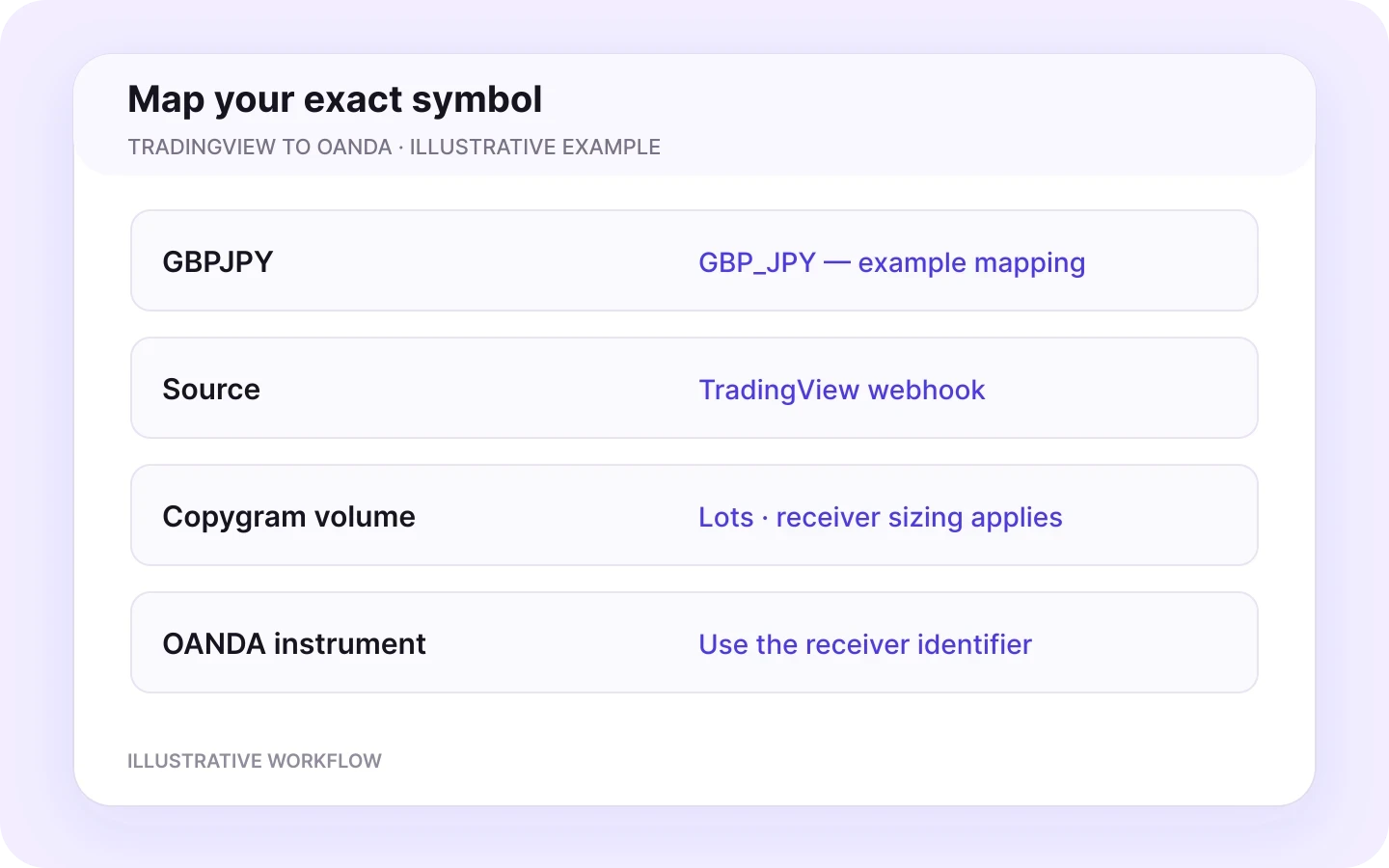
GBPJPY → GBP_JPY
Map the symbol in your actual TradingView message to the exact instrument shown for the OANDA receiver. GBPJPY → GBP_JPY illustrates a plain alert symbol mapped to an OANDA API instrument identifier.
Use the receiver’s exact instrument
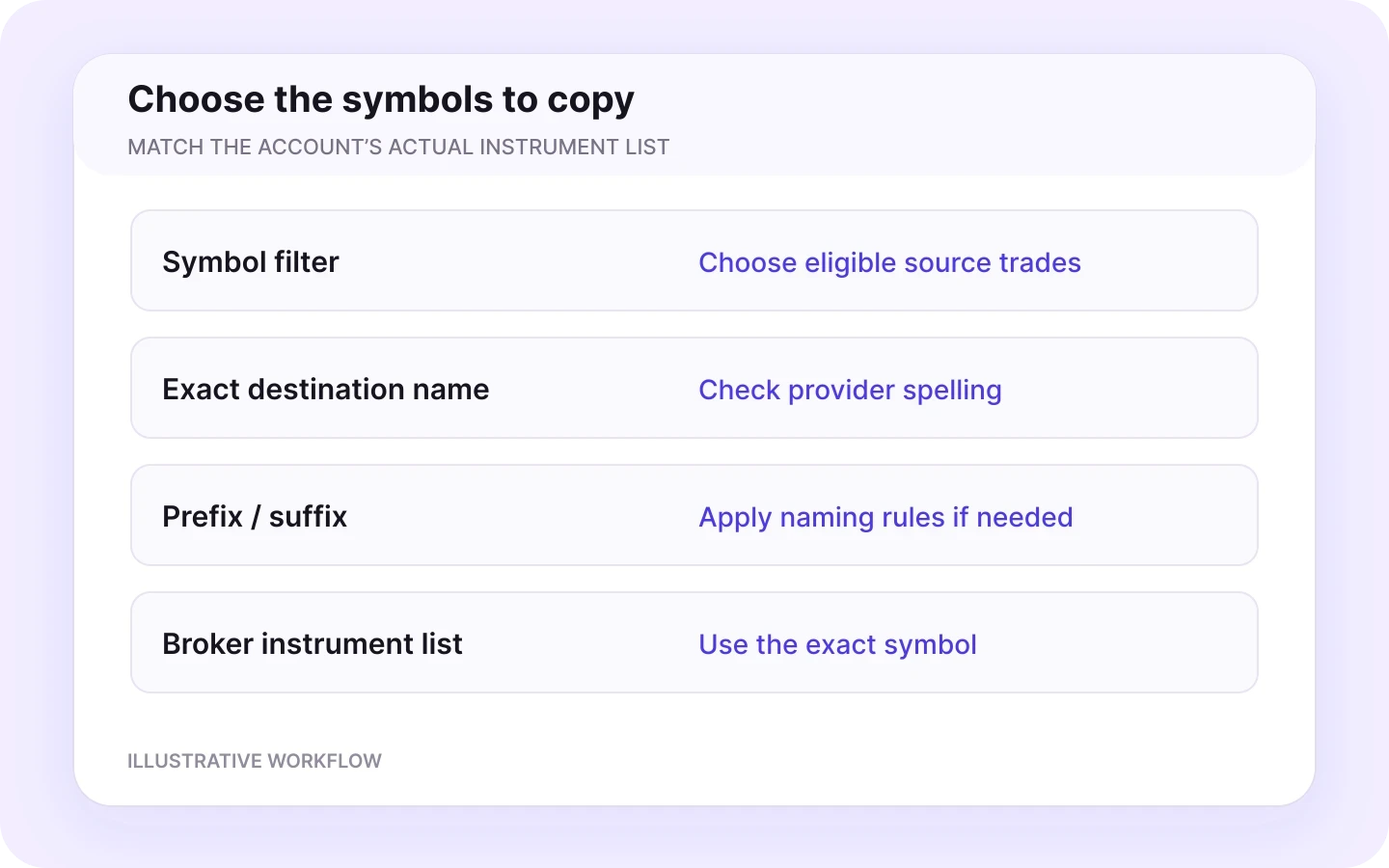
Use the OANDA instrument list for the selected account. Match the market, exact identifier, price precision and trading session to the instrument you automate.
Configure lots and units clearly
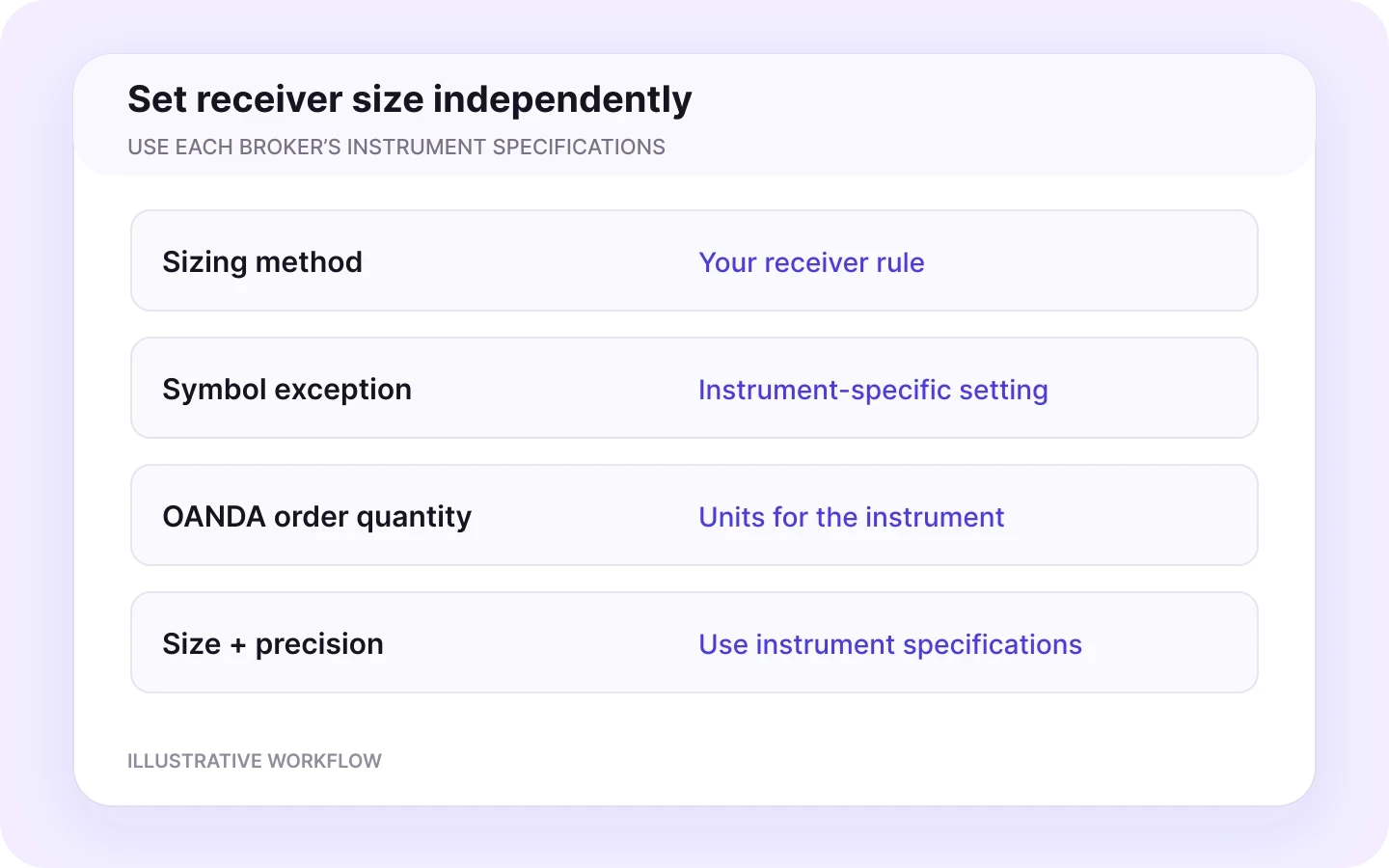
Copygram’s documented webhook volume uses lots. OANDA’s v20 API expresses order quantity in units. Configure your Copygram receiver sizing and symbol-specific lot exceptions using the destination instrument’s specifications.
Map the actual outgoing symbol
A chart label, an exchange-prefixed ticker such as OANDA:GBPJPY and an API identifier describe different naming formats. Map the symbol your alert actually sends to the exact OANDA receiver instrument.
GBPJPY → GBP_JPY is an illustrative mapping. Use the identifiers and size specifications shown for your selected OANDA account.
Webhook messages and trade identity
Open and manage a trade with the same signal_id
Use clear fields for the trade instruction. Reuse the opening alert’s identifier for later modifications and targeted closes.
Opening alert
Later stop-loss update
Same trade. Same signal_id.
action / order_type
Describe the intended opening or management action, direction and order type.
symbol
Name the incoming instrument. Symbol mapping connects it to the receiver’s exact instrument.
volume
Use lots in Copygram’s documented message format. Configure receiver sizing in Copygram; OANDA API unit quantities are a separate representation of the order size.
entry
Include an entry price when it is relevant to the instruction, such as a pending order.
sl / tp
Use price levels for stop loss and take profit. Configure multiple take-profit behavior in your receiver settings.
signal_id
Assign an original ID to each new trade. Reuse that ID when a later alert modifies or closes that specific trade.
Keep the original trade ID
The opening alert defines signal_id. A follow-up instruction for that trade uses the same ID; each new trade gets its own ID.
Clear fields, flexible parsing
Copygram interprets the message’s intent without requiring one rigid JSON schema. Explicit fields make your instructions easier to read and manage.
The symbol, volume, prices and ID are illustrative values. Copy an example and adapt it to your strategy. Enter your OANDA token only in the account connection flow.
OANDA receiver controls
Control how OANDA receives your alerts
Give every receiver its own mapping, sizing and trade-management rules. Configure how the same TradingView source is handled by each connected account.
Money management and symbol exceptions
Choose fixed-size, multiplier, balance-based or risk-based receiver sizing. Symbol-specific lot exceptions take priority over general settings. Use each OANDA instrument’s size and precision specifications.
Receiver sizing
Symbol exceptions
Check exposure
Symbol filters and naming rules
Map incoming TradingView symbols to exact OANDA instruments. Apply prefix or suffix rules and symbol filters to define the instructions each receiver follows.
Eligible symbols
Exact mapping
Symbol suffixes
Stops and targets for the destination
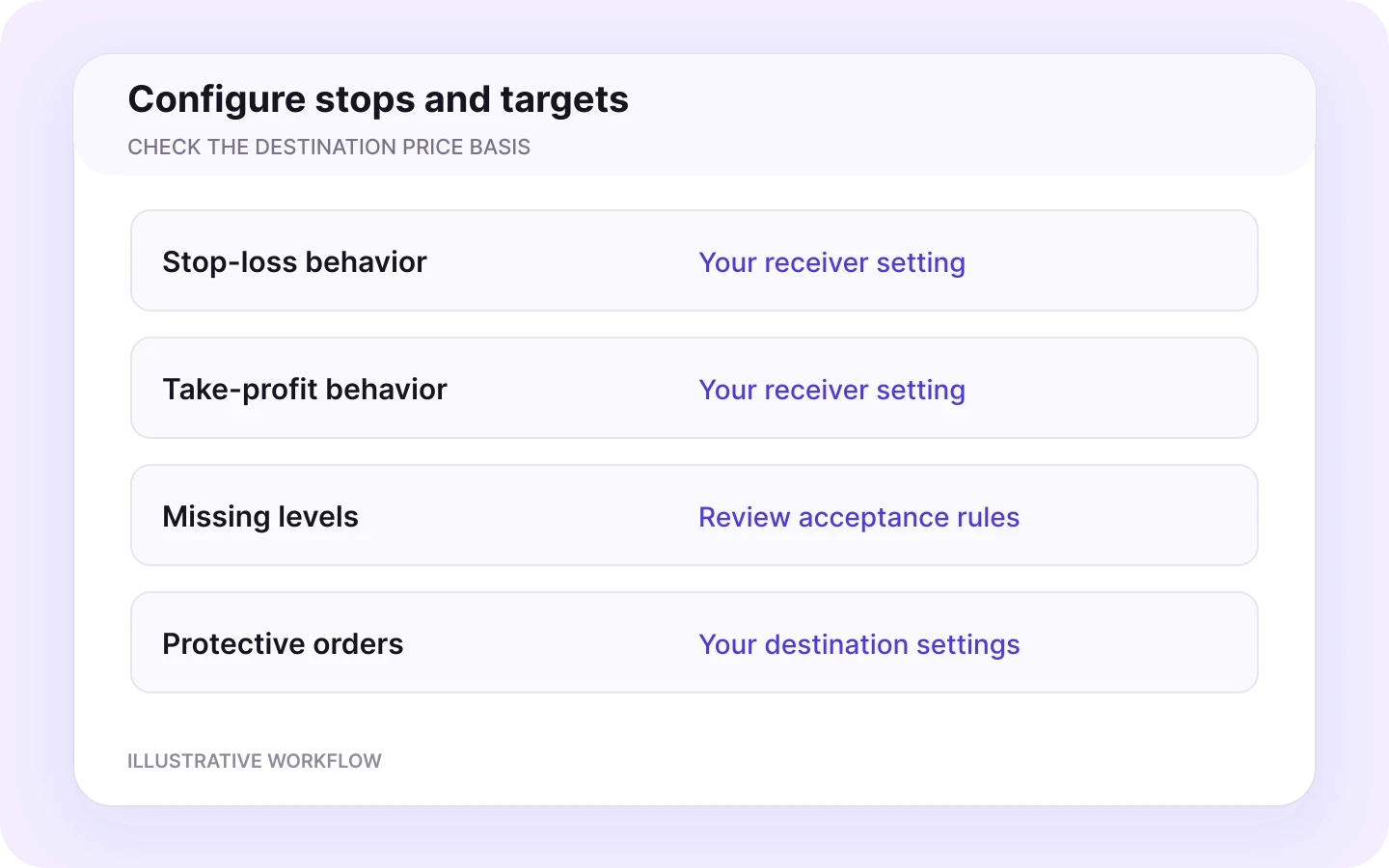
Configure stop-loss and take-profit behavior, including whether to accept an instruction without those levels. Set protective orders using the destination instrument’s price basis and your receiver settings.
Stop loss
Take profit
Destination prices
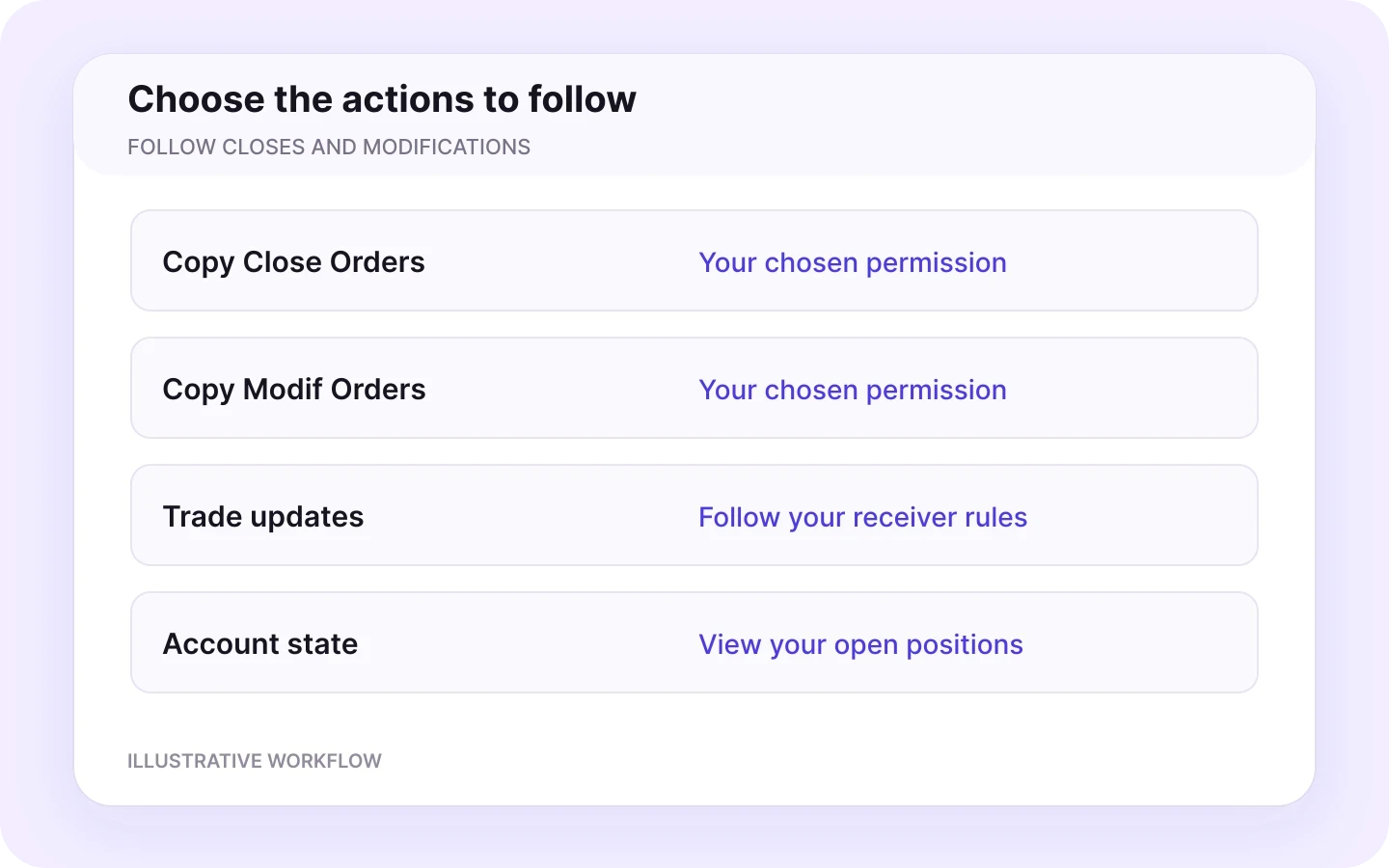
Close and modification controls
Enable Copy Close Orders and Copy Modif Orders for the actions you want to follow. Reuse the original signal_id in targeted management alerts. Close opposite orders is a receiver setting.
Close permissions
Trade modifications
Full lifecycle
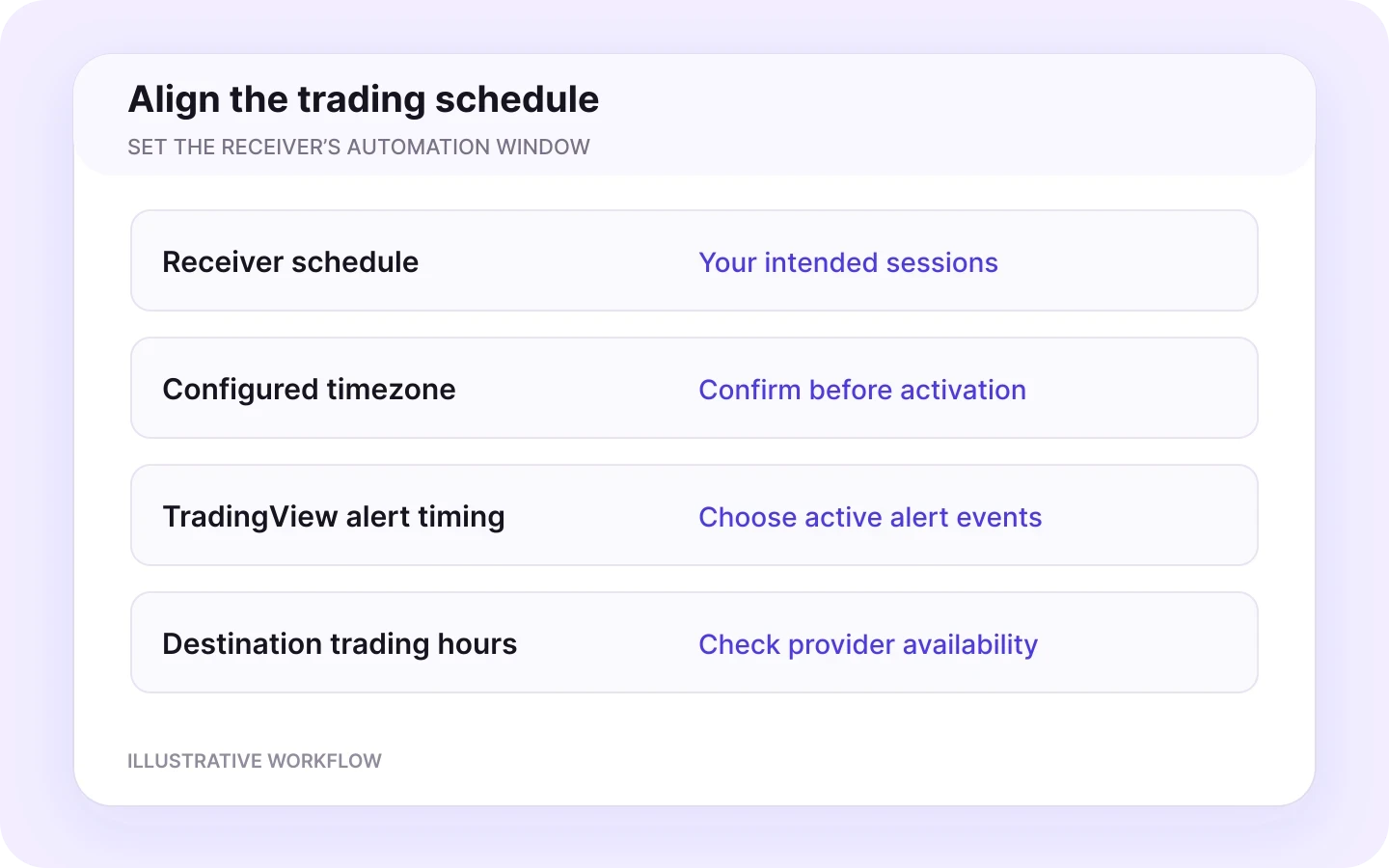
Trading schedule and timezone
Choose your receiver’s schedule and timezone. Align the automation window with the market sessions and TradingView alert events you want to follow.
Trading schedule
Timezone
Market hours
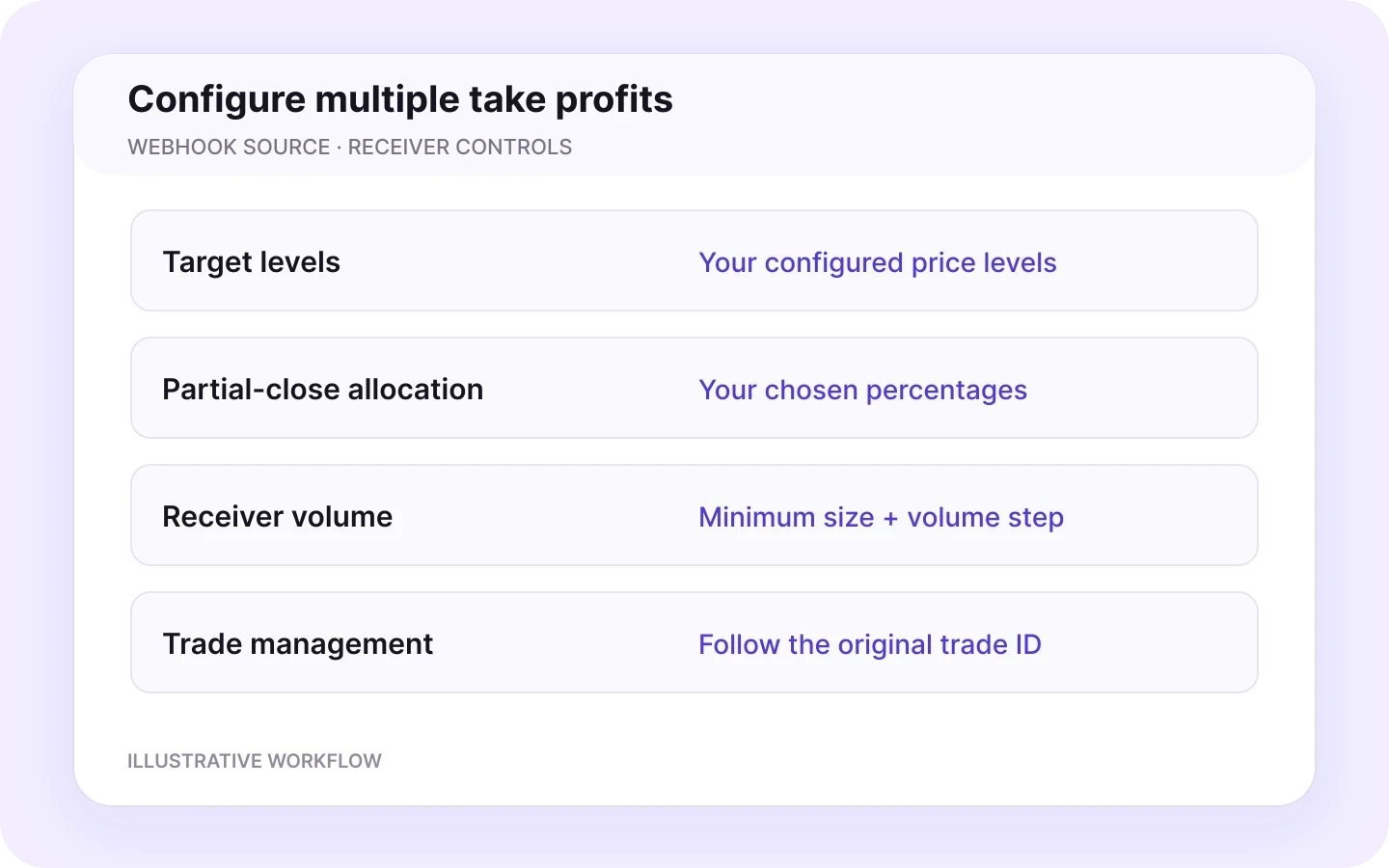
Multiple take-profit controls
Set multiple take-profit levels and percentage-based partial-close allocations for webhook signals. Configure the allocations using your OANDA instrument’s quantity, minimum size and volume precision.
Partial-close allocations
Your allocation
Volume steps
Monitor your automation
Follow the alert from TradingView to OANDA
Use your TradingView alert log, Copygram room and receiver history to follow the complete automation workflow.
TradingView alert source
Manage your active TradingView alerts and Copygram webhook connector. Review the selected condition, webhook URL and message for the instruction being sent.
OANDA receiver
Manage the OANDA API connection, Live/Practice environment and selected receiver account in Copygram. Give every receiver its own mapping, sizing and management settings.
Room activity
Follow the webhook source, connected receivers and room activity in Copygram. Keep the room active to route your TradingView instructions automatically.
Filters and schedule
Review symbol filters, the trading schedule and optional AI Trade Validation if enabled for your receiver.
Symbol mapping and size
Follow the alert symbol, mapped OANDA instrument, resulting order quantity and protective levels. Use receiver sizing and lot exceptions to define the intended size.
Entries, closes and updates
Use the original signal_id to follow a trade’s opening, modifications and closes alongside the receiver settings applied by Copygram.
Keep your automation in view
Follow the TradingView alert log, Copygram processing log and OANDA account history to see the complete alert-to-order workflow.

More TradingView integrations
Explore more TradingView integrations
Connect your TradingView alerts to other platforms with dedicated guides for webhook setup, mapping and receiver settings.


TradingView to NinjaTrader
Send TradingView alerts to NinjaTrader futures accounts with independent contract and receiver settings.

TradingView to MetaTrader
Send TradingView alerts to MetaTrader with independent receiver settings.
TradingView to Tradovate
Send TradingView alerts to Tradovate with independent receiver settings.

TradingView to TradeLocker
Send TradingView alerts to TradeLocker with independent receiver settings.

TradingView to Binance Futures
Send TradingView alerts to Binance Futures with independent receiver settings.

TradingView to MatchTrader
Send TradingView alerts to MatchTrader with independent receiver settings.

TradingView to DXtrade
Send TradingView alerts to DXtrade with independent receiver settings.
FAQ
TradingView to OANDA: frequently asked questions
Answers about webhooks, Pine alerts, trade identifiers and OANDA receiver controls.
Can TradingView alerts place trades on OANDA?
Yes. Copygram receives TradingView webhook alerts and routes trade instructions to your connected OANDA receiver. Configure symbol mapping, position sizing and trade-management controls for each account. Live and Practice accounts are supported.
How do I connect TradingView to OANDA?
Connect OANDA in Copygram with API Key, choose Live or Practice and select the receiver account. Create a webhook under Connectors → TradingView and use it as a room’s source. Add the OANDA receiver, paste the webhook URL into your TradingView alert, configure the message and receiver settings, then activate the room.
Which TradingView plan and settings do I need?
Use a TradingView plan that includes webhook notifications and enough alerts for your strategy. Enable two-factor authentication on TradingView and add your private Copygram webhook URL to the alert’s notification settings.
Do I need to write Pine Script?
You can use an existing indicator or strategy that supplies suitable alert events and an actionable message. Pine Script lets you define custom alert logic and dynamic messages. Choose the event that represents your intended trade instruction.
Do webhook alerts need my computer or a VPS to stay on?
TradingView runs active alerts on its servers, and Copygram handles webhook routing in the cloud. Your browser and a personal VPS do not need to remain running for this webhook workflow. Keep your alerts active and your account connections configured.
What OANDA details does Copygram request?
Enter your OANDA personal access token in API Key, choose Account Type (Live/Practice), then use Account Selection to choose the receiver. Enter the token in Copygram’s connection flow. Your TradingView alert message contains trade instructions, not the token.
What should a TradingView webhook message contain?
Include a clear action, order type, symbol and volume. The documented volume is in lots; entry, stop-loss and take-profit values are prices. Add signal_id when later alerts will manage the trade. Copygram uses intent-based parsing without requiring one rigid JSON schema.
How do I use signal_id for modifications and closes?
Assign an original signal_id when opening a trade and reuse it in every later alert that modifies or closes that specific trade. Give each new trade its own ID and enable the corresponding close and modification controls in the receiver settings.
Can I configure multiple take-profit levels?
Yes. Copygram provides multiple take-profit controls for webhook sources, including percentage-based partial-close allocations. Configure the targets and allocations using your OANDA instrument’s order quantity, minimum size and volume precision.
How do symbol mapping, lots and OANDA units work?
Map the symbol in the outgoing TradingView message to the exact OANDA instrument, such as the illustrative GBPJPY → GBP_JPY mapping. Copygram’s documented webhook volume uses lots; OANDA’s v20 API expresses order quantity in units. Configure receiver sizing and symbol-specific lot exceptions using the selected instrument’s specifications. Lot exceptions take priority over general money-management settings.
How should I configure Pine strategy alerts?
Choose the order-fill event or alert() call that represents the instruction you want to send. For strategy order messages, TradingView supports {{strategy.order.alert_message}} in the alert Message field. Recreate the running alert after changing the relevant script, inputs or chart context.
Can one TradingView source send trades to multiple OANDA accounts?
Yes. A Copygram room connects one TradingView source to one or more receivers within your plan’s allowance. Add each OANDA receiver, select its Live or Practice environment and account, and give it independent mapping, sizing, trade-management and scheduling settings.